4. AC outlet
The UPS provides outlets for connected equipment to insure temporary uninterrupted operation during a power
failure and against surges and spikes.
5. Input Circuit Breaker(Only for 1000 model)
The circuit breaker provides overload protection.
6. USB COMM. Port
This port allows connection and communication from the USB port on the computer to the UPS unit
DEFINITIONS FOR ILLUMINATED LED INDICATORS
On Off Normal
Flash Beep 1 time In Every 30 Seconds Utility Failure-The UPS is providing battery power to outlets.
Flash Beep 1 time In Every 2 Seconds
Utility Failure-
The UPS is providing battery power. The rapid beeps indicate the
battery will run out of power shortly.
On/Flash Beep 1 time In Every 0.5 Second
Overload-Occurs when connected equipment exceeds the rating of the unit.
Turn the UPS off and unplug at least one piece of equipment from the UPS.
TECHNICAL SPECIFICATIONS
Capacity (VA/W) 650/360 850/480 1000/600
On Battery Output Voltage 220–240Vac
On Battery Output
Frequency
50 Hz+/-1%
Overload Protection Breaker / Fuse
84x159x252 100x 189x325
Weight 3.8kg
Sealed Maintenance Free
Lead Acid Battery
CB12-7(M)x1 CB12-8(M)x1 CB12-7(M)x2
Typical Recharge Time 8 Hours
Indicators Power On/ Using Battery
Audible Alarms On Battery, Low Battery, Overload, Fault
Operating Temperature 0°C to 40°C
Operating Relative
Humidity
0 to 90%
Management
Auto-Charger
Yes
Auto-Restart
Yes
USB COMM.Port Yes, with HID support
TROUBLE SHOOTING
The UPS does not perform
expected runtime.
Batteries are not fully charged.
Battery is slightly worn out.
Recharge the battery by leaving the UPS plugged in.
Contact Technical Support.
The unit is not connected to an
AC outlet.
The unit must be connected to a 220-240V outlet.
The UPS will not turn on.
Contact Technical Support.
Mechanical problem. Contact Technical Support.
Outlets do not provide
power to equipment
Fuse is blown or breaker is
tripped due to overload.
Turn the UPS off and unplug at least one piece connected equipment.
Unplug the power cord of the UPS then replace the blown fuse with a sp
one or press the circuit breaker knob. Connect power cord
on. Make sure that your spare fuse meets the specification.
Batteries are discharged Allow the unit to recharge for at least 4 hours.
Unit has been damaged by a
surge or spike.
Contact Technical Support.
SOFTWARE DOWNLOAD
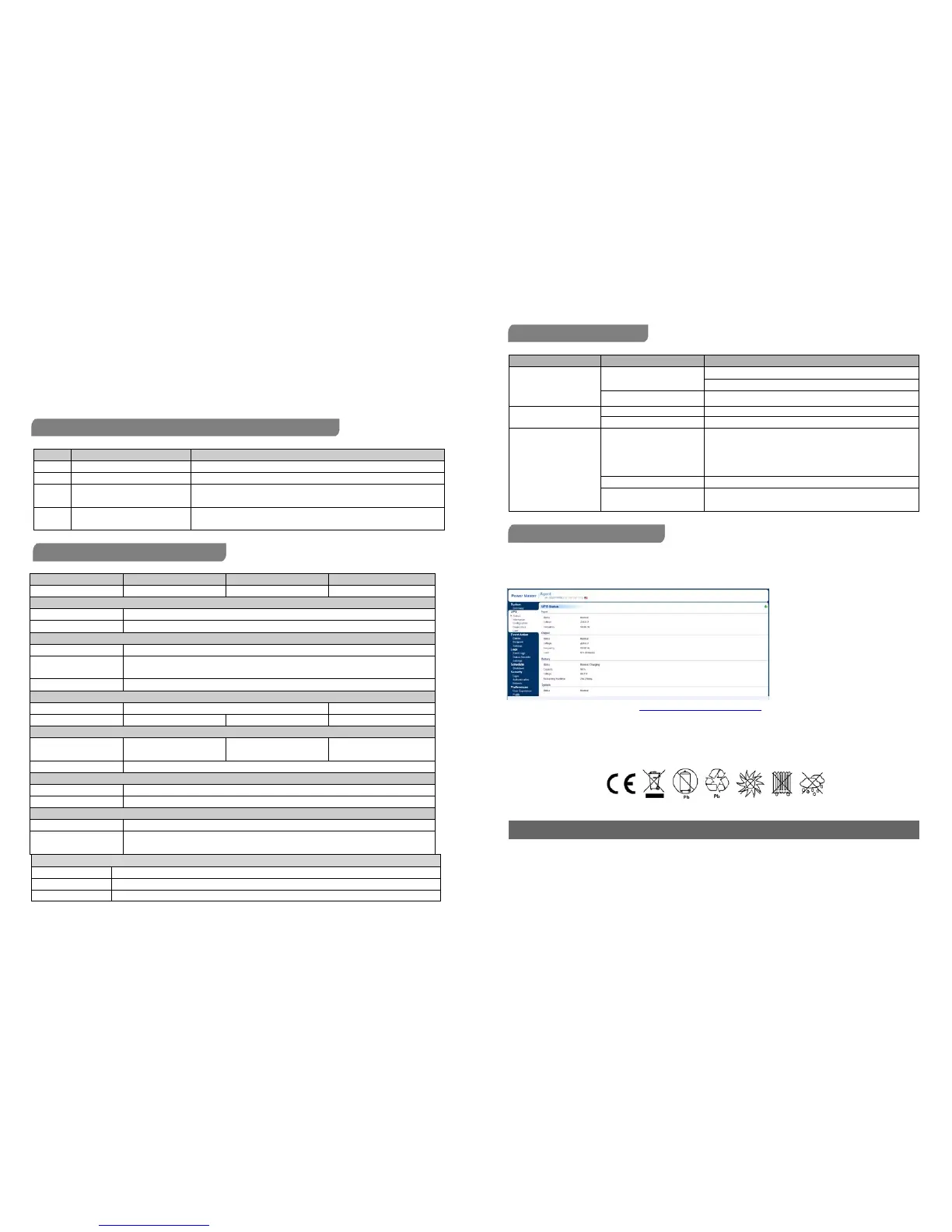
PowerMaster management software provides a user-friendly interface for your power systems. The graphic user interface is intuitive and
displays essential power information at a glance. Please follow procedure below to install the software.
Installation procedure:
1.Download PowerMaster from the website: http://powermaster.powerwalker.com/
2. Double-click the file and follow the installation steps.
When your computer restarts, the Power Master software will appear as a blue icon located in the system tray.
K01-C000309-01
All rights reserved. Reproduction without permission is prohibited




 To Next Page