09
Note: If the extender doesn’t connect to the router, the
Status LED keeps lits red and the extender’s new WiFi
network name doesn’t change to “Prescitech
X12_2.4G_EXT or Prescitech X12_5G_EXT”, you
might type the incorrect password during on step 5.
Note: Place the extender in an elevated location and
minimizing the number walls and ceilings between the
router and your other devices.
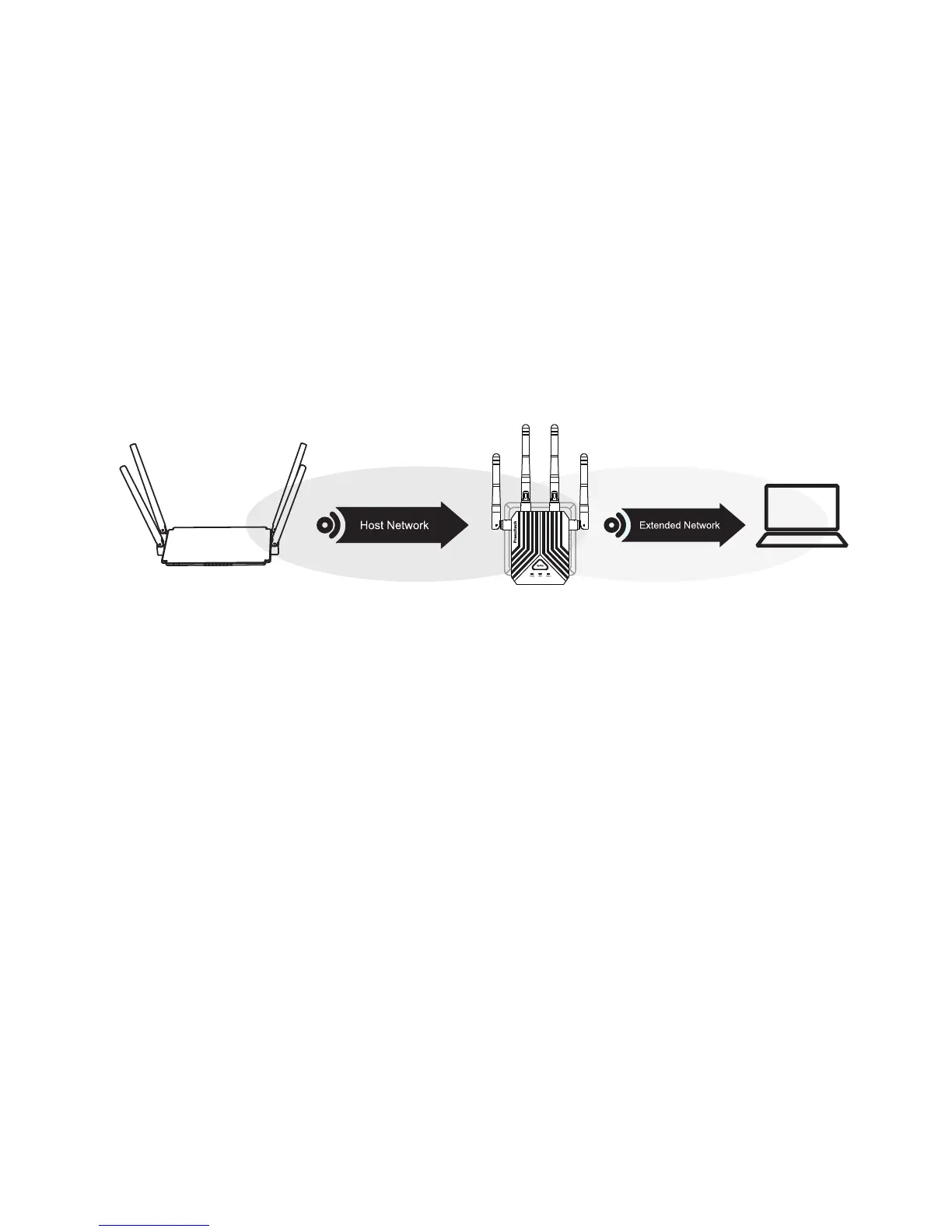
7) Unplug the extender and move it to a new location
that is about halfway between your router and the area
with a poor router WiFi signal.
The location that you choose must be within the range of
your existing WiFi router network.
Use the Status LED to help you choose a spot where the
extender-to-router connection is optimal.
8) If the Status LED lits amber , plug the extender into an
outlet closer to the router and try again. Keep moving the
extender to outlets closer to the router until the Status
LED lits blue.
Host Wi-Fi



 To Next Page