CONTROLS AND CONNECTIONS
18 | PreSonus 2007
3.1 FP10 CONTROL PANEL
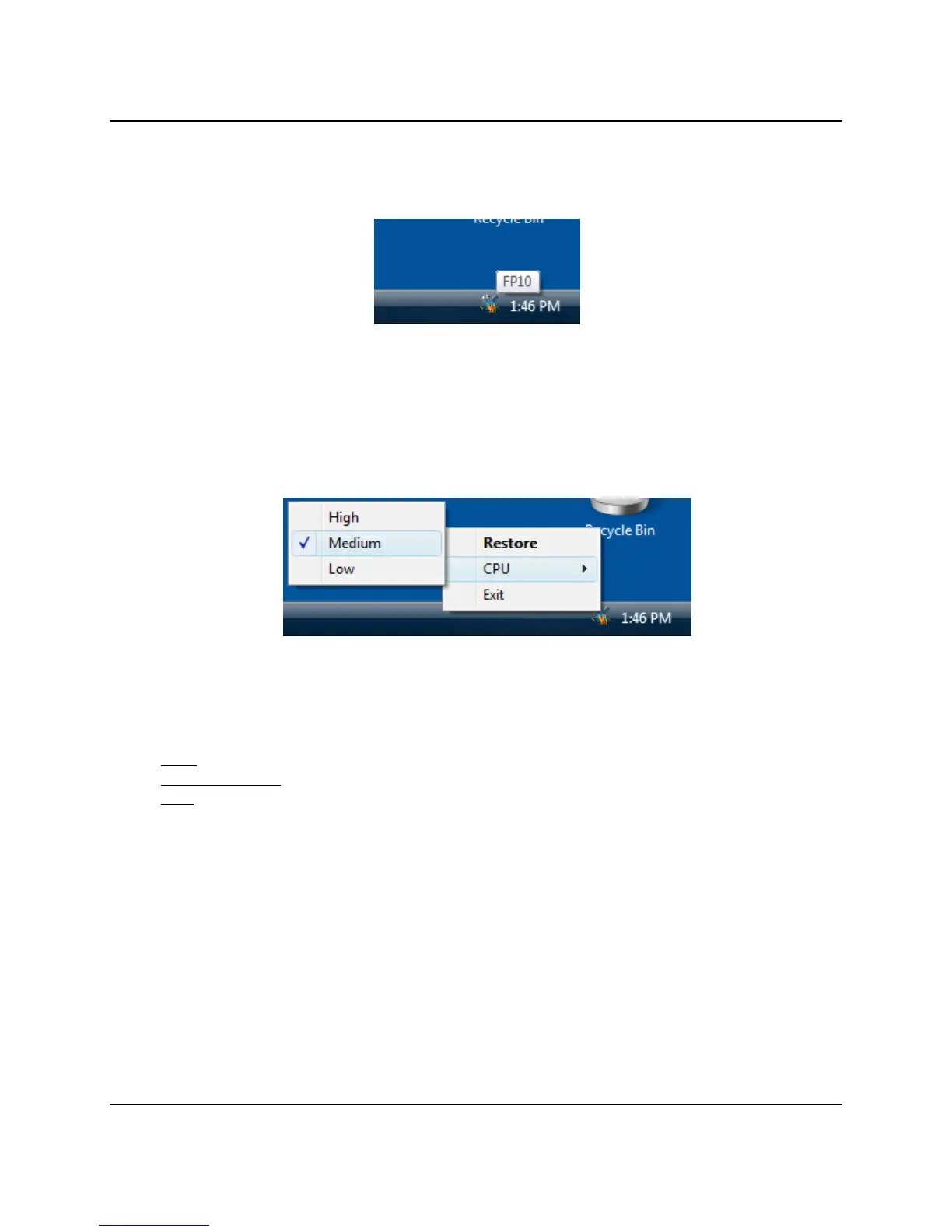
Once you have successfully installed your FP10, the FP10 Control Panel will be available from your system tray
(typically at the bottom right corner of your screen near the clock).
Right-click the FP10 icon to access the FP10 Advanced Settings menu. Double-click on the FP10 icon to open
the FP10 Hardware Control Panel.
3.1.1 FP10 Advanced Settings
Right-click on the FP10 Control Panel icon to select between three different computer optimization settings.
These settings optimize the buffers and audio streaming settings based on the speed of your processor.
If you are experiencing audio drop outs, it is recommended you select a different CPU setting.
• High.
Typically for 2GHz and higher processor speeds.
• Medium (default).
Typically for 1GHz to 2GHz processor speeds.
• Low.
Typically for 800MHz to 1GHz processor speeds.


 To Next Page