Studio One ArtistQuickStart
Creating a New Song
Quantum 2626
Owner’sManual
6.3.2
Creating Audio and MIDI Tracks
创建音频和
MIDI
音轨
1.
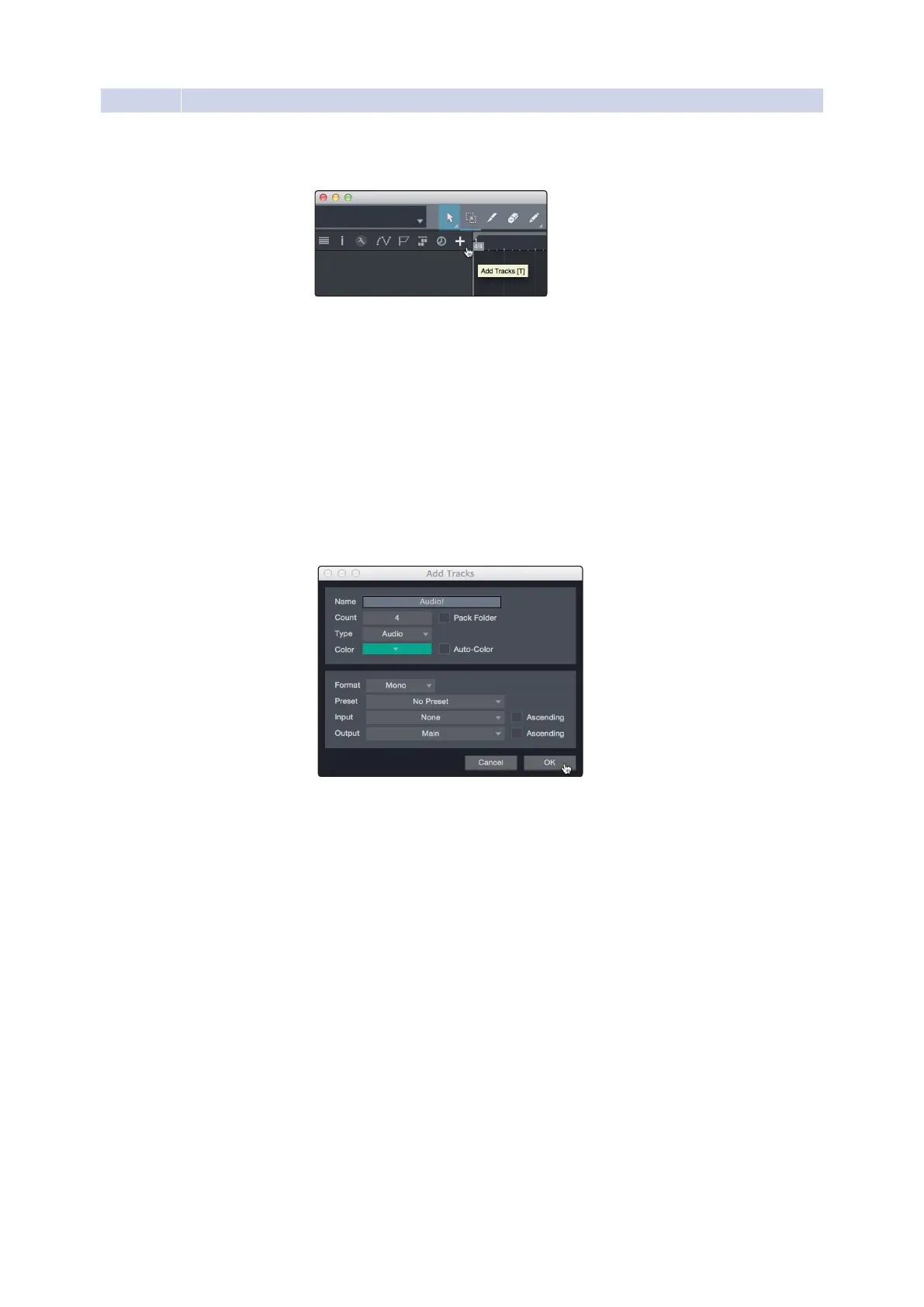
In the upper left corner of the Arrange window, you will notice
several buttons. The button furthest to the right is the Add Tracks
button. Click on this button to open the Add Trackswindow.
在编曲窗口的左上角,你会注意到几个按钮。最靠右的按钮
是
"Add Tracks"
按钮。点击这个按钮,打开
"Add Tracks"
窗
口。
2.
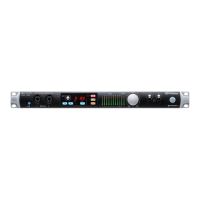
In the Add Tracks window, you can customize the track name and
color, add a preset rack of effects, and set the physical source for
the input and output of your audio tracks. Most important, you
can select the number and type of tracks you’d like to create.
在
" Add Tracks"
窗口中,你可以自定义音轨名称和颜色,添
加预设的效果器,并为音轨的输入和输出设置物理源。最重
要的是,你可以选择你想创建的轨道的数量和类型。
•
Audio.
Use this track type to record and playback audio files.
•
Instrument.Use this track to record and playback MIDI data to
control external MIDI devices orVirtual Instrument plug-ins.
•
Automation.This track type lets you create automated
parameter controls for your session.
•
Folder.
This track helpsyouto manage yoursessionas
well as to quickly edit multiple tracks at once.
•
Audio.
使用这种轨道类型来记录和播放音频文件。
•
Instrument.
使用这种轨道来记录和播放
MIDI
数据,
以控制外部
MIDI
设备或虚拟乐器插件。
•
Automation.
这种轨道类型,为你的会话创建自动
参数控制。
•
Folder.
这个轨道可以帮助你管理你的会话,以及
一次快速编辑多个轨道。






 To Next Page