StudioOneArtistQuickStart
Creating a New Song
4.3.4 Adding Virtual Instruments and Effects 添加虚拟仪器和效果器
Youcanaddplug-insandinstrumentstoyourSongbydragging-and-dropping
themfromthe browser.Youcanalsodrag aneffectorgroupofeffectsfrom one
channeltoanother,drag incustomizedeffectschains,andinstantly load your
favoritevirtual-instrument presetwithout ever scrolling through a menu.
你可以通过从浏览器中拖放插件和乐器来为你的歌曲添加插件和乐器。你
也可以从一个频道拖动一个或一组效果到另一个频道,拖进定制的效果
链,并立即加载你最喜欢的虚拟仪器预置,而无需通过菜单滚动。
Opening the browser. 打开浏览器
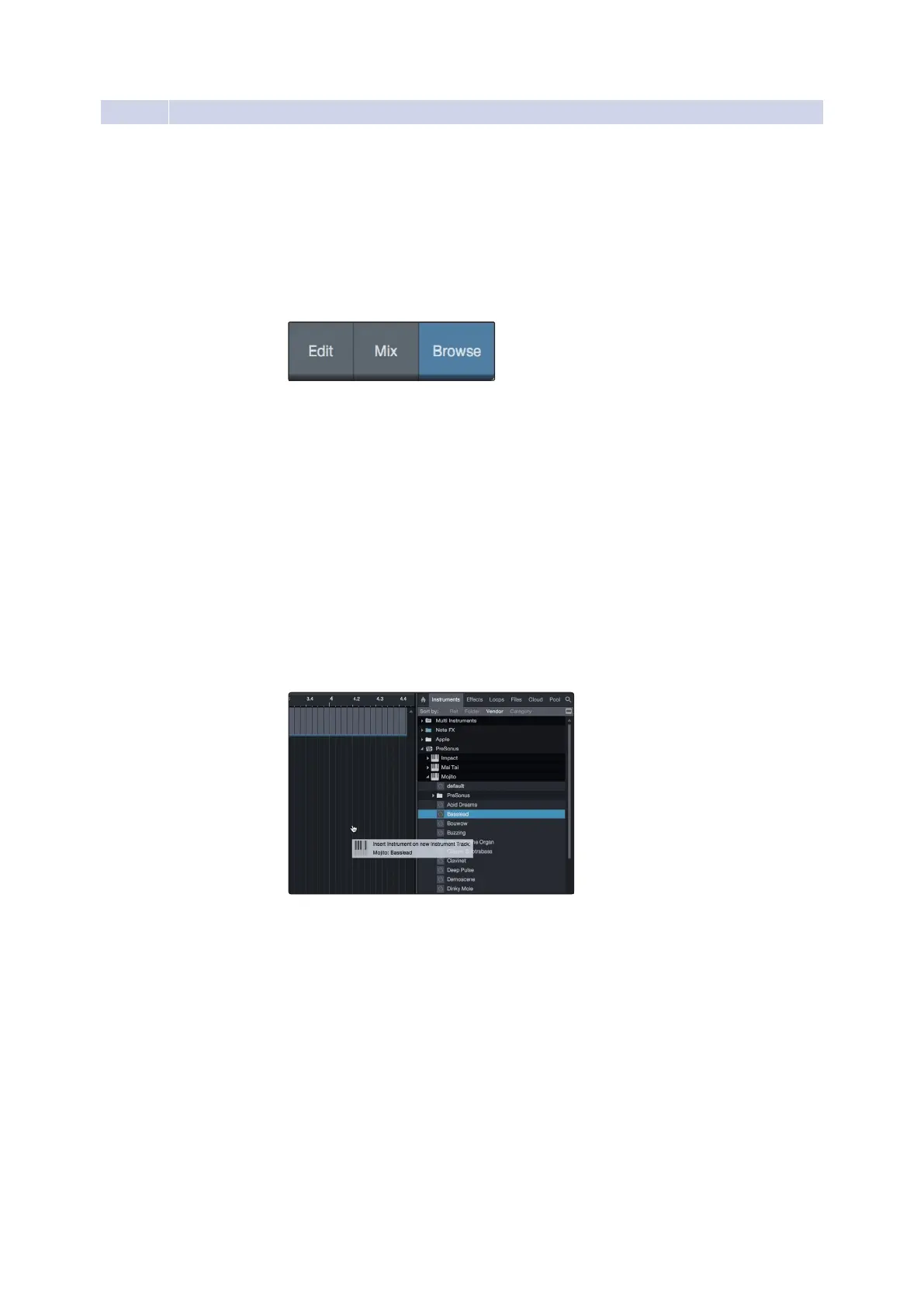
In the lower right corner of the Arrange window are three buttons:
•
The Edit button opens and closes the audio and MIDI editors.
•
The Mix button opens and closes the Mixer window.
•
The Browse button opens the browser, which displays all of the
available virtual instruments, plug-in effects, audio files, and MIDI files,
as well as the pool of audio files loaded into the currentsession.
在Arrange窗口的右下角有三个按钮:
编辑按钮打开和关闭音频和MIDI编辑器。
•Mix按钮打开和关闭搅拌机窗口。
•浏览按钮打开浏览器,显示所有可用的虚拟仪器,插件效果,音频
文件,和MIDI文件,以及音频文件池加载到当前会话。
Drag-and-Drop Virtual Instruments 拖放虚拟仪器
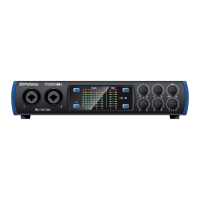
To add a virtual instrument to your session, open the browser and
click on the Instrument button. Select the instrument or one of its patches
from the Instrument browser and drag it into the Arrange view. Studio One
Artist will automatically create a new track and load the instrument as the
input.
要将虚拟仪器添加到会话中,请打开浏览器并单击instrument按钮。从工具
浏览器中选择该工具或其补丁之一,并将其拖放到Arrange视图中。Studio
One Artist将自动创建一个新的轨道,并加载仪器作为输入




 To Next Page