!
First use: install your software
EAGLE uses a Windows O.S. This way it is compatible with all the software for astronomy. You are then free to install EA-
GLE on all the software that you want.
1) EAGLE does not have a CD or DVD integrated player. If you have to install a software on CD or DVD, you may connect the CD
or DVD external reader to a USB port of EAGLE. Then insert the CD or DVD of your software and follow the on-screen instruc-
tions to complete the installation (as if EAGLE were a normal desktop computer).
2) If you have an USB drive software to install: connect the USB stick to a USB port of the EAGLE and follow the onscreen in-
structions to complete the installation (as if EAGLE were a normal desktop computer).
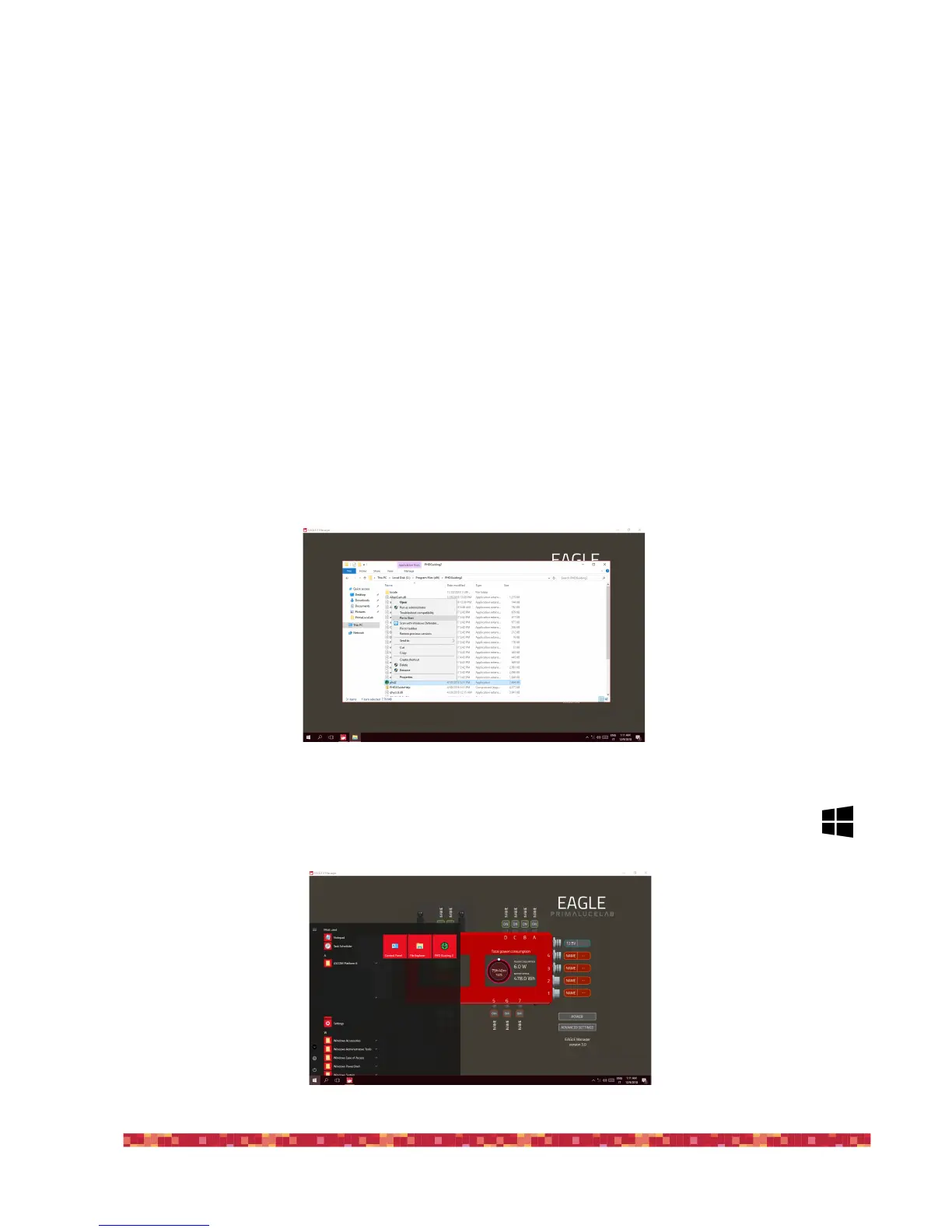
For a better organization of your software and to get quick access to frequently used applications, you can add your soft-
ware to the "START" of Windows. To do this, select your software and do the same movement as to simulate the right
mouse button (place a finger on the screen and without moving it "tap" with another finger on the screen). Select the op-
tion "Add to Start" (picture 14).
The icon of your software will appear in the "START" button that appears pressing the screen bottom left but-
ton (picture 15).!


 To Next Page