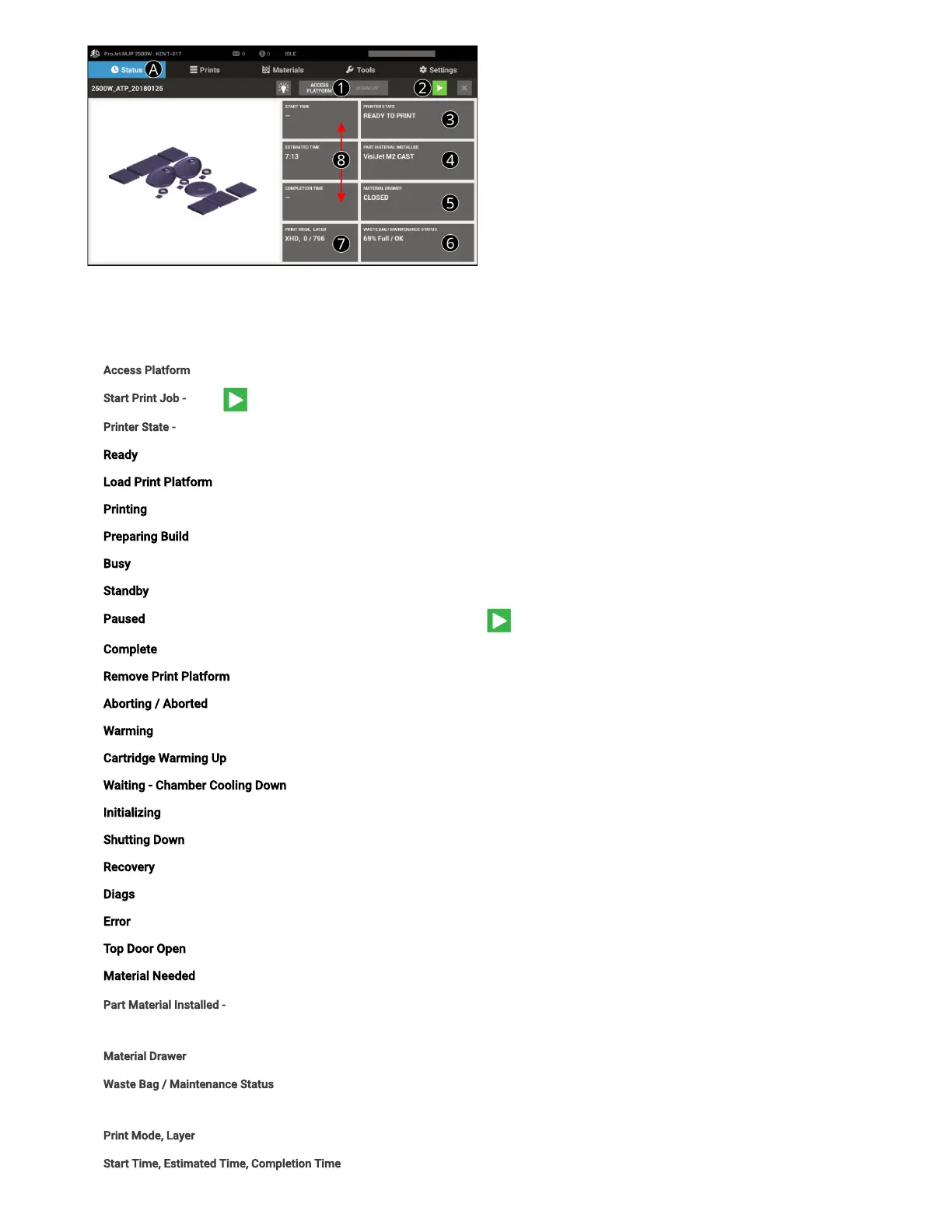
Status Tab (A)
The rst tab on the UI. The following features are accessed under the Status Tab (A). Refer to 1-7 for information that appears on this
screen.The left side tiles describe job status, the right side tiles describe printer status.
1. Access Platform - Pressing this button provides access to the print platform.
2. Start Print Job - Select to start the next print job in the print queue.
3. Printer State - This area identies what state the printer is in at any given time. See below for the various Printer States.
Ready - Printer ready toaccept print jobs.
Load Print Platform - Printer is ready for a clean print platform to be installed
Printing - Printer is printing a job
Preparing Build - Printer is setting up to begin printing
Busy - Printer is performing maintenance
Standby - Printer is in a low power state
Paused - Current print is paused and can be resumed by selecting the button
Complete - Current print is completed and the part can be removed from the printer
Remove Print Platform – Job is complete; access the print platform to remove the part
Aborting / Aborted- Current print isaborting / aborted
Warming- Printer is warming up to a Ready state
Cartridge Warming Up - Printer cartridge(s) warming up to a Ready state
Waiting - Chamber Cooling Down - Printer is waiting for the build chamber to cool down before continuing printing
Initializing - Printer is powering on and going through initialization
Shutting Down - Printer is powering down and will notify the user when it is safe to power off the printer
Recovery - Printer has a fault and is attempting recovery
Diags - Printer is in Diags mode and may require a service call
Error - Printer is in an Error state and may require a service call
Top Door Open - Close the top door in order for maintenance or printing to occur
Material Needed -the printer needs more material in order to print
4. Part Material Installed- Displays material type installed and status (tile changes color if material needs attention). Click on the tile to bring up the
Materials tab.
5. Material Drawer - Displays the state of the Material Drawer - Closed, Locked, Open to help user quickly identify when it is accessible.
. Waste Bag / Maintenance Status- Displays thepercentage and statusof the waste bag and other maintenance items. Click on the tile to bring up the
Operator Maintenance tab.
7. Print Mode, Layer - This area displays the current layer and print mode information.
. Start Time, Estimated Time, Completion Time - Displays the print job printing time information.



 To Next Page