8. View Fault Logs -
A history of fault codes is stored under the Fault History.
9. Unlock Top Door -
This button will allow the top door to unlock if the printer is in a Ready or Error State.
10. Save Job Files -
Allows for USB download of a job le in .mjpddd format
11. Recover Jets -
Advanced jetting recovery tool
5. Operator Maintenance - Selecting Operator Maintenance will bring up a maintenance schedule. Be sure to click on a maintenance item and
Reset the counter once the cleaning has been completed, otherwise a message will appear that the maintenance is over due. Before performing
any maintenance routines the printer must be in a Ready state and a clean print platform must be installed.
6. Save Log - Provides access to printer logs for service.
7.Power Options - Selecting the Power Options button provides access to Printer Shutdown, Printer Restart, Software Restart and Standby. For
shutting down the printer,the recommendation is that the printer always be shutdown through the UI. See Printer Shutdown section for
information.
8. Install Upgrade -Printer rmware can be updated using a USB thumbdrive.
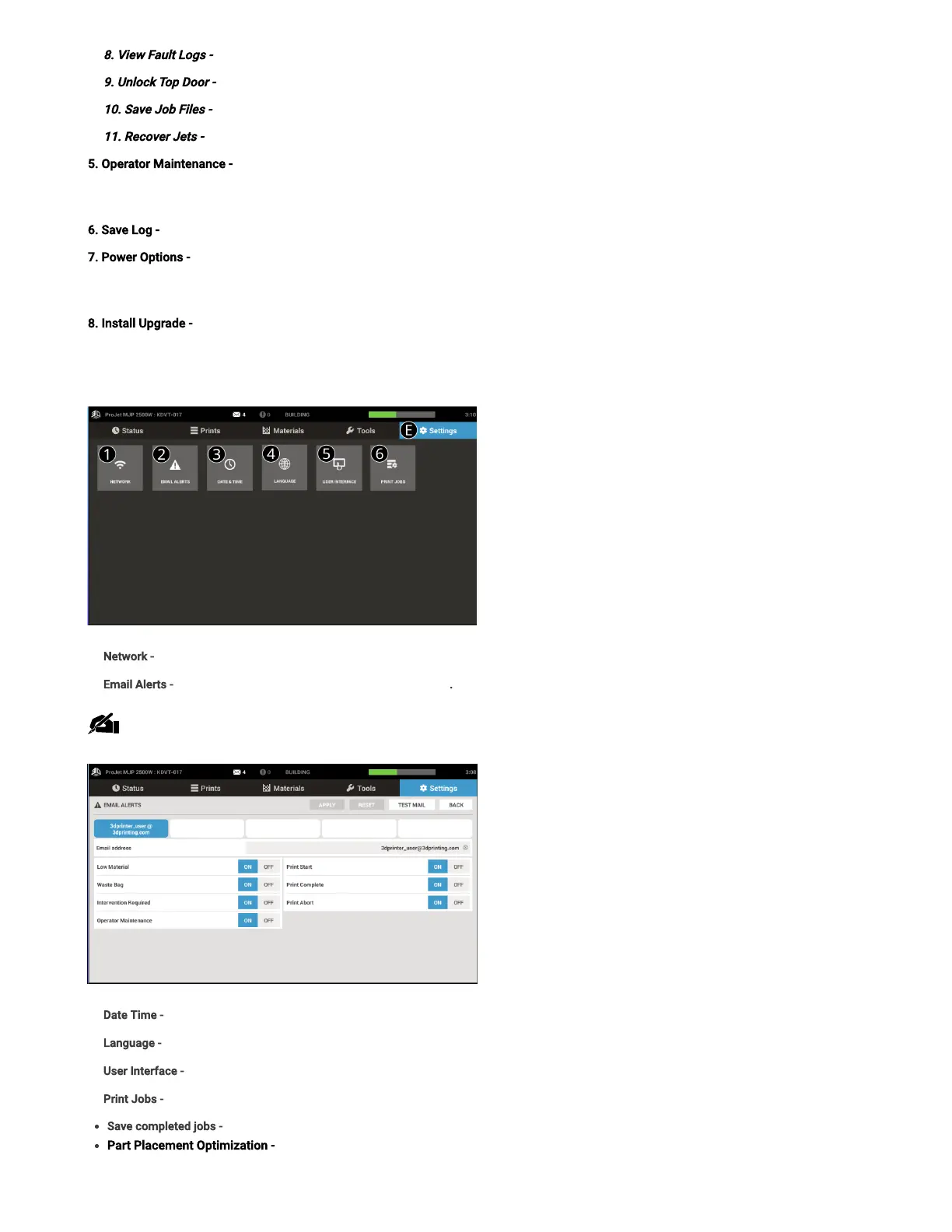
Settings Screen (E)
1. Network- The network settings can be veried through Network Settings.
2. Email Alerts- Set up email alerts to be notied about printer events. Up to 5 email addresses can be added.
Note:Some email clients may block access to this application during email setup. If you experience issues setting up email alerts,
please verify your email provider has not blocked access.
4. Date Time- To change or setup the date and time click on Date Time Settings.
5. Language- Select language to display on UI.
. User Interface - Controls the UI brightness level andinformation about the UI itself.
7. Print Jobs -
Save completed jobs -Enable or disable this feature for the ability to reprint jobs
Part Placement Optimization - Part placement optimization is suggested for printers running a high number of single lane jobs. Enabling this
feature will yield the best print quality throughout the printer’s life.



 To Next Page