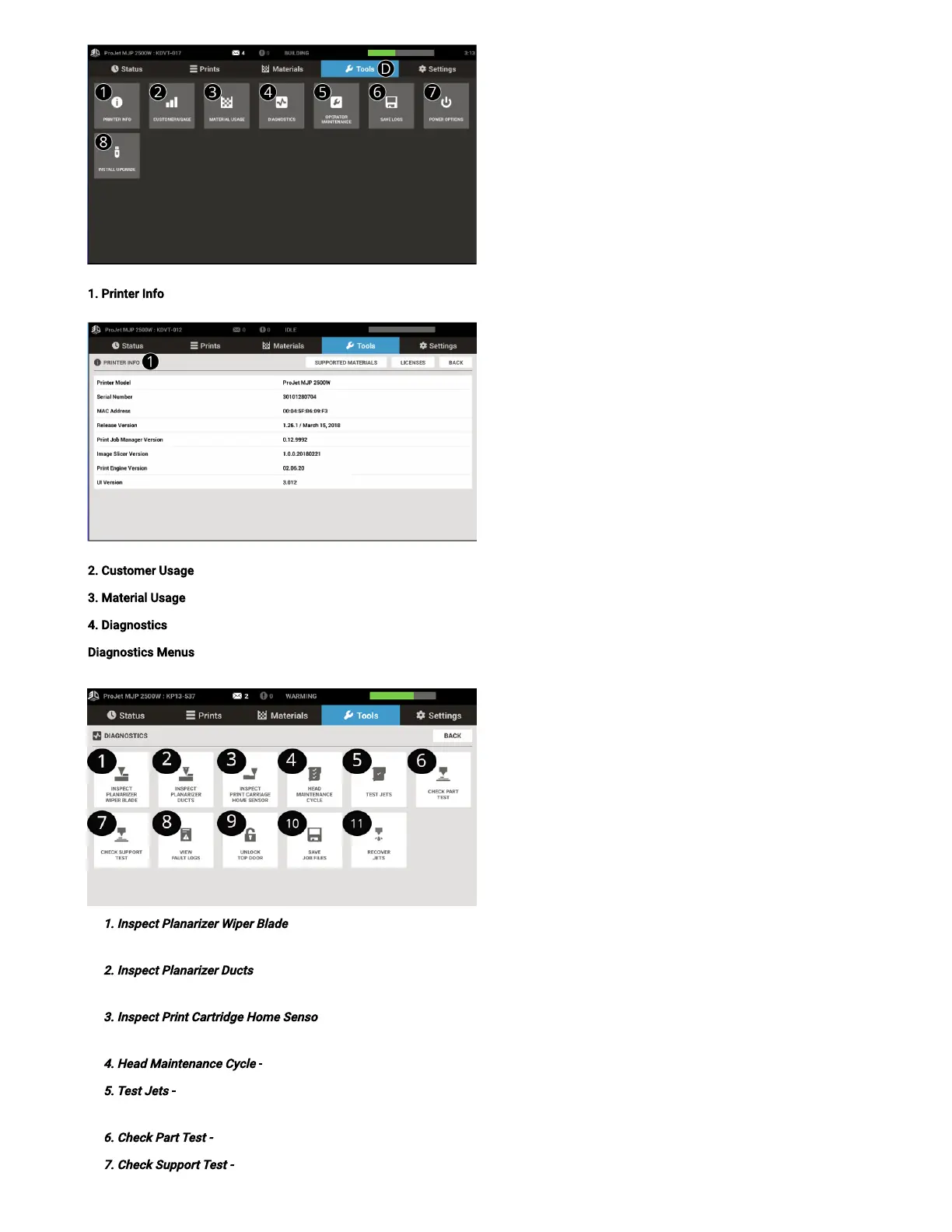
1. Printer Info - Displays printer and version information.
2. Customer Usage- Displays customer’s printer usage.
3. Material Usage – Displays the material and amount using in the printer
4. Diagnostics - Many diagnostic procedures can be run under the Diagnostics button. See Diagnostics Menusbelow for more information.
Diagnostics Menus - Selecting the Diagnostics button under theTools Tab will bring up the Diagnostics screen is where the User performs
routines that help run and maintain the printer.
1. Inspect PlanarizerWiper Blade
- Select this routine toinspect the planarizer blade for excess buildup. See Inspect PlanarizerBlade
procedure in theMaintenance section.
2. Inspect PlanarizerDucts
- This is a routine that will allow the user to inspect and clean the ducts in the planarizer. See Inspecting and
Cleaning Planarizer Ducts procedure in theMaintenance section.
3. Inspect Print Cartridge Home Sensor
- This routine will allow the user to access the optical home sensors for cleaning. See Clean Print
Carriage Optical Home Sensor procedure in the Maintenance section.
4. Head Maintenance Cycle
- Printhead maintenance routine used for basic jet recovery
5. Test Jets
- This is the routine that is used to verify that the jets are all jetting material properly. See Conrm Jets procedure in
theMaintenance section.
6. Check Part Test -
Diagnostic test routine. Run this test as requested by your service representative.
7. Check Support Test -
Diagnostic test routine. Run this test as requested by your service representative.



 To Next Page