EN 22
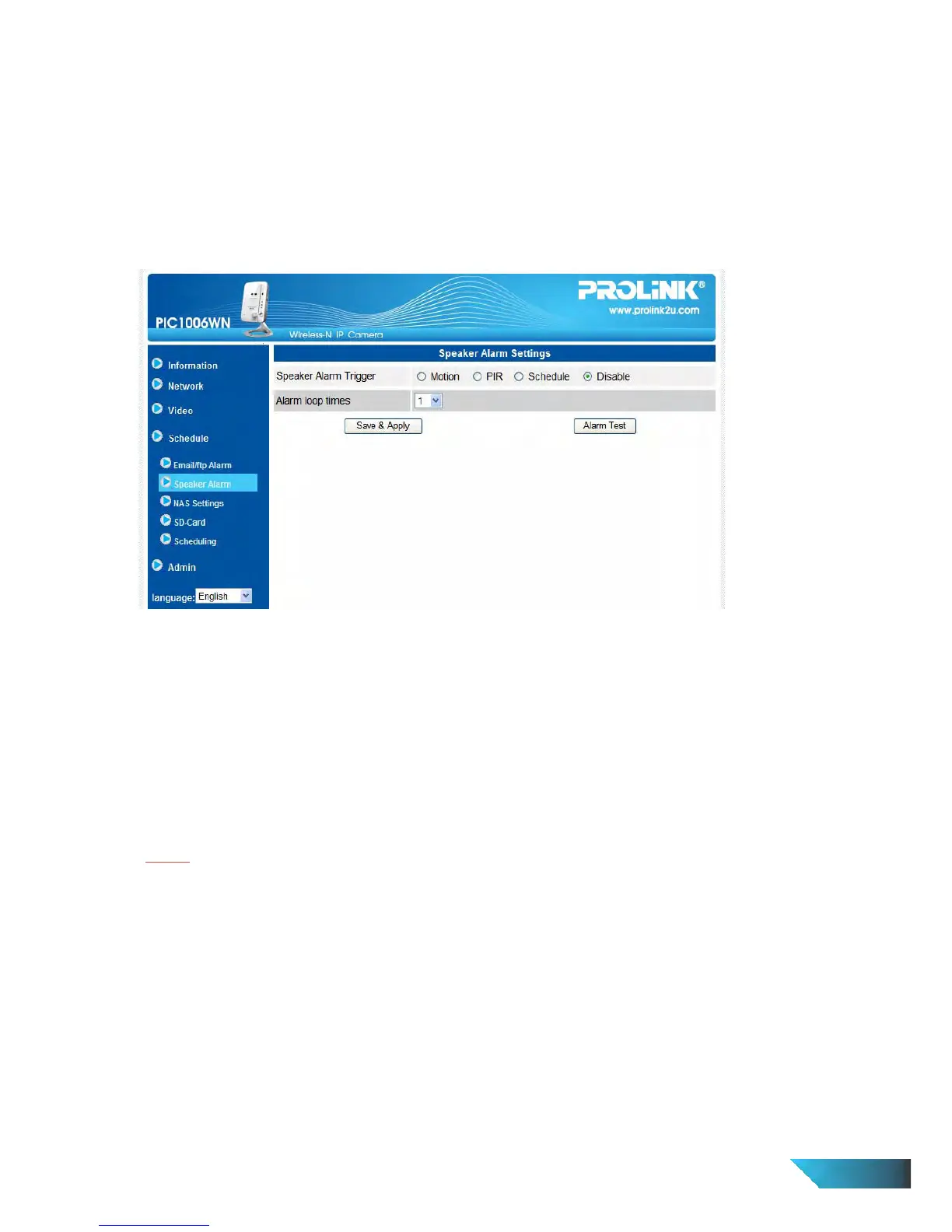
3.10. Speaker Alarm Settings
The IP Camera provides speaker alarm function, a PIR or video motion detection could trigger the speaker alarm. The
duration of the alarm could also be set. The related settings are explained below:
1. Speaker alarm trigger– select the trigger mode of the speaker alarm
a. A. Motion trigger – if this is selected, the speaker alarm signal will be active when video motion is
detected. The detection sensitivity is set In the “motion detection” page.
b. B. PIR trigger – if this is selected, the speaker alarm will work when the PIR sensor is detected..
c. C. Schedule – if this is selected, the speaker alarm is scheduled according to the settings of scheduling
in section 3.13.
d. D. Disable–disable the speaker alarm.
2. Alarm loop times – this is the number of the loop times of the speaker alarm.
3.11. NAS Settings
The IP Camera provides the recording of the video files into a standard NAS (Network Access Storage) device.
The IP Camera connects to the NAS device using the standard LMX_NS/CIFS/SSN protocols that are the same
as the Microsoft Windows network neighborhood protocols. This makes the IP Camera easily record the video
files to all the standard NAS devices in the market. Since there are a lot of different choices, including prices
and scales, users can decide by themselves which is best for their needs. By using this function, the standard
NAS device is becoming a NVR (Network Video Recorder) device.
Notice
When the IP Camera is doing NAS recording, this is counted as one video user. Please refer to appendix B about
allowed maximum video users.
1. If the “Always Recording” is selected, the system will start to record to the NAS storage device immediately
and keep recording always. If the “Schedule Recording” is selected, the system will do the NAS recording
according to the “scheduling” in section 3.12. “Disable Recording” will disable this NAS recording.
2. When doing the NAS recording, the system will check the free disk space of the NAS device. If the free
disk space is less than the specified number, the system will do “Circular recording” (overwrite the oldest
recorded files of this IP Camera in the NAS device) or “Stop recording” as selected. If the “keep recorded
video for xx days” is selected, the system will do circular recording and over write the recorded video files
older than xx days ago.
3. The IP Camera can connect to the NAS device by using the “NAS name” or “NAS IP address”. If the NAS
device and the IP Camera are in the same local area network, the IP Camera can automatically locate and


 To Next Page