Function List Description Available Option
Format the inserted micro SD card
videos and pictures.
OK - Select this option completes the
format process. All the videos and
pictures will be deleted.
Cancel - Select this to end the format
and return to the previous menu.
Warning: All videos and pictures are
permanently deleted and CANNOT
be recovered once the SD card is
formatted.
Cancel / OK
13
PC 106 HD Dash Cam
Format
Default Setting
Version
Set the dash cam to the original
factory default settings.
Cancel / OK
This option displays the current
firmware version of the dash cam.
This information may be important
for service and support communications.
PC106-20171011
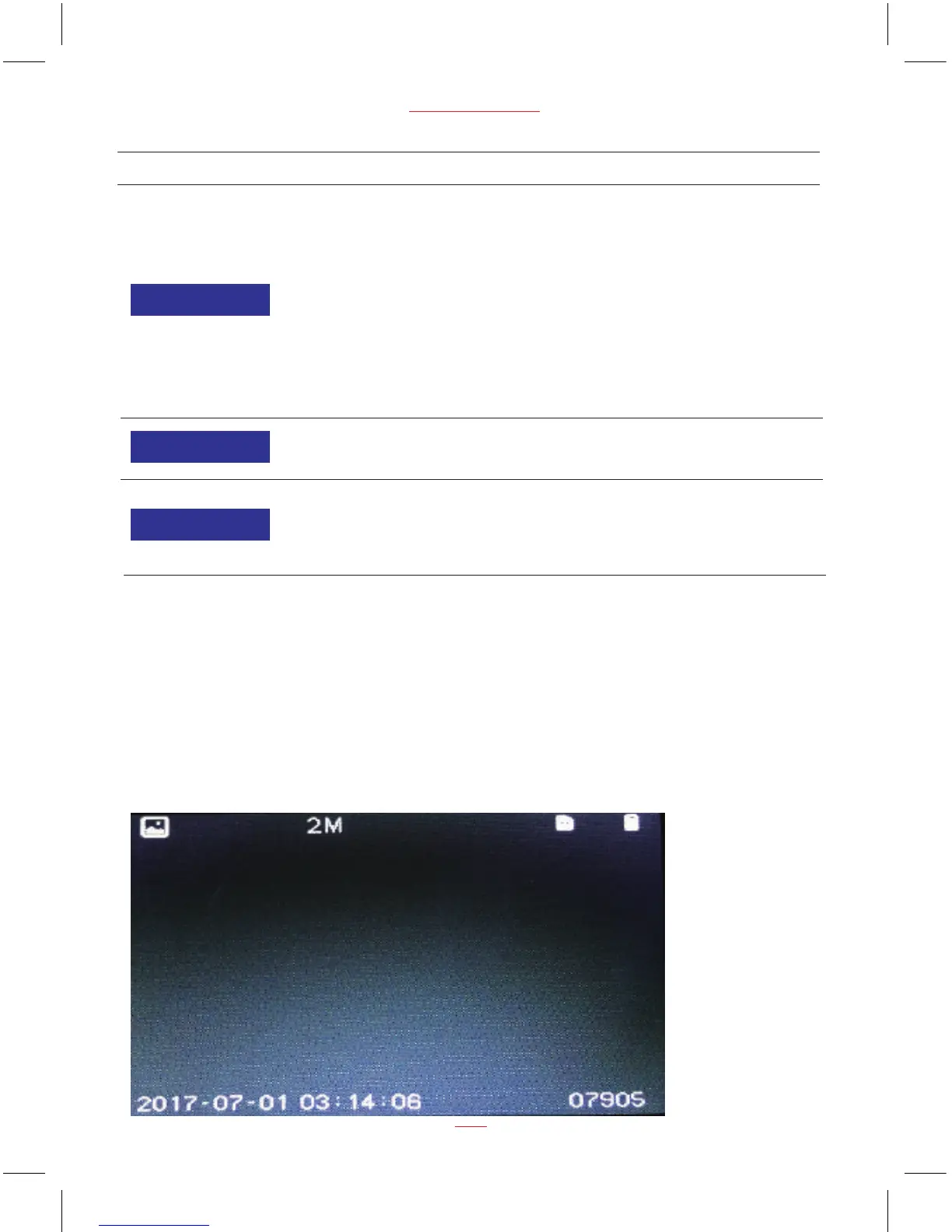
Taking Picture
To take a picture make sure the Still Capture Mode is selected ( press REC/OK button
to stop recording and then press mode button to enter still capture mode). Press the
REC/OK button to take a photo. Photos are saved on the Micro SD Card.
Still Capture Screen


 To Next Page