13
Configuring the Display
The On-Screen Display (OSD) allows you to configure the operation of the LCD. You can change
video and audio settings, activate and configure picture-in-picture (PIP) and closed captioning,
select television channels, control access to mature programming, and configure other general
display behavior.
To use the OSD:
1. Press the MENU button on the remote or the top of the display.
2. Once the OSD appears, use the VOL and VOL buttons to navigate the menus represented
by icons at the top of the OSD.
3. Press the ENTER button to select the desired menu.
4. Use the CH and CH buttons to navigate the menu items.
5. Press the ENTER button to select the desired item.
6. If “ENTER” is displayed next to the item name, a sub-menu will appear upon pressing ENTER.
Repeat steps 4 and 5 to navigate the sub-menu.
7. If the selected item is an adjustable parameter, use VOL and VOL to adjust the
parameter and then press ENTER to accept.
8. Press MENU to return to the previous menu and, finally, exit the OSD.
TV Parameters
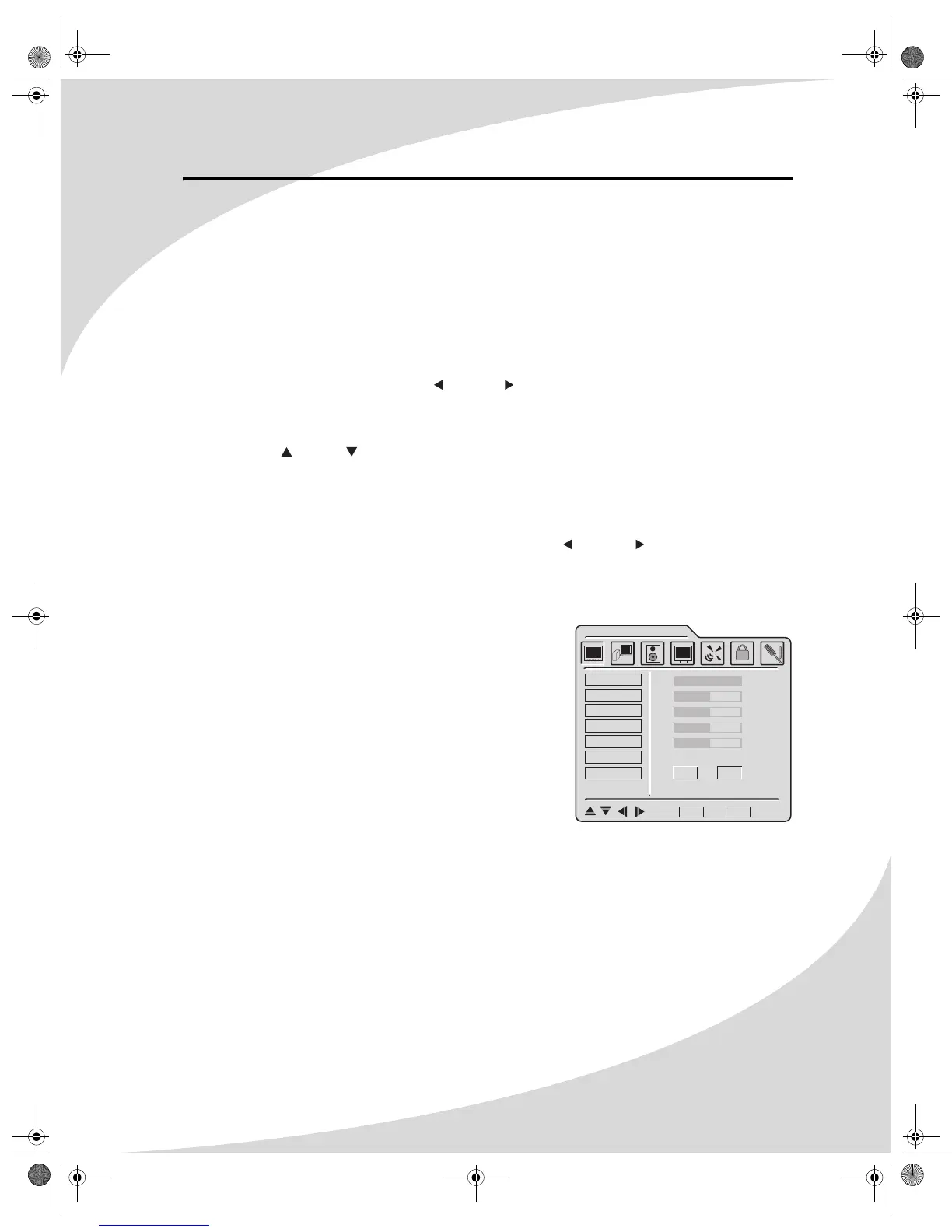
The TV Parameters menu allows you to change the video
options used while watching television. You can adjust the
following parameters.
Brightness
Sets the brightness of the display image.
Contrast
Sets the variation between light and dark colors.
Sharpness
Sets the image sharpness.
Saturation
Sets the saturation of color in the display image.
Hue
Sets the intensity of color in the display image.
TV PARAMETERS
BRIGHTNESS
CONTRAST
SHARPNESS
SATURATION
HUE
COLOR TEMP
FORMAT
100
50
50
50
50
ENTER
4 : 3 FULL
: Select MENU : Exit ENTER : Enter
OMPLTV32C.book Page 13 Thursday, June 2, 2005 9:07 AM



 To Next Page