EasyManua.ls Logo

PROTRON PLTV-32C - User Manual

PROTRON PLTV-32C
36 pages
Print Icon
To Next Page IconTo Next Page
Loading...
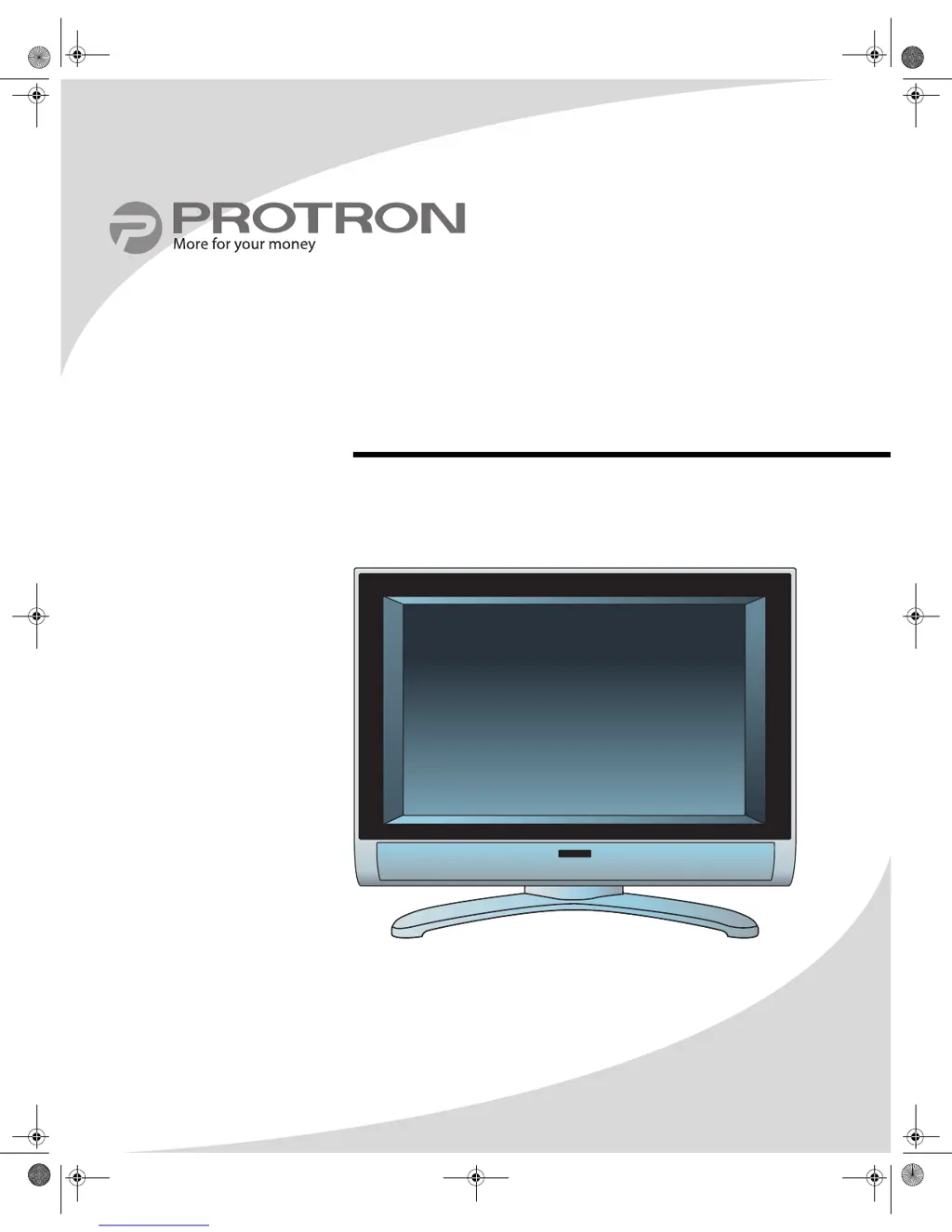
PLTV-32C
32" Liquid Crystal Display
User’s Manual
OMPLTV32C.book Page i Thursday, June 2, 2005 9:07 AM

Questions and Answers

  • D
    Derrick RochaJul 30, 2025
    How to fix a PROTRON PLTV-32C with no picture and no power light?
    • I
      Isaiah YoungJul 30, 2025
      If the PROTRON Monitor shows no picture and the power indicator is off, ensure the power cord is firmly inserted into both the monitor socket and the wall outlet. Also, verify that the power switch is turned on. Finally, check if the power outlet is functioning by plugging another device into it. If the outlet is not working, try turning it on or using a different outlet.
  • L
    Leslie JohnstonAug 6, 2025
    Why is my PROTRON PLTV-32C Monitor remote control not working?
    • P
      Paul KellerAug 6, 2025
      If the remote control for your PROTRON Monitor isn't working, first, ensure the batteries are correctly inserted and properly oriented. If they are, try replacing them with fresh batteries. Check for any stuck buttons and try to unstick them. Make sure there is no obstacle between the remote and the display. Finally, try moving closer to the display.
  • M
    Michael Wagner Jr.Aug 11, 2025
    What to do if my PROTRON PLTV-32C Monitor says “Out of Range”?
    • J
      julie10Aug 12, 2025
      If your PROTRON Monitor displays an “Out of Range” message, it means the VGA or DVI input signal from your computer is not in a supported mode. To resolve this, adjust the resolution and refresh rate on your PC to match a supported mode. You can find a list of supported modes under “Specifications”.
  • G
    gallaghermaryAug 17, 2025
    Why is the image on my PROTRON PLTV-32C Monitor distorted?
    • B
      Barbara VillaAug 17, 2025
      If the image on your PROTRON Monitor appears distorted, the display format might be set incorrectly. Check the TV Parameters or PC Parameters menu in the OSD (On-Screen Display) and ensure that the correct format is selected.
  • J
    Jodi SalasAug 25, 2025
    What causes after-image on PROTRON PLTV-32C after turning it off?
    • K
      Katherine SullivanAug 25, 2025
      If an after-image remains on the screen of your PROTRON Monitor after it's turned off, this is due to the inherent characteristics of the LCD. The after-image should disappear after a few minutes.

Summary

Product Cautions

General Safety Precautions

Essential safety warnings and precautions for handling the display to prevent injury or damage.

Conformity and Compliance

Regulatory Compliance Statements

Information regarding FCC, Canadian DOC, and CE compliance standards for the device.

Introduction

Key Product Features

Overview of the display's notable features and capabilities, including inputs and resolution.

Unpacking Your New Display

Setting Up the Display

Connecting to TV Signal Source

Instructions for connecting external TV signal sources like antenna or cable.

Connecting Composite and S-Video Devices

Guide for connecting video sources using composite and S-Video cables.

Connecting Component Video and Audio Systems

Steps to connect component video sources and peripheral audio systems.

Connecting to PC and Video Input Systems

Instructions for connecting the display to computers and other video input devices.

Operating the Display

Power and Source Management

How to turn the display on/off and select video/audio sources.

Volume and Channel Control

Adjusting audio volume and selecting TV channels using the display or remote.

Accessing the On-Screen Display (OSD)

How to bring up and navigate the On-Screen Display menu for settings.

Using Your Display for the First Time

Initial Television Channel Setup

Guide for scanning and setting up television channels upon first use.

Using the Remote Control

Remote Control Button Functions

Explains the purpose and function of each button on the remote control.

Configuring the Display

TV Picture Parameters

Adjusting picture settings like brightness, contrast, and color for TV sources.

PC Picture Parameters

Adjusting picture settings for PC video sources, including clock and phase.

Audio Settings and Enhancements

Customizing audio output, volume, equalization, and sound enhancements.

Picture-in-Picture (PIP) Modes

Explains Picture-in-Picture, Picture-by-Picture, and Picture-on-Picture modes.

PIP Window Configuration

Setting the position, freeze function, and size of the PIP window.

Channel Management Settings

Managing available TV channels by selecting signal sources and editing channels.

Parental Controls and V-Chip Setup

Implementing parental controls, setting passwords, and managing content ratings.

Closed Captioning and Rating Controls

Configuring closed captioning display and blocking content based on TV PG ratings.

General Display and OSD Settings

Adjusting OSD behavior, language, timeouts, and display information.

OSD Position, Language, and Sleep Timer

Customizing OSD location, language, and setting the sleep timer.

System Reset and Deinterlace Options

Resetting settings to default and configuring deinterlacing for video quality.

Troubleshooting

Common Issues and Resolutions

Solutions for common display problems like no picture, no sound, or distorted images.

Support Information and Contact

Details on obtaining customer support and warranty service information.

Specifications

General Product Specifications

Technical details including dimensions, weight, screen size, and input/output ports.

Supported VGA Timing Modes

List of compatible display resolutions and their corresponding refresh rates.

Limited Warranty

Warranty Terms and Service Procedures

Information on warranty coverage, how to obtain service, and general exclusions.

Warranty Void Conditions and Duration

Conditions that void the warranty and its duration for different screen sizes.

PROTRON PLTV-32C Specifications

General IconGeneral
Display Size32 inches
Resolution1366 x 768 pixels
Screen Size32 inches
Display TypeLCD
Aspect Ratio16:9
Response Time8 ms
Viewing Angle178°/178°
Input PortsHDMI, VGA, USB

Related product manuals