2
= 1+ ()MPLT\ 3-q) b,>,4c Pa;e i(, Tlnu.da_ Febutu_ l(, 21)))(, *J 44 \M _' _'_
_., - - # -.d_-y
+ +
Configuring the Display
The On-Screen Display (OSD) allows you to configure the operation of the LCD. You can change
video and audio settings, activate and configure Picture-in-Picture (PIP) and closed captioning,
select television channels, control access to mature programming, and configure other general
display behavion
To use the OSD:
1. Press the MENU button on the remote or the top of the display.
2. Once the OSD appears, use the _1and I_ buttons to navigate the menus represented by icons
at the top of the OSD.
3. Press the ENTER button to enter the selected menu.
4. Use the A and V buttons to navigate the menu items.
5. Press the ENTER button to select the desired item.
6. If no text is displayed next to the item name, a sub-menu will appear upon pressing ENTER.
Repeat steps 4 and 5 to navigate the sub-menu.
If the selected item is an adjustable parameter, one of two things will happen:
A pop-up box will appear, in which case use 41and I_ to adjust the parameter and then press
ENTER to accept the value.
The parameter will edit in place, in which case use A and V to adjust the value and then press
ENTER to accept. Then press 4 to return to the menu. While editing the parameter, a check
mark will show next to the currently selected value.
7. Press _1to exit a menu.
8. Press MENU to exit the OSD.
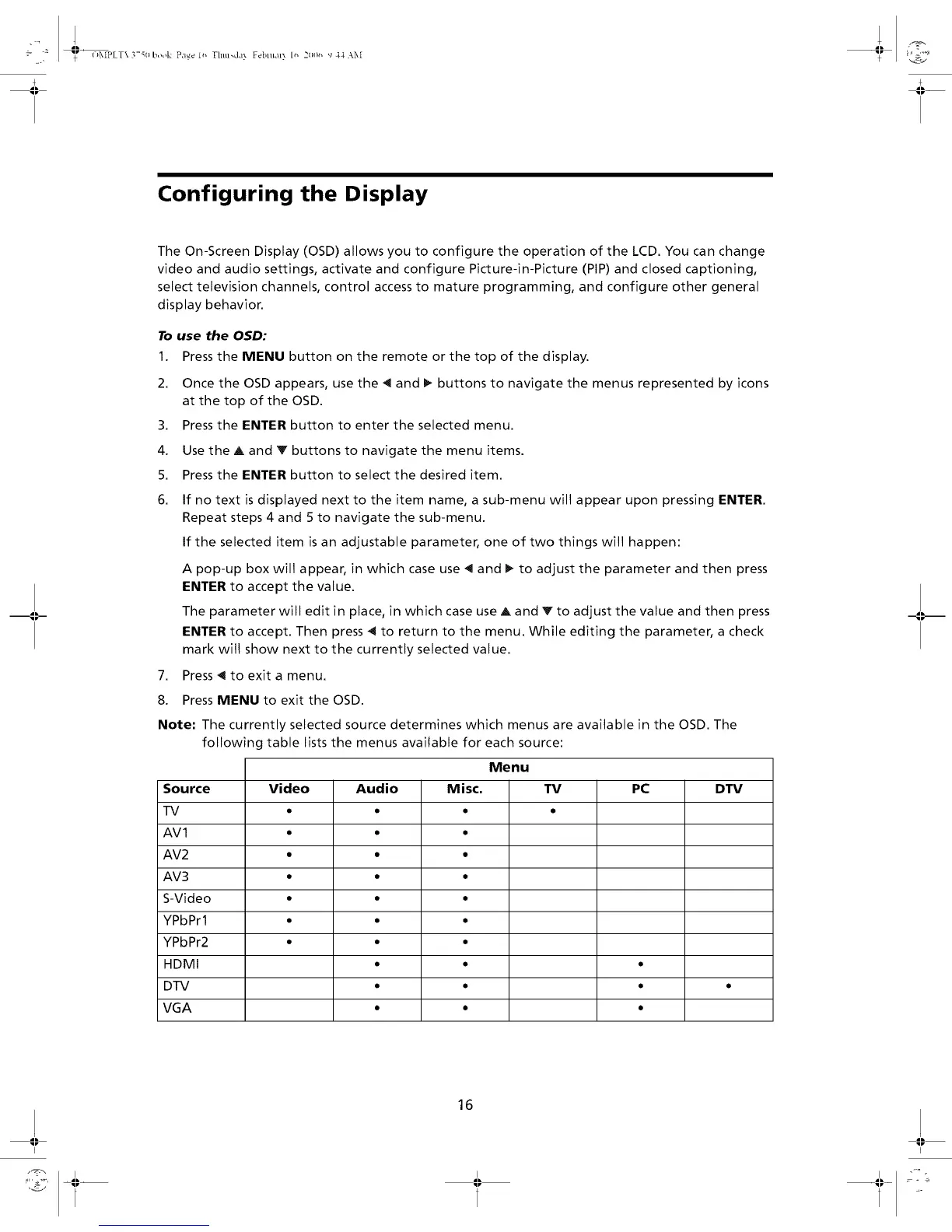
Note" The currently selected source determines which menus are available in the OSD. The
following table lists the menus available for each source:
Menu
Source Video Audio Misc. TV PC DTV
TV Q Q Q Q
AVI " " "
AV2 " " "
AV3 " " "
S-Video • • •
YPbPrl • • •
YPbPr2 " " "
HDMI , , ,
DTV • • • •
VGA , , ,
-II --
I
16
I


 To Next Page