2
= 1+ ( )MPLT\ 3-q) b,>,4c Pa;e 2(, Tlnu.da_ Febut.u_ l(, 2€)))(, *J 44 \M _'" _'_
_., - - # -.d_-y
+ +
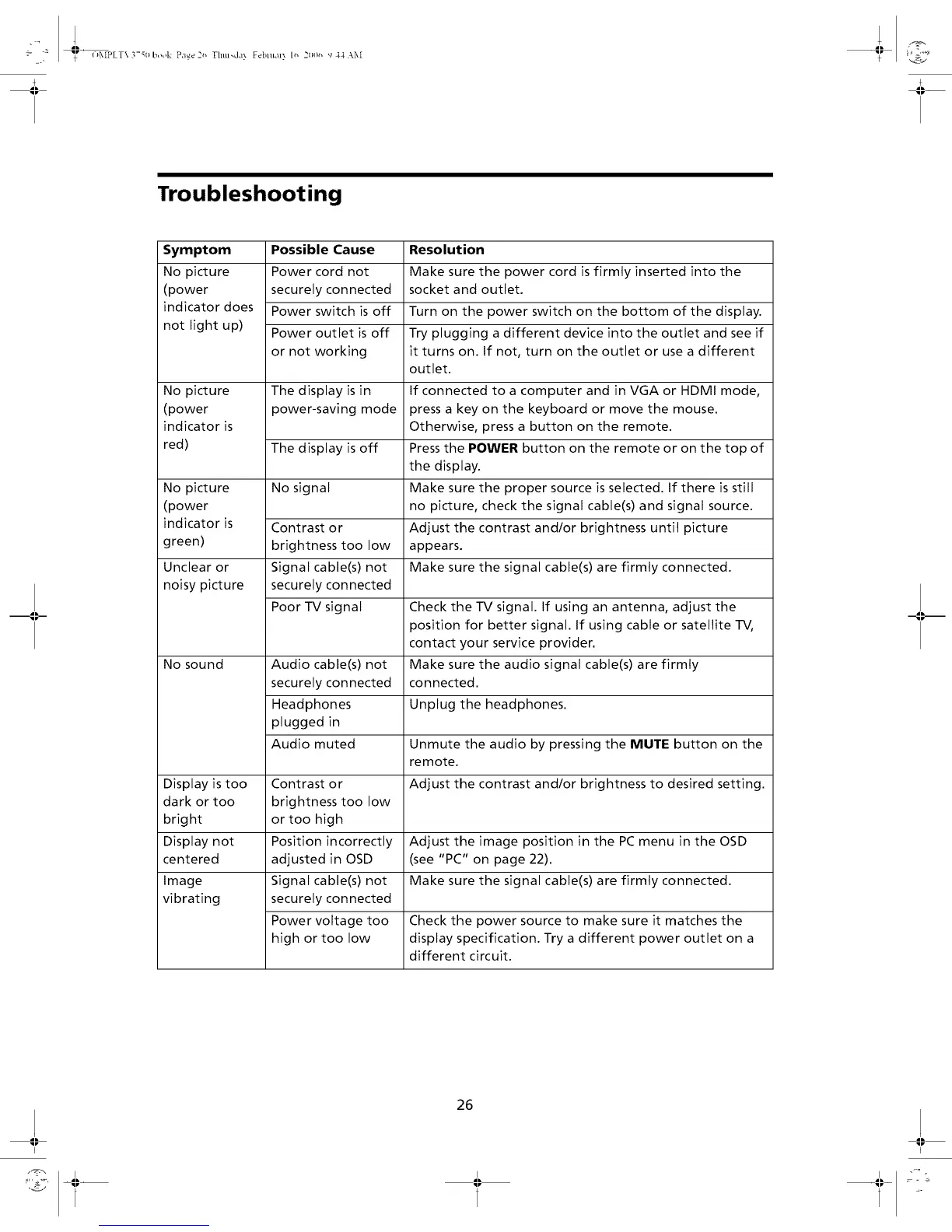
Troubleshooting
Symptom Possible Cause Resolution
No picture Power cord not Make sure the power cord is firmly inserted into the
(power securely connected socket and outlet.
indicator does Power switch is off Turn on the power switch on the bottom of the display.
not light up) Power outlet is off Try plugging a different device into the outlet and see if
or not working it turns on. If not, turn on the outlet or use a different
outlet.
No picture The display is in If connected to a computer and in VGA or HDMI mode,
(power power-saving mode press a key on the keyboard or move the mouse.
indicator is Otherwise, press a button on the remote.
red) The display is off Press the POWER button on the remote or on the top of
the display.
No picture No signal Make sure the proper source is selected. If there is still
(power no picture, check the signal cable(s) and signal source.
indicator is Contrast or Adjust the contrast and/or brightness until picture
green) brightness too low appears.
Unclear or Signal cable(s) not Make sure the signal cable(s) are firmly connected.
noisy picture securely connected
Poor TV signal Check the TV signal. If using an antenna, adjust the
position for better signal. If using cable or satellite TV,
contact your service provider.
No sound Audio cable(s) not Make sure the audio signal cable(s) are firmly
securely connected connected.
Headphones Unplug the headphones.
plugged in
Audio muted Unmute the audio by pressing the MUTE button on the
remote.
Display is too Contrast or Adjust the contrast and/or brightness to desired setting.
dark or too brightness too low
bright or too high
Display not Position incorrectly Adjust the image position in the PC menu in the OSD
centered adjusted in OSD (see "PC" on page 22).
Image Signal cable(s) not Make sure the signal cable(s) are firmly connected.
vibrating securely connected
Power voltage too Check the power source to make sure it matches the
high or too low display specification. Try a different power outlet on a
different circuit.
-II--
26
I I


 To Next Page