Marktronic User Guide 11-7
A hard reset can also be performed by switching the controller on while pressing the
F9 key. Then enter the password “HARD RESET” and press enter.
If a machine has sensors or switches connected to the red or green button inputs
instead of a start/stop box, the reset functionality can be disabled to stop settings
being lost. Set “start/Stop reset on start” to “No” on the Various menu. (F10-F10-F3-
F6 from the main menu)
Data Matrix Option
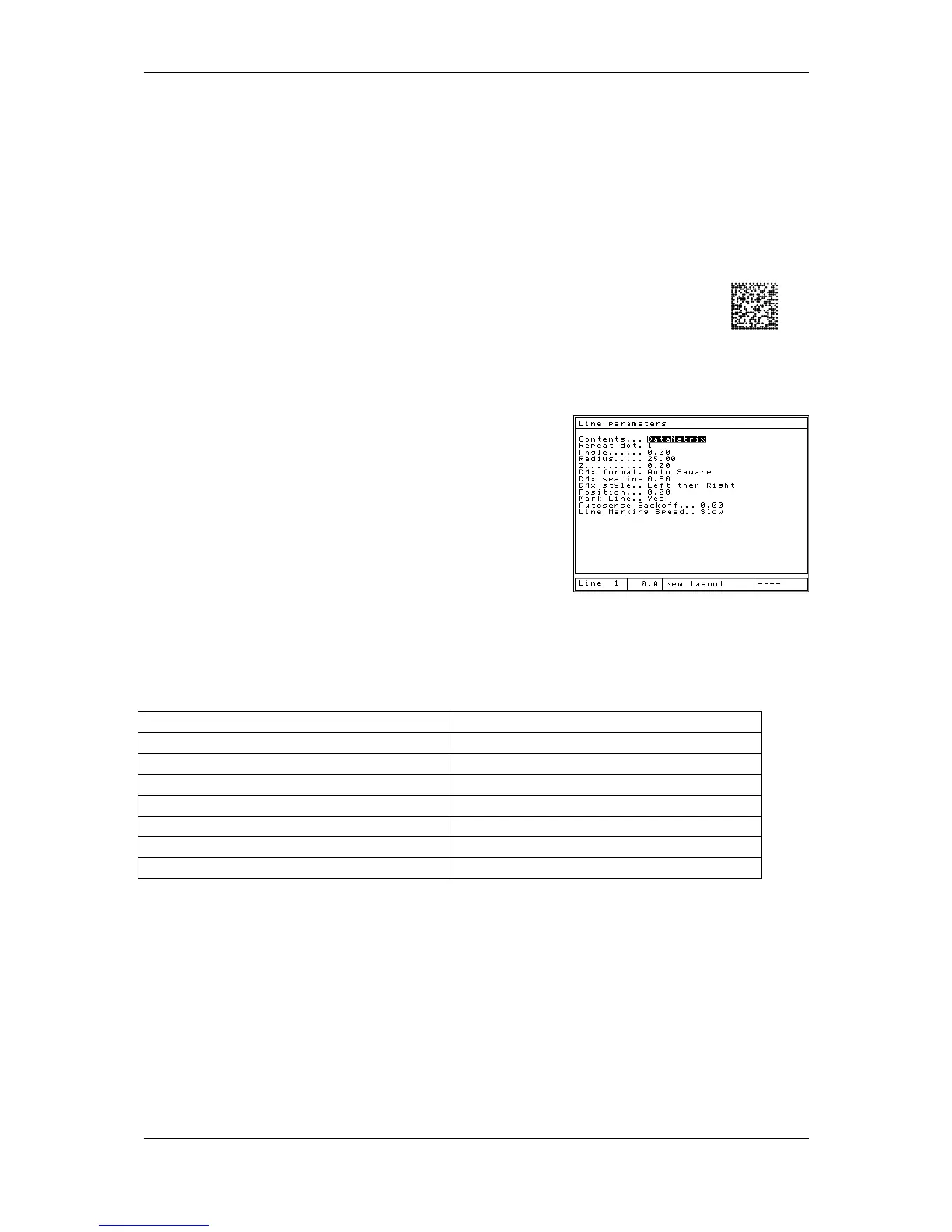
Data Matrix codes can be created and marked by setting the line
contents to ‘DataMatrix’ in the Advanced Line Parameters screen.
Note: If the “DataMatrix” setting is not available, you can purchase this option from
your distributor who will issue an unlock code to
enable the feature.
The size and shape of the Data Matrix is also
defined in the Advanced Line Parameters, using the
‘DMx Format’ and ‘DMx Spacing’ parameters.
The ‘DMx Format’ parameter controls the shape of
the Matrix, which can be SQUARE (this grows
automatically depending on the number of
characters to be encoded), or a range of various sized RECTANGLES. The table
below shows the maximum number of characters which can be encoded within the
rectangle format matrix (Note this value is reduced when encoding Non-Printable
ASCII characters)
Code Size Max number of characters
Square Grows in size up to 3116
8 x 18 10
8 x 32 20
12 x 26 32
12 x 36 44
16 x 36 64
16 x 48 98
The ‘DMx Spacing’ parameter controls the spacing between the dots and therefore
the size of the matrix.
The ‘DMx Style’ parameter changes the way the Datamatrix is actually marked.
There are three options;
OPTIMISED:- which is the fastest mark and marks the dots in any order. This option
is the least accurate and may produce unreadable codes.
LEFT THEN RIGHT:- which is the medium speed and marks the dots in rows, left to
right and right to left alternately.
LEFT TO RIGHT:- which is the slowest but most accurate mark. It marks the dots in
rows from left to right.



 To Next Page