14.2.1.3 System information
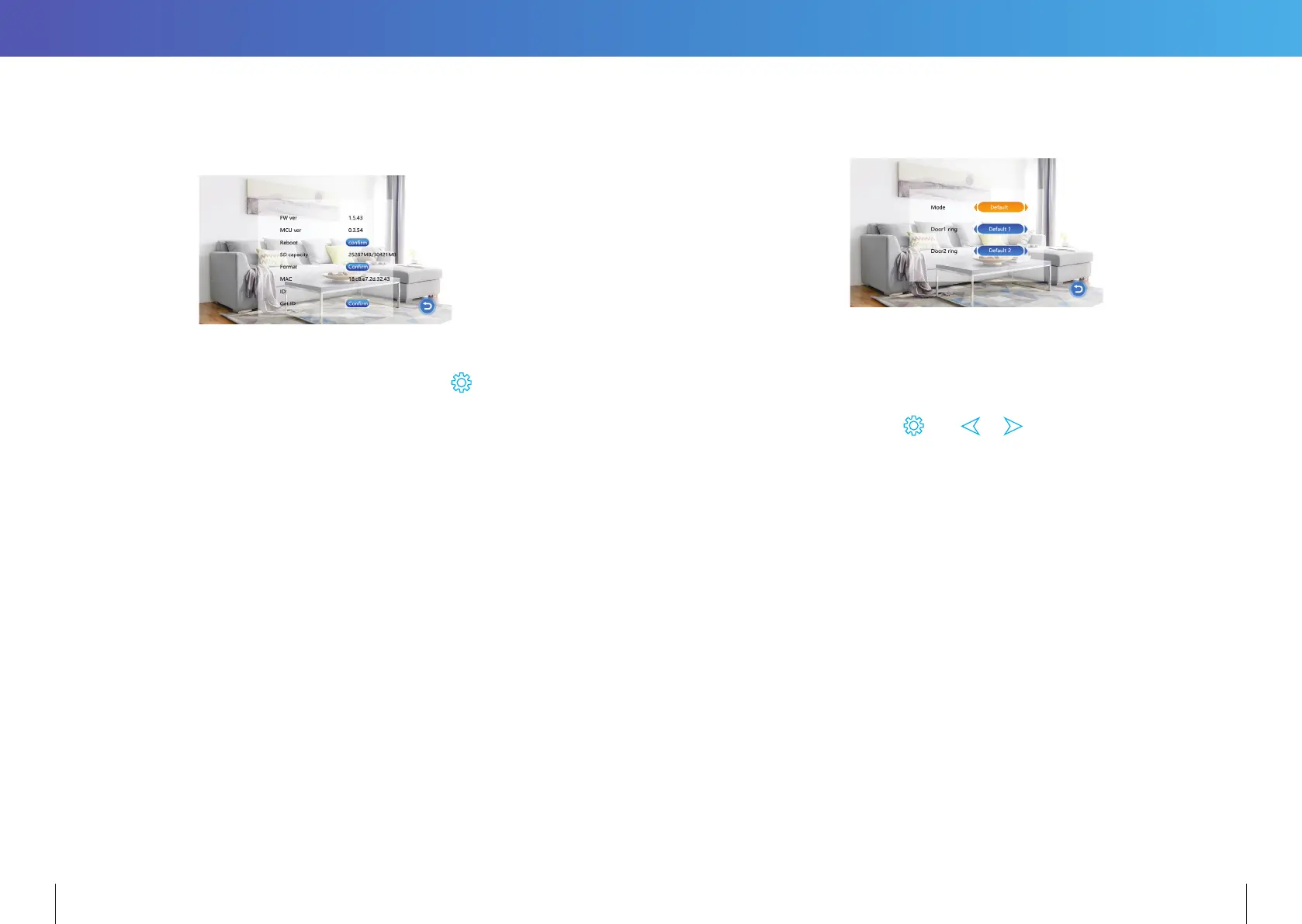
Select “System Info” icon to enter the “System Information” menu. This screen shows the
software version, MCU version, and microSD card free space. It includes options to Restart/
Reboot the Monitor and Format the microSD card.
Note: Supports MicroSD cards with write speeds over 10MB/s and memory size up to 32GB.
[Restart Device]: To restart the Monitor, select “Confirm” and press
. Select “Yes” to
the pop-up prompt to “Reboot device?”. Otherwise, select “No” to exit the
window without rebooting.
[Format SD card]: Select “Format” button and press “Yes” to start formatting SD card.
Otherwise, select “No” to cancel. NOTE: Formatting the MicroSD card
will permanently remove any stored data on the MicroSD card.
Please ensure there is nothing you want to keep before formatting.
[Read]: Select this to update manufacturer device ID information from a microSD card
(if directed by our Technical Support team)
14.2.1.4 Ring
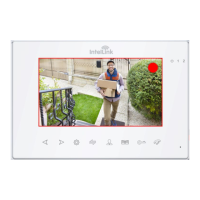
This menu allows you to change the ring-tone on the monitor with an installed microSD card
containing suitable ringtone files.
[Mode]: There are two mode for ring-tones: “Custom” and “Default”. There are 10 default
inbuilt ring-tones for selection. In the “Custom” mode, user ringtones can be
selected from the “\USER\Ring” directory on the microSD card.
[Door 1 Ring]: [Door2 Ring]: Sets Default and Custom ringtones for each door station.
Use
and & to adjust the two settings.
Change the mode to “Custom” for custom ringtones.
1. Create a “\USER\Ring” directory on the microSD card. Only music stored in this ring folder
can be used as Custom ringtones.
2. The ringtone name must be ring_1~ring_10.
3. The ringtone files must be in MP3 format.
20 21


 To Next Page