ENGLISH
- 7 -
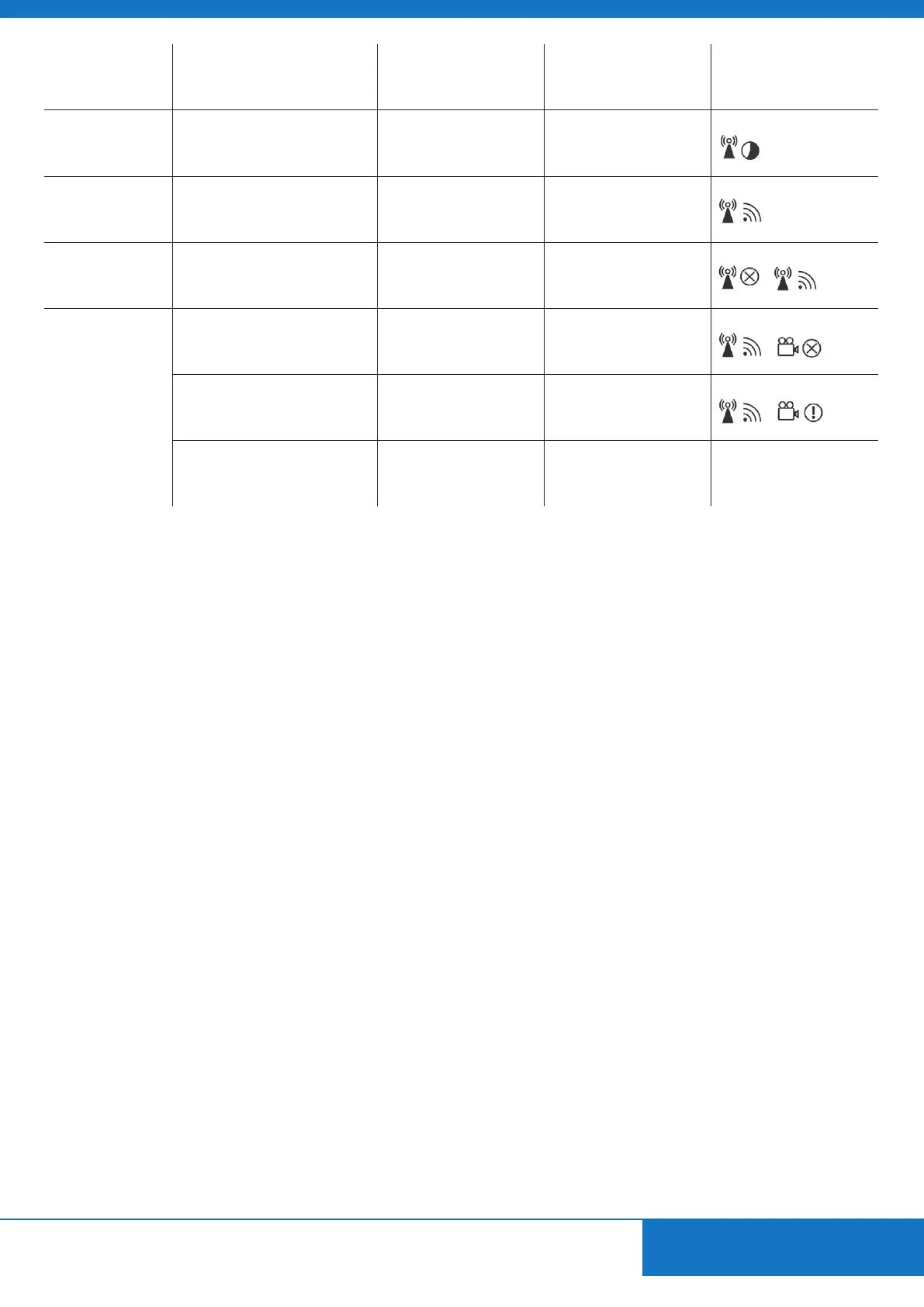
Mode Status description
Power LED
receiver
Status LED
receiver
Display on
HDTV / projector
Standby
Low power consumption,
all functions are o.
Red O
Starting up
System is sarting up, this takes
about 80 seconds.
Flashes blue Flashes
No connection
If the system is not able to make a
connection for 80 seconds during
start-up, it continues to search for
available channels.
Flashes blue Flashes
Connected
No input signal available from
chosen source.
Blue Flashes 3x per second
Video resolution is not supported. Blue Flashes 1x per second
Video resolution is recognised
and connection between transmit-
ter and receiver is stable.
Blue Blue
Audio and video will be
reproduced on your HDTV /
projector
8. FREQUENTLY ASKED QUESTIONS
NO CONNECTION
If the PureLink WHD030-V2 is not able to make a stable connection for 80 seconds during start-up, the PureLink
WHD030-V2 Receiver is probably outside the range of the PureLink WHD030-V2 Transmitter. Place them closer to each
other (a minimum distance of 1 meters apart) and check whether the connection can be made.
NO SIGNAL AVAILABLE FROM CHOSEN SOURCE
The PureLink WHD030-V2 does not recognize an input signal on the selected SOURCE.
• Check whether the correct HDMI source has been selected and whether this is ON.
• Check whether the HDMI cable between the PureLink WHD030-V2 Transmitter and HD device is connected properly.
• Replace the HDMI cable to the HD device.
VIDEO RESOLUTION IS NOT SUPPORTED
The video resolution that is set on your HD device is not recognized by the PureLink WHD030-V2 Transmitter.
• Connect the HD device directly to the HDTV or projector and check whether the set video resolution corresponds to
the resolutions that are supported.
LAPTOP OR PC SETTINGS
• Consult your Laptop or PC instructions for the correct picture and audio settings.
• Check to ensure that the resolution set corresponds to the resolutions that are supported.
Do you have other questions that have not been resolved by the above information?
Please contact us on www.purelink.de/en/service/support/



 To Next Page