More Security ,More Convenience
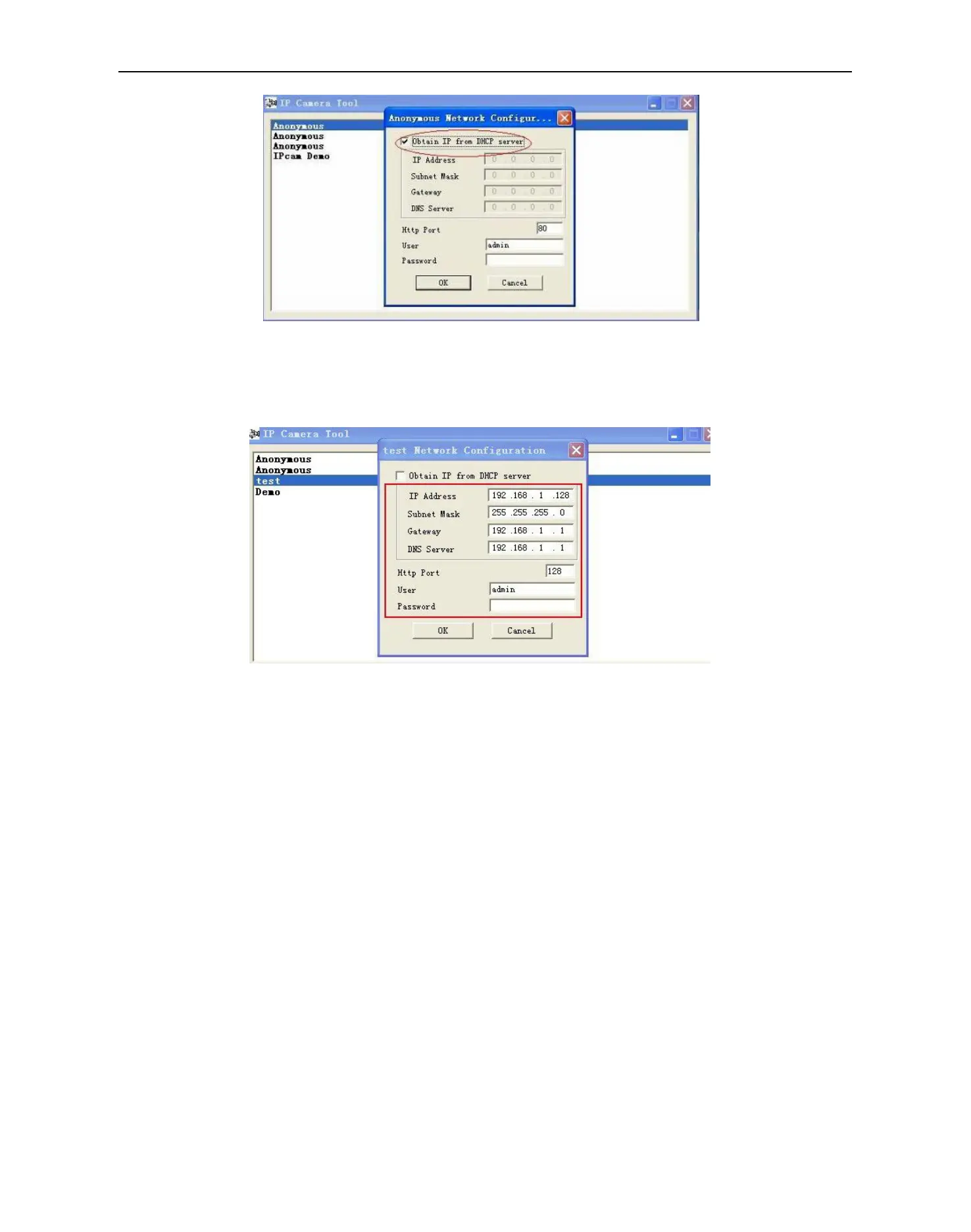
Figure2.2
Obtain IP from DHCP server: If clicked, the device will obtain IP from DHCP server. In other words, the
camera will have a dynamic IP. (Make sure the Router which the camera connects has DHCP function and
DHCP is enabled). (Figure 2.2)
Figure
2.3
IP address: Fill in the IP address assigned and make sure it is in the same subnet as the Gateway, and the
subnet should be the same as your computer or router. (I.e. the first three sections are the same)
Subnet Mask: The default subnet mask of the equipment is: 255.255.255.0. You can find the subnet mask
from your PC or router.
Gateway: Make sure it is in the same subnet with PC’s IP address .Here gateway is the LAN IP of your router.
DNS Server: IP address of IPS network provider. You can also set it’s the same as the Gateway.
NOTE: You can find the Subnet Mask, Gateway, DNS Server from your router, or check the local connection
status of your computer, get all the parameters. Normally two DNS servers are optional.
Http Port: LAN port assigned for the equipment, default is 80. You could set another port number like 81, 801,
8001 etc.
User: Default administrator username is: admin (please make sure all are lowercase letter)
Password: Default password is bank, no password.
NOTE: When prompt “subnet doesn’t match, double chick to change!” appeared, please set the IP Address,
Subnet Mask, Gateway, DNS Server once again, or enable Obtain IP from DHCP server.
2.1.1.3 Upgrade Firmware
Enter the correct User and Password to upgrade system Firmware and Web UI. If you upgrade the camera,



 To Next Page