EasyManua.ls Logo

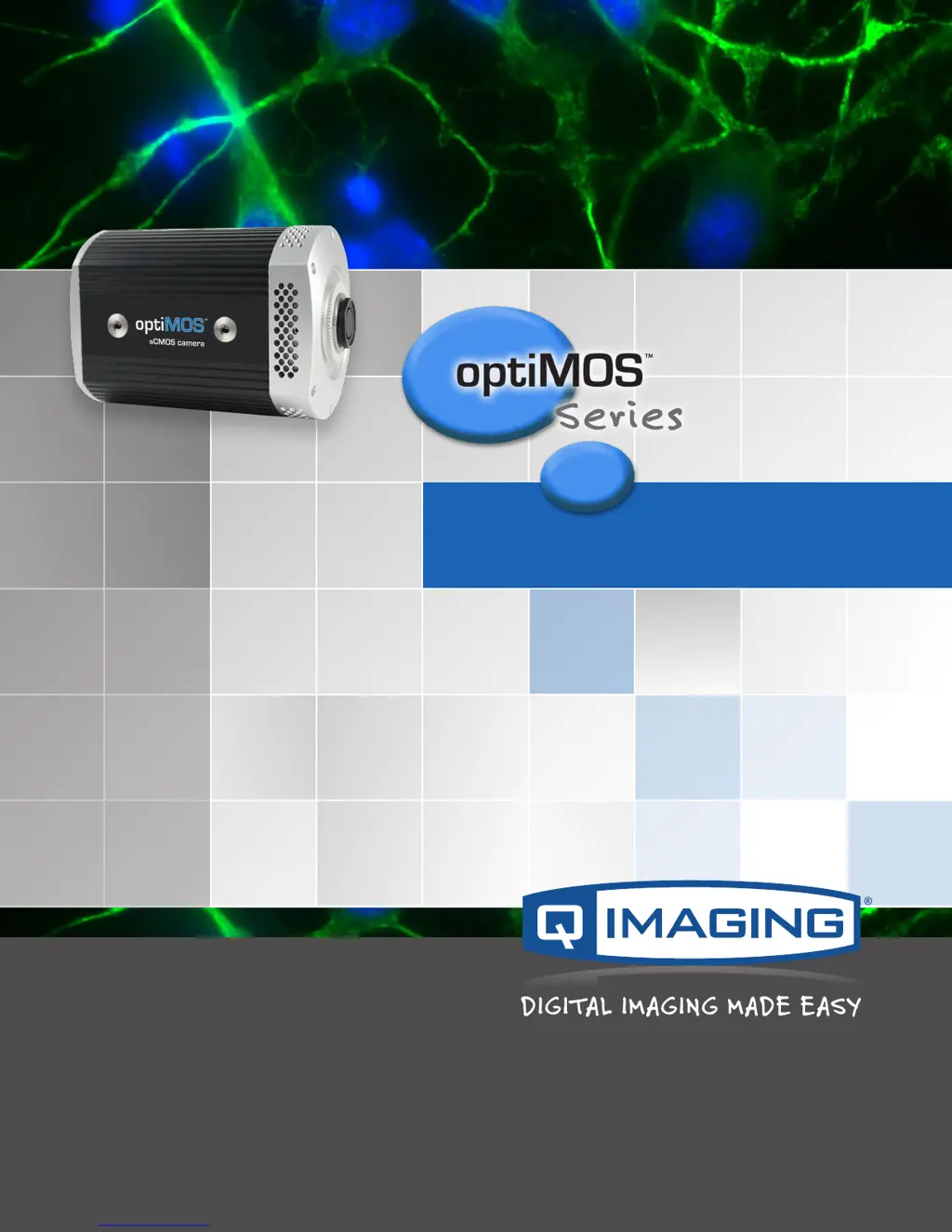
Q Imaging OptiMOS Series - User Manual

Default Icon
30 pages
Print Icon
To Next Page IconTo Next Page
Loading...
USER MANUAL
www.QIMAGING.com

Questions and Answers

  • K
    Kiara PhillipsJul 30, 2025
    How to fix Q Imaging OptiMOS Digital Camera if computer does not recognize it?
    • M
      Max FranklinJul 30, 2025
      If your computer isn't recognizing the newly installed Q Imaging Digital Camera, ensure the latest PVCAM camera driver was installed *after* the high-speed PCIe data card. Also, verify your computer meets the minimum system requirements for the optiMOS. Check that the camera's power switch is in the 'On' position. Try powering off both the camera and computer, checking all system connections, and restarting. Make sure the supplied PCIe data card is installed *before* installing PVCAM. If a 'New Hardware Found' dialog box still doesn't appear, contact QImaging Support.
  • J
    Jeffrey ElliottAug 3, 2025
    What to do if Q Imaging Digital Camera images are not displayed?
    • R
      Ryan JohnsonAug 3, 2025
      If images from your Q Imaging Digital Camera are not displaying, first, check that the camera's power switch is set to the 'On' position and that the optiMOS camera is selected in your imaging software. Power off the camera and the host computer, check all system connections, and then restart. Confirm the camera is operational by capturing an image using a standard C-mount lens attached to your optiMOS. If the camera is powered on and recognized by the computer but still unable to capture images, please contact QImaging Support.
  • K
    Kevin HollowayAug 7, 2025
    What to do if Q Imaging Digital Camera application hangs when streaming?
    • J
      john16Aug 7, 2025
      If your application hangs when streaming with the Q Imaging Digital Camera, try closing and re-launching the application. If that doesn't work, perform a complete computer shutdown and then power it back up. Depending on the software application used, please contact either QImaging Support or the respective software company’s support line to report the issue.
  • T
    troy40Aug 11, 2025
    Why Q Imaging OptiMOS image tear when streaming to disk?
    • I
      imillerAug 11, 2025
      Image tearing during streaming to disk with your Q Imaging Digital Camera may occur if your computer does not meet the minimum specifications. Ensure that a single PCIe SSD is used that meets the following requirements: >600MB/s bandwidth, Stable bandwidth regardless of open storage capacity, stable bandwidth when streaming completely non-compressible data. If your computer specifications meet the minimum requirements and you are still having issues, please contact QImaging Support.
  • T
    tsparksAug 15, 2025
    What to do if PVCAM error message appears on Q Imaging Digital Camera?
    • M
      Madison WongAug 15, 2025
      If a PVCAM error message appears with your Q Imaging Digital Camera, note the message’s number code and contact QImaging Support.
  • E
    eboydAug 19, 2025
    What to do if Q Imaging OptiMOS Digital Camera is running too warm?
    • D
      Daniel GomezAug 20, 2025
      If your Q Imaging Digital Camera is running too warm, switch off the camera immediately and contact QImaging Support.
  • P
    Pamela PorterAug 25, 2025
    What to do if Q Imaging Digital Camera fan does not turn?
    • C
      Carrie WilliamsAug 25, 2025
      If the fan on your Q Imaging Digital Camera is not turning, contact QImaging Support.

Summary

INTRODUCTION

Safety Precautions

Essential safety measures to prevent damage to the camera system.

INSTALLATION

Host Computer Requirements

Minimum PC specifications needed to operate the optiMOS camera.

Camera Power and PCIe Installation

Details power specifications and steps to install the high-speed PCIe board.

Camera Driver Installation

Procedure for installing the necessary PVCAM device drivers.

USING YOUR OPTIMOS CAMERA

TROUBLESHOOTING

Resolving Installation and Image Issues

Troubleshooting steps for camera recognition, image display, and application hangs.

Contacting Technical Support

Various methods for getting technical assistance from QImaging support.

Q Imaging OptiMOS Series Specifications

General IconGeneral
InterfaceUSB 3.0
Bit Depth16-bit
Camera TypeScientific CMOS
Pixel Size6.5 µm
Resolution2048 x 2048
Frame RateUp to 100 fps at full resolution
Read Noise1.6 e-
CoolingThermoelectric cooling
Exposure ControlSoftware controlled
Applicationsmicroscopy