Functions: Secondary Functions
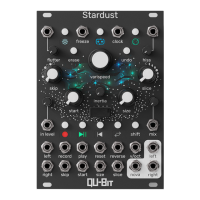
21. Shift
The Shift button, when held, sets Stardust’s front panel controls to their secondary functions.
This provides access to fine tune loop controls, DSP effects signal routing, punch-in recording
effects, loop file access, and more.
16
Shift+Mix: LED Brightness
Holding Shift and turning the Mix knob adjusts the LED brightness on Stardust. Turn the knob
fully to the left to dim the LEDs to 10% brightness, and turn the knob fully to the right for 100%
brightness.
Shift+Record: Punch-In Record Mode
Holding Shift and pressing the Record button will cycle through Stardust’s different record
engaging and disengaging behaviors.
None
Indicated by a blue LED. Recording is manual engaged and disengaged either by button press
or gate signal.
Immediate Full
Indicated by a green LED. Recording will begin once manually engaged. The recording will
automatically end once the loop hits its start point, or a loop reset is triggered.
Queued Full
Indicated by a gold LED. Activating record will queue a new recording to begin at the next loop
point. The Record LED will illuminate gold while queued and turn red when it hits the loop point.
The recording will end once a full loop occurs, or a reset is triggered.
A queued recording can be canceled before it starts by pressing the Record button or sending its
gate input a signal.
Shift+Play: File Import
Holding Shift and pressing the Play button will load a .wav file from the Stardust USB drive into
the buffer. Load your own loops and samples into Stardust with this awesome feature!
File Format
Name/Extension: loop.wav
Resolution: 16-bit
Sample-rate: 48kHz
Imaging: Stereo


 To Next Page