
EasyManua.ls Logo

Quaddrix QT-500-16 - User Manual

Quaddrix QT-500-16
128 pages
Print Icon
To Next Page IconTo Next Page
Loading...
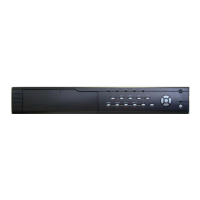
Quaddrix QT-500 Series Stand Alone DVR
User Manual
(Rev. 20/12/2006)
This manual is applicable for QT-500-4, QT-500-8 and QT-500-16 embedded DVRs. Read this User
Manual carefully to ensure that you can use the device correctly and safely.
The contents of this Manual are subject to change without notice.

Questions and Answers

  • C
    Christine StoutAug 15, 2025
    Why can't client software view Quaddrix QT-500-16 live image?
    • C
      Caitlin HickmanAug 15, 2025
      There might be several reasons why the client software can't display the live image from your Quaddrix DVR. It could be due to a network error, so check your network configuration. Also, ensure that you're using the correct IP address, port number, username, and password for the DVR connection. Finally, consider upgrading to the newest version of the client software.
  • R
    Rachel AlexanderAug 18, 2025
    What to do if Quaddrix QT-500-16 cannot find the hard disk in reboot process?
    • M
      mackenziedanielAug 18, 2025
      If your Quaddrix DVR can't find the hard disk during reboot, there are a few potential causes. First, check the hard disk cable for any damage and replace it if necessary. Next, ensure that the hard disk's power cable is properly connected. If both cables are fine, the hard disk itself might be broken and need inspection or replacement.
  • J
    Joseph RosalesAug 21, 2025
    How to fix Quaddrix QT-500-16 when it can not control PTZ through RS-485 port?
    • K
      Kimberly BruceAug 22, 2025
      If your Quaddrix DVR fails to control PTZ via the RS-485 port, start by checking the RS-485 cable for proper connection and any damage; replace the cable if needed. Next, verify that the PTZ parameters are correct. If the issue persists, the RS-485 port on the DVR might be faulty and require inspection or replacement.
  • J
    Jessica ThomasAug 25, 2025
    Why does my Quaddrix QT-500-16 DVR continuously reboot and make a 'di' sound?
    • E
      Erik WeeksAug 25, 2025
      If your Quaddrix DVR continuously reboots and emits a 'di' sound every 10 seconds, it could be due to several reasons. One possibility is that the wrong firmware was used during the upgrade process. Ensure you are using the correct firmware version and re-upgrade. Alternatively, the compression board or the main board might be faulty and require inspection or replacement.
  • J
    John NguyenAug 28, 2025
    What to do if there is no response in HyperTerminal interface of Quaddrix DVR?
    • L
      Larry GomezAug 28, 2025
      If you're experiencing no response in the HyperTerminal interface of your Quaddrix DVR, consider these potential causes: First, ensure that the baud rate matches the device settings. Next, check the RS-232 cable for any damage and replace it if necessary. The serial port on your PC or the RS-232 port on the DVR might also be broken, requiring inspection or replacement.
  • C
    Charles MunozAug 31, 2025
    How to troubleshoot a Quaddrix QT-500-16 when the power light doesn't turn on?
    • E
      Erin BartlettAug 31, 2025
      If the 'POWER' light on the front panel of your Quaddrix DVR doesn't illuminate and the fan doesn't work after plugging in and turning on the power switch, it could be due to a broken power cable. Check the power cable for any damages and replace it if necessary. Alternatively, the power supply itself might be broken and require inspection or replacement.
  • B
    Brian GilesSep 4, 2025
    What to do if there are no images on the monitor connected to Quaddrix DVR VOUT?
    • D
      Deborah PayneSep 4, 2025
      If you're not seeing any images on the monitor connected to the VOUT of your Quaddrix DVR after startup, the cable connecting the monitor might be damaged. Check the monitor cable for any damages and replace it if needed.
  • G
    Gregory DuncanSep 7, 2025
    Why does the power light turn green but the fan doesn't work on my Quaddrix DVR?
    • K
      Kimberly HarrisSep 7, 2025
      If the 'POWER' light on the front panel of your Quaddrix DVR turns green, but the fan isn't working, it could indicate a problem with the front panel cable. Check the front panel cable for damages and replace it if necessary. Another possibility is that the fan itself is broken and needs inspection or replacement.
  • B
    Benjamin BeasleySep 12, 2025
    What causes the fan to not work on Quaddrix DVR even when the power light is green?
    • K
      Katherine MillerSep 12, 2025
      If the 'POWER' light turns green and the indicator lights illuminate, but the fan doesn't work on your Quaddrix DVR, the ATX plug in the main board might not be properly connected. Re-plug the ATX plug into the main board to ensure a secure connection.

Summary

Chapter 1 Product Introduction

1.1 Summary

Overview of the QT-500 series network DVR's capabilities and applications.

1.2 Features

Details the technical specifications and functionalities of the QT-500 series DVR.

Chapter 2 Installation

2.1 HDD Installation

Step-by-step guide for installing hard disk drives (HDDs) into the DVR unit.

2.3 Rear Panel Description

Identifies and describes the physical interfaces and connectors on the DVR's rear panel.

2.4 External Alarm In;Out Connection

Instructions for connecting external alarm inputs and relay outputs to the DVR.

Chapter 3 Operational Instructions

3.1 Front Panel

Explains the functions of the buttons, lamps, and indicators on the DVR's front panel.

3.2 IR Remote Controller

Details the buttons and usage of the infrared remote controller for operating the DVR.

3.3 Menu Description

Outlines the structure and items available within the DVR's menu system.

3.4 Character Input

Describes how to input text characters, numbers, and symbols using the DVR interface.

Chapter 4 Basic Operation Guide

4.1 Power on

Step-by-step instructions for powering on the DVR and initial system checks.

4.3 User name and password

Covers logging into the DVR, managing user accounts, and modifying passwords.

4.4 PTZ Control

Explains how to control PTZ (Pan-Tilt-Zoom) cameras connected to the DVR.

4.6 Playback

Guides on how to search and play back recorded video footage from the DVR.

4.7 Backup Recorded Files

Instructions on how to back up recorded video files and clips to external storage devices.

4.8 Shut Down DVR

Details the correct procedures for safely shutting down and powering off the DVR.

Chapter 5 Parameters Setup Guide

5.1 Administrator and Password

Setup for the administrator account, including password modification and user rights.

5.2 Add and Delete User

Procedures for adding new users, setting their rights, and deleting existing user accounts.

5.4 Video Output Standard and VGA Setup

Configuration of video output standards (PAL/NTSC) and VGA display settings.

5.10 Motion Detection Alarm

Setup and configuration of motion detection sensitivity, areas, and alarm policies.

5.12 Recording Setup

Configuration of recording schedules, stream types, resolutions, and bit rates.

5.13 External Alarm Input and Relay Output

Setup for external alarm inputs, sensor types, and relay output configurations.

5.14 Network Parameters

Configuration of network settings such as IP address, subnet mask, gateway, and PPPoE.

5.15 PTZ

Setup of RS-485 parameters and PTZ protocols for camera control.

Chapter 6 Utilities

6.3 Upgrade

Instructions for upgrading the DVR's firmware via FTP or USB.

6.4 Hard Disk Management

Tools for checking HDD status, formatting drives, and managing disk space.

6.8 View Log

How to access and view system logs, including operation, alarm, and exception events.

Chapter 7 Firmware Upgrade

7.1 FTP Server Setup

Steps to set up an FTP server for firmware file transfer to the DVR.

7.2 Upgrade Mode

Explains different methods for upgrading the DVR firmware, including FTP and USB.

Appendix B DVR Connect Cable Definition

1 UTP network connect cable made method

Guide on how to create UTP network cables, including pin definitions for direct and hub connections.

2 RS-232 connect cable made method

Details the pin definition for making RS-232 serial cables for the DVR.

Appendix F Troubleshooting

Troubleshooting

Provides common failure scenarios, their potential causes, and recommended solutions for DVR issues.

Quaddrix QT-500-16 Specifications

General IconGeneral
BrandQuaddrix
ModelQT-500-16
CategoryDVR
LanguageEnglish