17
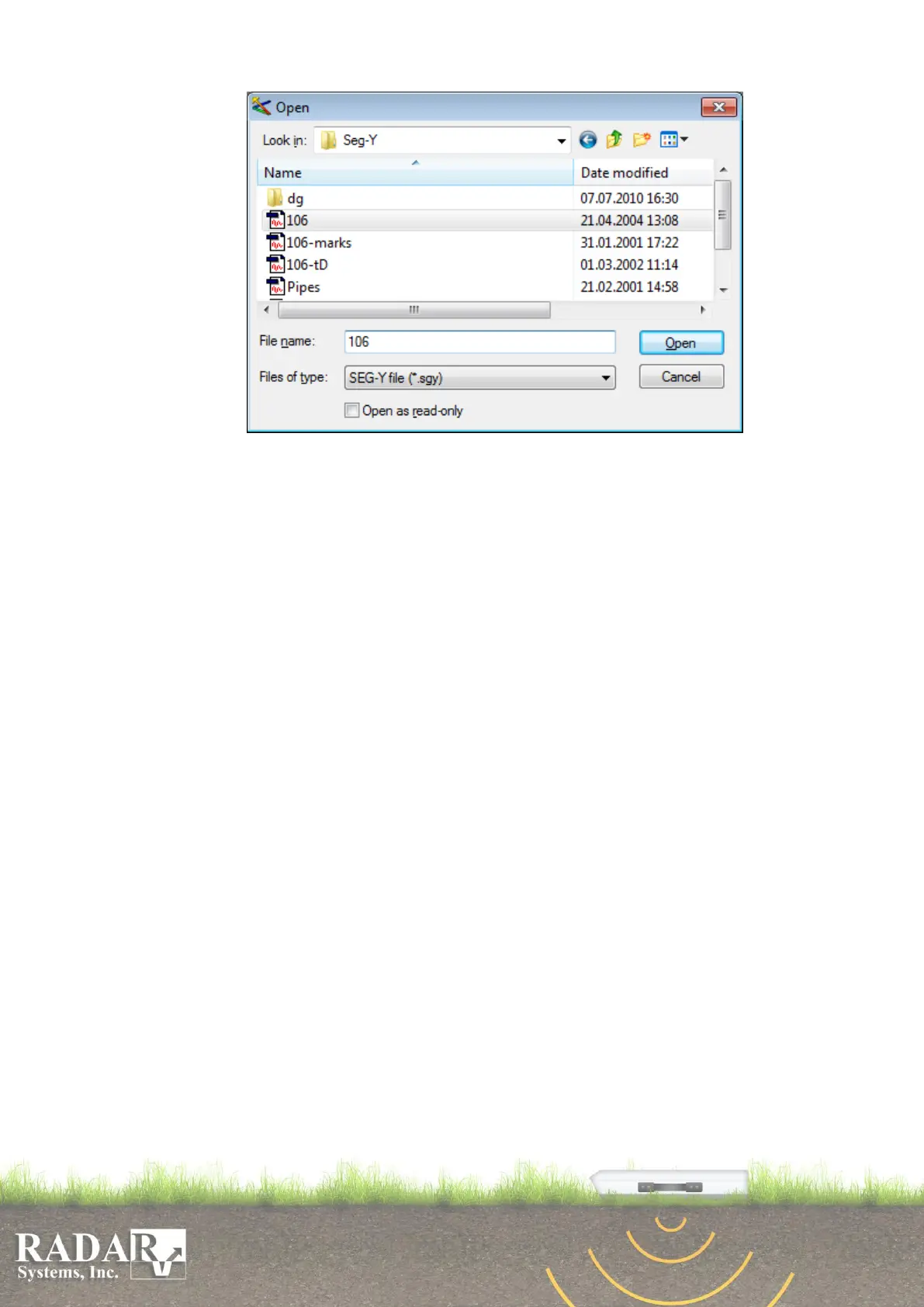
Fig.7.2. File Open dialog box.
Reopen - in this option the last ten opened files’ data are stored for their easier finding and
opening.
Save As – using this option, you may save sounding data as a file on your computer.
Save All – this option gives ability to save all currently opened profiles with sounding data
on your computer
Close All – this option allows closing all currently opened profiles by one click.
Add – joining of profiles.
Export - using this option, you may save the image of displayed data in Bitmap or JPEG
format, as well to record markers position, amplitude values or XYZC (3D data grid) as
text file.
Import – this option allows calling of gain function or zero point position from another
profile, or import GPS coordinates (in NMEA format) from existing text file.
Profiles combining – opens Profiles Combining Wizard that helps to combine all
selected profiles into the one profile.
Profiles splitting – opens Profiles Splitting Wizard that helps to split selected profile to
the several profiles.
Profiles 3D aligning – aligning of parallel profiles acquired for 3D imaging in Easy Prism
3D or Voxler 3D software.
Print. Profile printout in one of the views supported by the software. The following items
may be modified in the Print dialog box (Fig. 7.3):
Printer. Printer which you could use for printing.
Printing type – Scaled or Not scaled. In case of scaled print, the vertical and horizontal
scales shall be specified.
Orientation (Landscape or Portrait). When changing orientation of a page, the outline
of the page and the layout of drawing therein are changed, respectively.
Layout. After clicking the drawing and holding left mouse button (the pointer will be
replaced by the crosshair), moving the mouse will change drawing’s layout on the
printing page.


 To Next Page