EasyManua.ls Logo

Radio Shack 20-164 - User Manual

Radio Shack 20-164
62 pages
Print Icon
To Next Page IconTo Next Page
Loading...
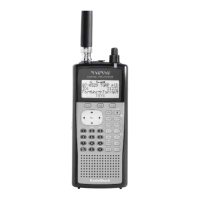
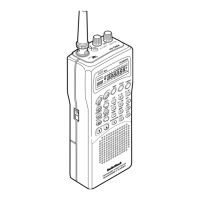
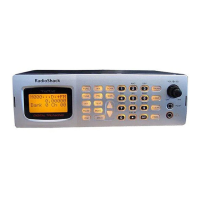
Thank you for purchasing your Triple
Trunking Handheld Radio Scanner
from RadioShack. Your scanner scans
conventional frequencies and trunked
systems. Please read this user’s guide
before installing, setting up and using
your new scanner.
20-164
Triple Trunking
Handheld Radio Scanner
www.radioshack.com
What’s Included
Scanner
Antenna
Belt Clip
Non-rechargeable Battery
Holder
Rechargeable Battery
Holder
Preprogrammed Frequency
Addendum
User’s Guide

Other manuals for Radio Shack 20-164

Questions and Answers

  • K
    Kyle WilliamsJul 30, 2025
    What to do if my Radio Shack Scanner is not working?
    • A
      Alyssa YoungJul 30, 2025
      If your Radio Shack Scanner isn't working, there could be a few reasons. First, ensure the AC or DC adapter's barrel plug is fully inserted into the PWR DC 9V jack. Also, check if the batteries are dead. If so, recharge rechargeable batteries or replace standard batteries. If using a DC adapter, and the scanner still doesn't operate, unplug the adapter and clean the socket or check the adapter’s internal fuse.
  • S
    Sara SmithAug 4, 2025
    What to do if Radio Shack 20-164 Scanner is on but does not scan?
    • R
      Robert AshleyAug 4, 2025
      If your Radio Shack Scanner is powered on but not scanning, the squelch might not be adjusted correctly; turn SQ clockwise. Additionally, there might only be one or no channels stored; save more frequencies into channels. Also, the keylock might be turned on; turn off keylock.
  • A
    Austin ThompsonAug 9, 2025
    How to fix a Radio Shack Scanner that is on but doesn't scan?
    • S
      Sean WilkinsonAug 10, 2025
      If your Radio Shack Scanner is on but not scanning, try these solutions: turn the squelch clockwise, save more frequencies into channels, and turn off the keylock.
  • B
    Brandon BakerAug 15, 2025
    Why does my Radio Shack Scanner not receive any stations or has poor reception?
    • D
      Danielle BarnesAug 15, 2025
      If your Radio Shack Scanner isn't picking up stations or the reception is poor, there are a few things to check. Ensure the antenna is correctly connected. Also, the squelch setting might be too sensitive, causing it to pick up unwanted, partial, or weak transmissions, so check the squelch. The attenuator might be on, preventing your scanner from receiving weak signals, so check the attenuator. Finally, try turning the scanner off and on again, or initialize the scanner.
  • B
    beltranlouisAug 19, 2025
    What to do if error message appears when trying to upload or download from a computer with Radio Shack 20-164?
    • F
      fruizAug 19, 2025
      If you receive an error message when trying to upload or download with your Radio Shack Scanner, and your computer uses Windows XP, download and install the 'Windows XP Driver to resolve PC connection error' file from your scanner’s Product Support page or the Software Download page on www.RadioShack.com. Then make your connection and try again. Be sure the correct COM port is selected in device manager.
  • D
    Debra WilliamsAug 25, 2025
    Why is my Radio Shack 20-164 reception so poor?
    • J
      jeffrey08Aug 26, 2025
      Poor reception on your Radio Shack Scanner can be caused by several factors. Ensure the antenna is correctly connected. Adjust the squelch, as it might be set too sensitively, picking up weak transmissions. Also, check if the attenuator is enabled, as it can prevent the scanner from receiving weak signals. If none of these help, try turning the scanner off and on again, or initialize the scanner.

Summary

Your Scanner

Powering Your Scanner

Details on using batteries or external power sources for scanner operation.

Scanner Setup

Defining a Channel

Step-by-step guide to storing frequencies into specific channels.

Searching

Signal Stalker II

Advanced feature for detecting, monitoring, and saving transmissions.

Scanning

Priority Scanning

Checking a designated priority channel periodically while scanning.

Weather Alerts

Receiving alerts from NOAA weather radio broadcasts.

Monitoring

Trunking Setup

Defining a Trunking Bank

Configuring banks to scan specific trunking systems (Motorola, EDACS, LTR).

Trunking Modes

Selecting between Open and Closed modes for trunked scanning.

Motorola Trunking Setup

Specific configurations for Motorola trunking systems, including fleet maps.

Fleet Maps

Programming fleet maps required for Motorola Type I and hybrid systems.

Base and Offset Frequencies

Setting base and offset frequencies for Motorola VHF/UHF trunking.

EDACS Trunking Setup

Configuration details for EDACS trunking systems.

LTR Trunking Setup

Procedures for setting up LTR trunking systems and home repeaters.

Trunk Scanning

Scanner Maintenance

Initializing the Scanner

Resetting the scanner to factory defaults to resolve operational issues.

Service and Repair

Guidelines for seeking professional assistance for scanner malfunctions.

Scanning Legally

FCC Notice

Radio Shack 20-164 Specifications

General IconGeneral
TypeHandheld Scanner
Channels200
Modulation TypesAM, FM
Frequency Range108-174 MHz, 406-512 MHz
Power Supply4 AA batteries or AC adapter
BandsVHF, UHF
Power SourceBattery or AC adapter
Channel Steps5 kHz, 12.5 kHz, 25 kHz

Related product manuals