EasyManua.ls Logo

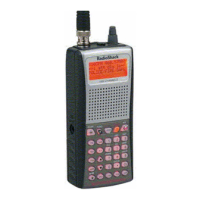
Radio Shack HANDHELD TRUNKING 20-521 - User Manual

Radio Shack HANDHELD TRUNKING 20-521
72 pages
Print Icon
To Next Page IconTo Next Page
Loading...
Owner’s Manual
Cat. No. 20-521
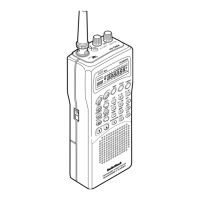
PRO-91 150-Channel
Handheld Trunking Scanner
Please read before using this equipment.

Table of Contents

Questions and Answers

  • D
    daniel16Aug 17, 2025
    Why is my Radio Shack HANDHELD TRUNKING 20-521 Scanner on but will not scan?
    • L
      Lee MccormickAug 17, 2025
      If your Radio Shack Scanner is on but not scanning, it could be due to the SQUELCH not being adjusted correctly. Try turning the SQUELCH clockwise. It could also be that only one or no channels are stored; in this case, store frequencies into more than one channel.
  • J
    jacksondanielAug 20, 2025
    What to do if my Radio Shack Scanner locks on frequencies that have an unclear transmission?
    • J
      Julie MendozaAug 20, 2025
      If your Radio Shack Scanner locks on frequencies with unclear transmissions, it might be because the stored frequencies are the same as “birdie” frequencies. Avoid storing frequencies listed under “Birdie Frequencies” or only listen to them manually.
  • B
    Bonnie HarveyAug 22, 2025
    What to do if my Radio Shack HANDHELD TRUNKING 20-521 Scanner will not stop while scanning a scan list?
    • L
      Lisa RiveraAug 22, 2025
      If your Radio Shack Scanner will not stop while scanning a scan list, it may be because no IDs have been stored. Store one or more IDs. It could also be that the IDs you have stored are not active, so try scanning another transmission.
  • E
    Eric CopelandAug 26, 2025
    What to do if my Radio Shack HANDHELD TRUNKING 20-521 Scanner is totally inoperative?
    • J
      jenkinserinAug 26, 2025
      If your Radio Shack Scanner is totally inoperative, first check the batteries or ensure the AC or DC adapter is properly connected. Also, you may need to recharge or replace the batteries. Finally, ensure the adapter’s barrel plug is fully plugged into the POWER jack.
  • M
    Mr. Dale FletcherAug 28, 2025
    What to do if the keypad on my Radio Shack HANDHELD TRUNKING 20-521 Scanner does not work?
    • M
      Michael SimpsonAug 28, 2025
      If the keypad on your Radio Shack Scanner isn't working, the keylock function might be activated. To deactivate it, press KEYLOCK until K/L disappears from the display.
  • A
    Annette ReyesAug 31, 2025
    What to do if my Radio Shack Scanner will not track a trunked system?
    • G
      greenekarenAug 31, 2025
      If your Radio Shack Scanner won't track a trunked system, the transmission might not use a system that your scanner can track, so try scanning another transmission. Another reason could be that the data frequency is missing. Finally, if the system you are trying to track is a Type I system, and the scanner is set to scan Type II systems, set the scanner to receive Type I trunked frequencies.
  • S
    sarahgriffinSep 2, 2025
    Why is my Radio Shack Scanner display dimming and sounding a tone?
    • Y
      yholmesSep 2, 2025
      If your Radio Shack Scanner's display dims or it sounds a tone every 15–30 seconds, it could be due to incorrectly installed batteries. Ensure the batteries are installed properly. Another possibility is that the batteries are weak, so try recharging rechargeable batteries or replacing non-rechargeable ones.
  • B
    Brandon MyersSep 5, 2025
    What does it mean when 'Error' appears on my Radio Shack Scanner?
    • E
      Emily PadillaSep 5, 2025
      If 'Error' appears on your Radio Shack Scanner, it indicates a programming error. Re-enter the frequency correctly, including the decimal point.
  • A
    Anthony BarrettSep 8, 2025
    What to do if I am missing replies to conversations on my Radio Shack HANDHELD TRUNKING 20-521?
    • E
      Elizabeth CoxSep 8, 2025
      If you're missing replies to conversations on your Radio Shack Scanner, the system you're trying to track might be a Type I system while the scanner is set to scan Type II systems. Try setting the scanner to receive Type I trunked frequencies. Also, the selected fleet map could be incorrect, so try another preset fleet map or program your own fleet map. Finally, not all of the trunk’s frequencies might have been entered, so make sure to enter all of the trunk’s frequencies.
  • J
    Julie GreenSep 12, 2025
    What to do if my Radio Shack HANDHELD TRUNKING 20-521 Scanner will not acquire a data channel?
    • J
      judymcintyreSep 12, 2025
      If your Radio Shack Scanner will not acquire a data channel, the SQUELCH might not be correctly adjusted for trunk tracking. Try adjusting the squelch for trunk tracking. Alternatively, the frequency used for the data channel might be missing. Press SRC to search for the data channel.

Summary

PREPARATION

POWER SOURCES

Details on how to power the scanner using different sources.

Using Internal Batteries

Instructions for installing and using AA batteries.

Charging Nickel-Cadmium Batteries

Procedure for charging rechargeable batteries within the scanner.

Using AC Power

Guidance on powering the scanner from an AC outlet.

Using Vehicle Battery Power

Instructions for powering the scanner from a vehicle's power source.

CONNECTING THE ANTENNA

Connecting an Optional Antenna

How to connect external antennas for improved reception.

CONNECTING AN EARPHONE;HEADPHONES

Listening Safely

Guidelines for safe listening practices with earphones/headphones.

Traffic Safety

Warnings about using earphones/headphones while driving.

CONNECTING AN EXTENSION SPEAKER

ATTACHING THE BELT CLIP

Instructions for attaching the belt clip for portability.

ABOUT YOUR SCANNER

A LOOK AT THE KEYPAD

Explanation of the function of each key on the scanner's keypad.

A LOOK AT THE DISPLAY

Description of the scanner's display indicators and their meanings.

UNDERSTANDING BANKS

Explanation of service and channel storage banks for organization.

Monitor Memories

Information on using temporary memory locations for frequencies.

OPERATION

TURNING ON THE SCANNER AND SETTING SQUELCH

Steps to power on the scanner and adjust the squelch control.

STORING KNOWN FREQUENCIES INTO CHANNELS

Guide to programming specific frequencies into memory channels.

SEARCHING FOR AND TEMPORARILY STORING ACTIVE FREQUENCIES

How to find and save active frequencies within a band.

Limit Search

Procedure for searching frequencies within a defined range.

Service Bank Search

How to search pre-programmed service bands for transmissions.

Search Skip Memory

Method to skip specific frequencies during searches.

LISTENING TO THE MONITOR MEMORIES

How to listen to frequencies stored in monitor memories.

MOVING A FREQUENCY FROM A MONITOR MEMORY TO A CHANNEL

Process for transferring a stored frequency to a permanent channel.

SCANNING THE STORED CHANNELS

How to initiate scanning of programmed channels.

MANUALLY SELECTING A CHANNEL

Steps to tune the scanner to a specific channel directly.

SPECIAL FEATURES

DELAY

How to set a delay for transmissions to avoid missing replies.

TURNING CHANNEL-STORAGE BANKS ON AND OFF

How to enable or disable specific channel banks for scanning.

LOCKING OUT CHANNELS

Method to skip unwanted channels during scanning.

PRIORITY

How to set priority channels to monitor during scanning.

USING THE KEYLOCK

How to lock the keypad to prevent accidental changes.

USING THE DISPLAY BACKLIGHT

How to activate the display's backlight for visibility.

CHANGING SEARCH SPEEDS

How to adjust search speed between normal and Hypersearch.

TURNING THE KEY TONE OFF;ON

How to enable or disable audible key press feedback.

TURNING THE BATTERY SAVE FUNCTION OFF;ON

How to enable or disable the battery saving mode.

SKIPPING DATA SIGNALS

How to configure the scanner to ignore data transmissions.

TRUNK TRACKING

TYPES OF TRUNKING SYSTEMS

Explanation of Motorola Type I, Type II, and hybrid trunking systems.

SETTING THE SCANNER TO THE TRUNK TRACKING MODE

How to switch the scanner from conventional to trunk tracking.

SETTING SQUELCH FOR THE TRUNK TRACKING MODE

Guidance on adjusting squelch for optimal trunk tracking.

STORING TRUNKED FREQUENCIES

Steps to enter frequencies for trunked systems into banks.

SCANNING A TRUNKED BANK

How to begin scanning programmed trunked frequencies.

Monitoring an Active ID

How to hold on a specific ID during trunk tracking.

Temporarily Storing an ID into the Monitor ID Memory

Method to save an ID temporarily for later use.

Locking Out IDs

How to prevent the scanner from stopping on specific IDs.

Unlocking a Single ID

Process to remove a single ID from the lockout list.

Unlocking All IDs

Method to remove all locked IDs from the lockout list.

Using Trunk Tracking Scan Delay

How to program a delay for trunk tracking to catch replies.

Monitoring IDs

How to view active talk group IDs during trunk tracking.

CHANNEL ACTIVITY BARS

Explanation of the visual indicators for trunked system activity.

SCAN LISTS

How to organize and scan stored trunking IDs.

Manually Storing IDs into Scan Lists

Procedure to manually add IDs to scan lists.

Moving IDs to Scan Lists

How to transfer IDs between different scan lists.

Deleting a Stored ID

How to remove an ID from a scan list.

SCANNING TYPE I AND HYBRID TRUNKED SYSTEMS

How to configure the scanner for Type I and hybrid systems.

Programming a Fleet Map

Detailed steps for programming custom fleet maps for trunking.

Selecting a Preset Fleet Map

How to choose and apply pre-programmed fleet maps.

Programming a Hybrid System

Steps to configure a system that combines Type I and Type II features.

A GENERAL GUIDE TO SCANNING

GUIDE TO FREQUENCIES

Information on weather and other common frequencies.

Birdie Frequencies

List of internal scanner frequencies that may cause noise.

GUIDE TO THE ACTION BANDS

Overview of typical frequency usage by various services.

BAND ALLOCATION

Listing of services associated with frequency ranges.

FREQUENCY CONVERSION

How to convert between MHz, kHz, and wavelength units.

TROUBLESHOOTING

RESETTING THE SCANNER

Procedure to reset the scanner to factory defaults.

CARE AND MAINTENANCE

SPECIFICATIONS

Radio Shack HANDHELD TRUNKING 20-521 Specifications

General IconGeneral
BrandRadio Shack
ModelHANDHELD TRUNKING 20-521
CategoryScanner
LanguageEnglish

Related product manuals