How to make changes and enter data on the smartphone
Once Phone and Radio are connected in App there are a few things to work with.
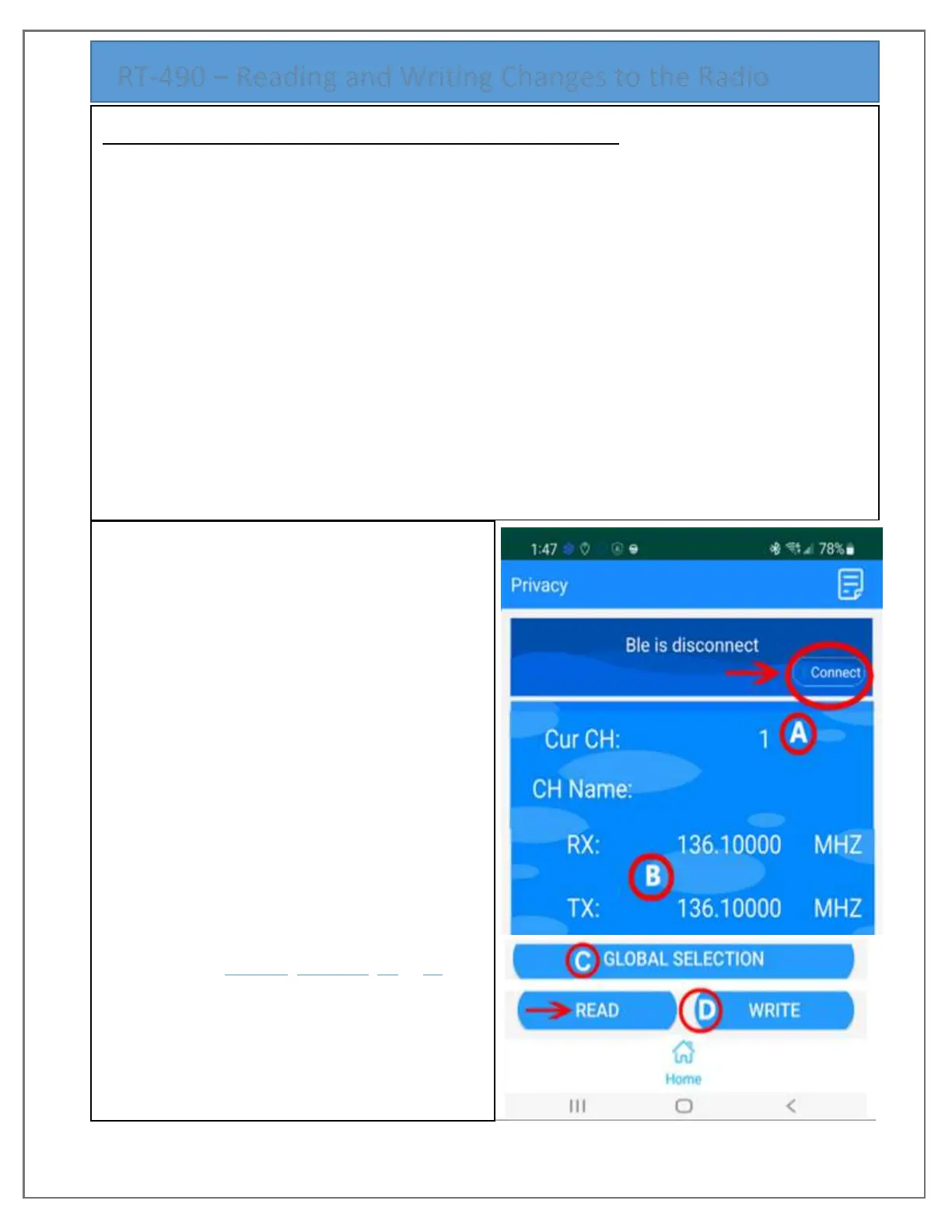
1) READING - If you want to start with the RT-490’s existing program, then with your
programming cable plugged in and your radio turned on, select the option at the bottom
“READ”.
2) CHANNEL SELECTING - You must work on Channels individually, Click on the number next to
the words “CurCH:” (Item (A) in the graphic), at first it’s the number ‘1’. From there the App
presents a drop down list of channel numbers, scroll and click on the Channel number
desired.
3) CHANNEL NAME – After selecting a number, you are returned to the main screen and from
there, click in the area to the right of ‘CH Name:’ and a keyboard pops up allowing the typing
of a name.
4) FREQUENCY RX or TX – entering or
changing a frequency is the same for
either RX or TX (Item (B) in the Graphic).
If the channel selected already has a
frequency number, simply click on it to
reset to blank. If the frequency is blank,
click on the blank and the numeric
keyboard pops up for you to enter
numbers in the ‘_ _ _._ _ _ _ _’.
5) GLOBAL SELECTION – Item (C) offers
change screens for a number of options.
Next page explains. After making those
changes, you return here.
6) WRITING – Item (D) after making all
changes Channel, CH Name, RX or TX
freqs, you may write the new config out to
the radio, Click Write.


 To Next Page