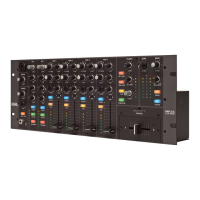
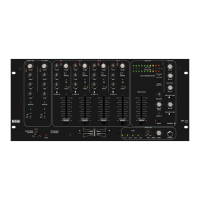
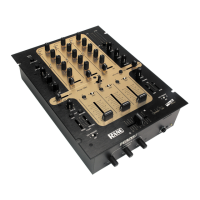
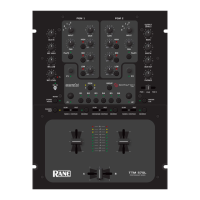
VirtualDJ 8 – Rane Sixty-Two
S. SHIFT. Press and hold this button down to access secondary software or hardware
functions (mostly in gray lettering) of other controls on the Rane Sixty-Two
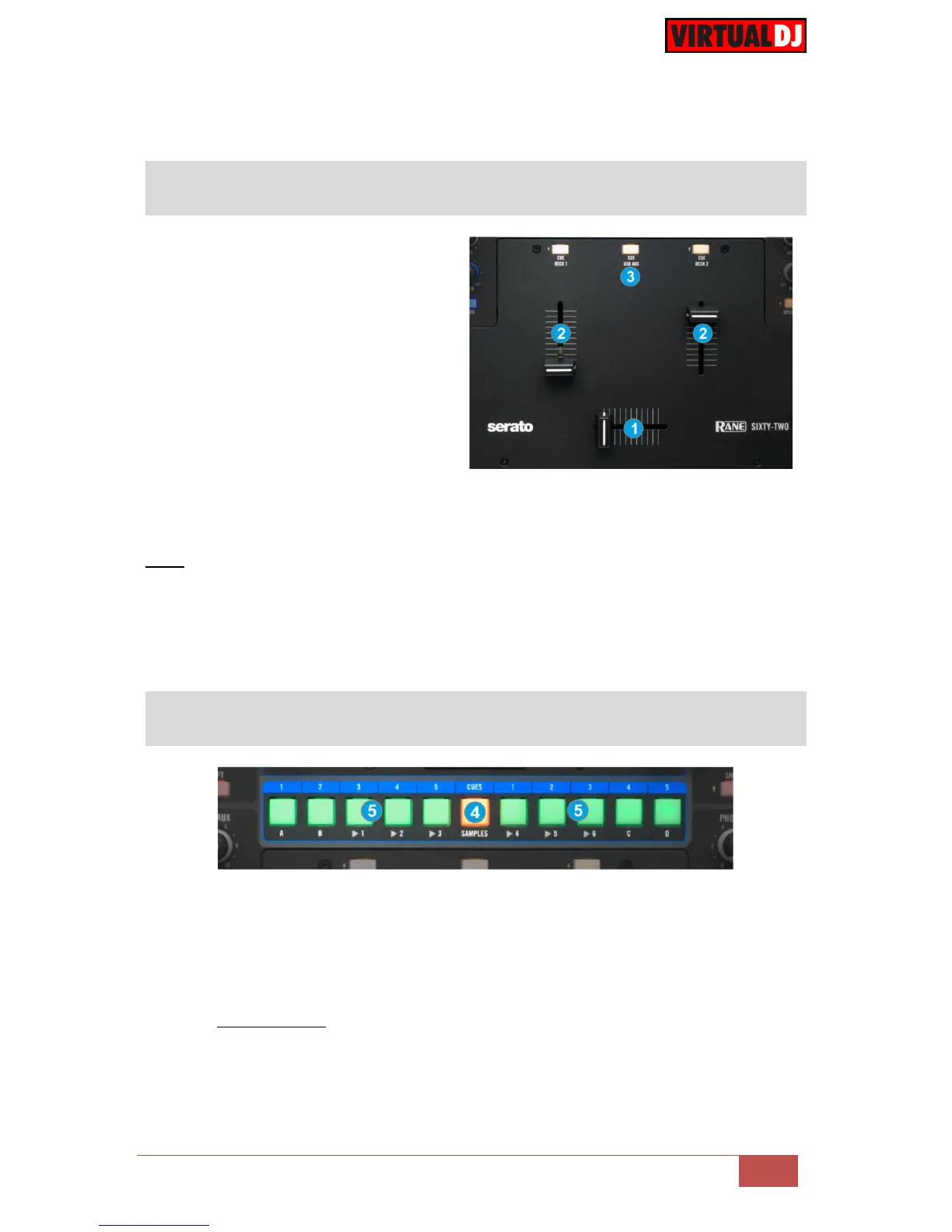
1. CROSSFADER. Blends audio
between the left and right
channels/decks.
2. VOLUME. Use these faders to
adjust the Output Volume of each
mixer channel.
3. CUE. Press these buttons to send
a channel's (left, right or USB Aux)
pre-fader signal to the Phones
Channel for monitoring. When
engaged, the button will be lit.
By pressing one CUE button at a time, you will cue that channel alone (and
deactivate CUE monitoring for the other channels). To cue to more than 1 channel
simultaneously, press these channels’ CUE buttons at the same time.
Notes
The CUE buttons of the Sixty-Two will not control the PFL buttons of the VirtualDJ GUI
(hardware operation), nor will the PFL buttons will define which channel is sent to the Phones
channel of the Rane Sixty-Two.
The Crossfader and Volume faders will move the relative faders of the VirtualDJ GUI, but not
vice versa (Fake mixer mode)
This section offers HotCues and Sampler functions depending on the selected mode.
4. CUES/SAMPLES. Use this button to toggle between the HotCues (Orange Led) and
the Sampler mode (Red Led)
5. HOTCUES (1-5)/ SAMPLES (1-6).
In HotCues mode, each one of the 5 buttons per side (1-5) assigns a Hot Cue Point
(1 to 5) to the left or right deck if un-assigned or returns the track to that Hot Cue Point if
assigned.
When a Hot Cue Button is unlit, you can assign a Hot Cue Point by pressing it at the desired
point in your track. Once it is assigned, the Hot Cue Button will light up bright amber.



 To Next Page