1
1
Navigate to your iPad's settings and connect to your
regular internet connection.
POST-SESSION INSTRUCTIONS
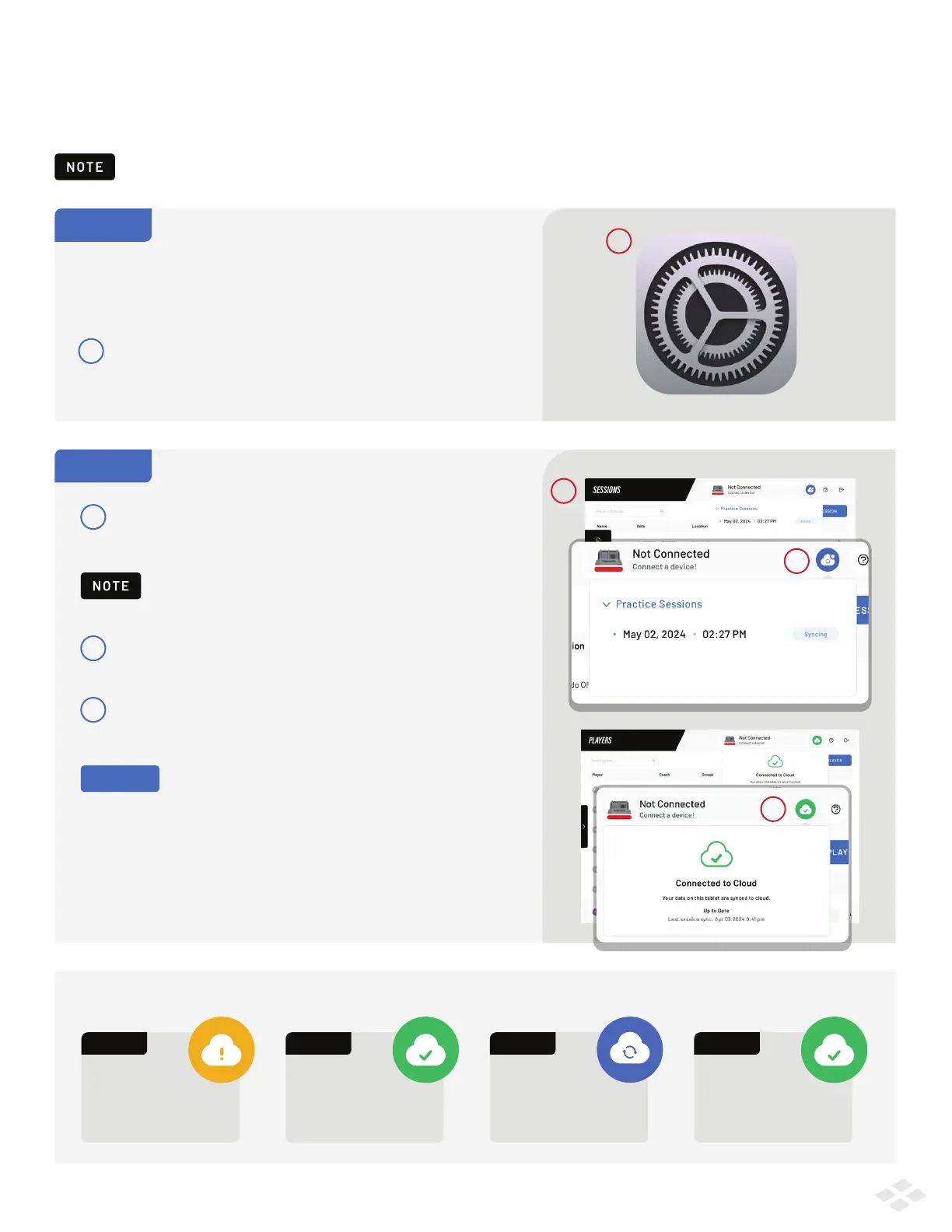
CLOUD STATUS INDICATOR ACTIVITY
After you’ve completed your session, you must sync your data to the Cloud. Syncing data from the Rapsodo Baseball app
ensures it is saved on the Cloud and accessible to coaches & players.
In order to sync, you must have collected data in a session.
NOTE
The app must remain open for syncing to continue.
STEP 1
STEP 2
Important: after a session your iPad will still be connected
to the PRO 2.0’s Wi-Fi signal. To sync data you need to switch
your regular internet connection.
1
Return to the Rapsodo Baseball App. The syncing will begin
automatically. The Cloud Status Indicator (located in the top
right of the screen) will provide details on the sync process.
The Cloud Status Indicator will turn to ‘Blue’ as your session
begins syncing.
START
Right after the
session, your iPad
and Device are still
connected. The Cloud Status
Indicator will be ORANGE
STEP 1
Connect to the
internet by switching
to your regular internet,
Cloud Status Indicator
will turn GREEN
STEP 2
Sync begins
automatically, Cloud
Status Indicator will
turn BLUE
STEP 3
Sync finishes,
Cloud Status
Indicator becomes
GREEN again
7
2
Once sessions are all synced to the Cloud, you will see
a GREEN cloud icon with a check mark.
3
3
2
1
1
b
If you want to confirm your sessions have been successfully
synced to the Cloud, you can login to your coach account
at cloud.rapsodo.com.
PRO TIP


 To Next Page