ADDITIONAL DETAILS
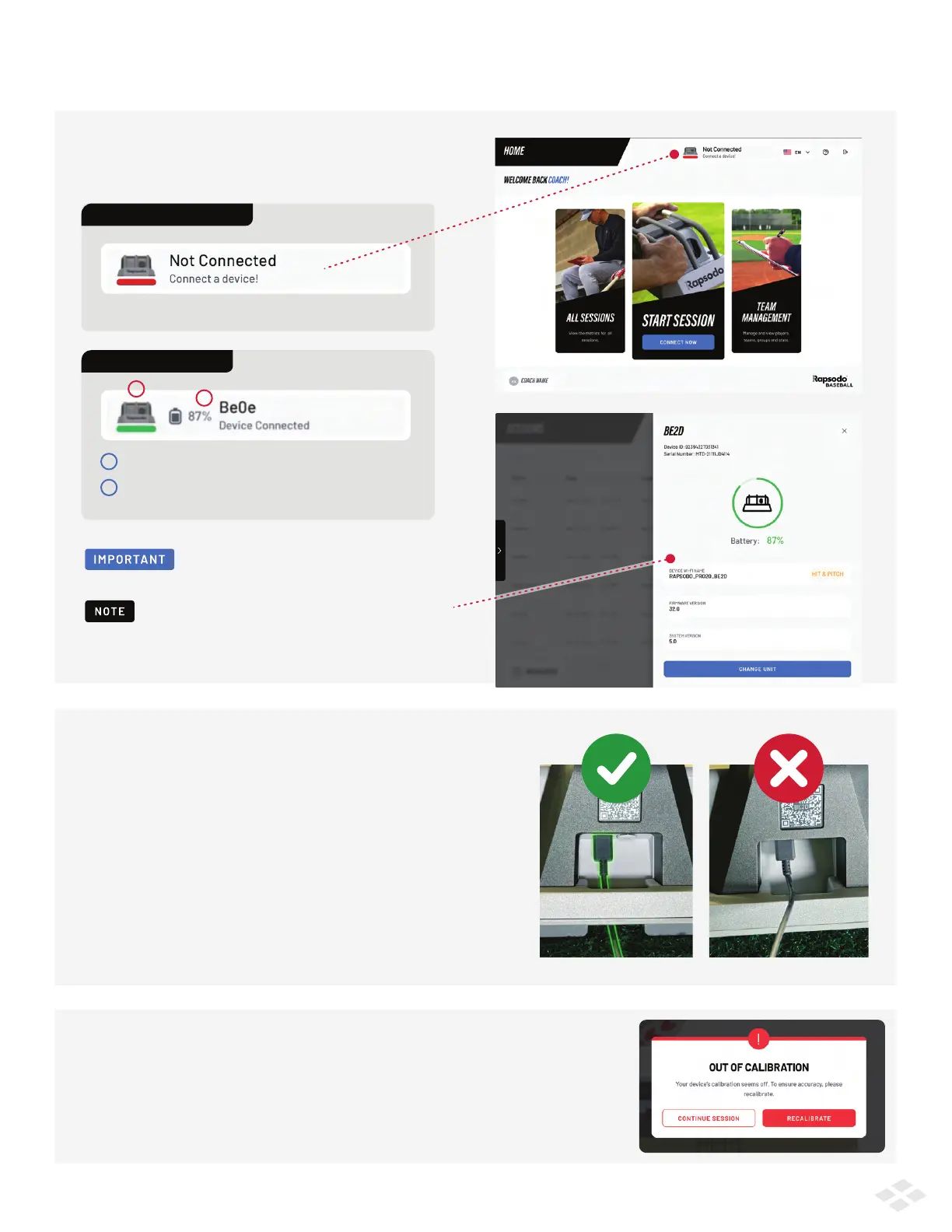
TOP BAR MODULES DEVICE TRAY
CHARGING CABLE PROPER POSITIONING
DISCONNECTED STATE
8
This shows you whether you are connected to the device and provides
additional details.
The device will detect if it has been hit by an object during the session. This
could throw off the device placement (and impact your data). You will be
prompted to recalibrate if this happens.
Click Device Tray to begin connection steps.
CONNECTED STATE
See Device name and battery percentage
Click the device icon to see more details including device ID,
device Wi-Fi name, system version, & firmware version.
1
1
2
2
PLAY SCREEN FUNCTIONALITY RECALIBRATION
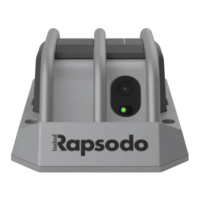
The Charging Cable must go underneath the divider when
accessing the charge port. To do so, lift the unit and feed
the cable underneath the divider.
If you incorrectly feed the cable over the top of the divider,
this will wear down and/or damage your charging cable.
We periodically release updates to the Rapsodo
Baseball app, firmware, and system versions.
You can check your Firmware and System versions
any time by navigating to the device tray at the top
of the Home, Sessions, or Team Management tab.


 To Next Page