PLAY SCREEN USAGE / DATA COLLECTION
1
2
STEP 3
PLAY ON!
3
Throw your pitches or take your swings.
Click “FINISH SESSION” to exit the Play Screen. You will be prompted to name your session (optional).
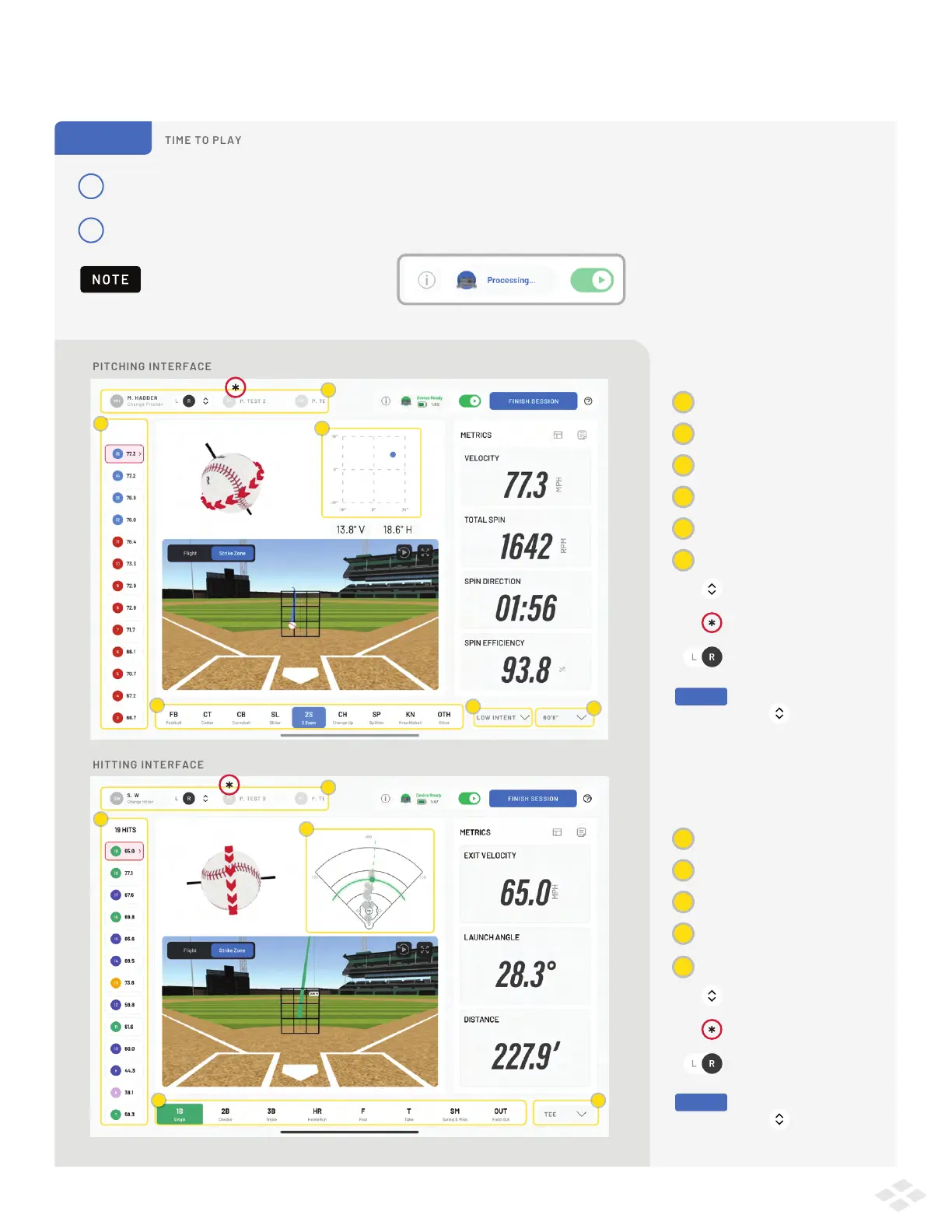
PITCHING INTERFACE
CALL OUTS
6
1 PITCH
Smaller and more ecient Processing Icon.
Mound Distance
Session Type
Pitch Type
History Toolbar
Cumulative Session Break Chart
a
b
c
d
e
Player Selection Bar
HITTING INTERFACE
CALL OUTS
Session Type
Hit Outcome
History Toolbar
Cumulative Session Spray Chart
a
b
c
d
a
a
b
b
c
c
e
d
d
f
f
Tap the up/down icon to reveal
the full list of players in the session
Click on the next player, and
drag to reveal more players
Click “L” or “R” to select left or right
handedness for your pitchers
Open the up/down icon and click “Add Player”
to add a player midway through the session.
PRO TIP
Open the up/down icon and click “Add Player”
to add a player midway through the session.
PRO TIP
Player Selection Bar
e
Tap the up/down icon to reveal
the full list of players in the session
Click on the next player, and
drag to reveal more players
Click “L” or “R” to select left or right
handedness for your hitters
e


 To Next Page