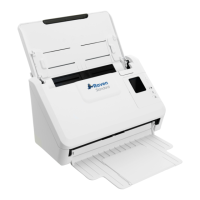
Loading Document(s) in the Automatic Document Feeder (ADF) Tray
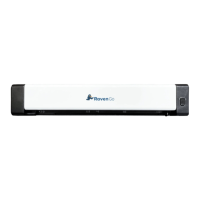
1. Insert your document FACE UP to the feeder and align it to the left edge of the
feeder(only one sheet can be inserted to scan at a time)
2. Gently push the original into the feed slot.
Note:
Remove the things remaining on your papers, such as staples, paper clips, and paper
sticky notes before feeding it into the scanner due to possible damage to the scanner.
Scanning and Sending Your Document to Raven Cloud
1. Load the top page Face Up with the top left edge set against the left side of the
scanner.
2. Select “Raven Cloud” as a Destination in your desired Raven Desktop workflow.
3. Click “SCAN”.
4. Preview thumbnails of the scanned pages and make any necessary edits.
17 support@raven.com | 1-800-713-9009 | raven.com/support


 To Next Page