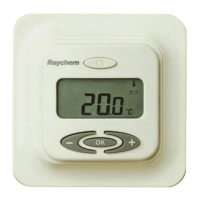
Daily Use of the Thermostat
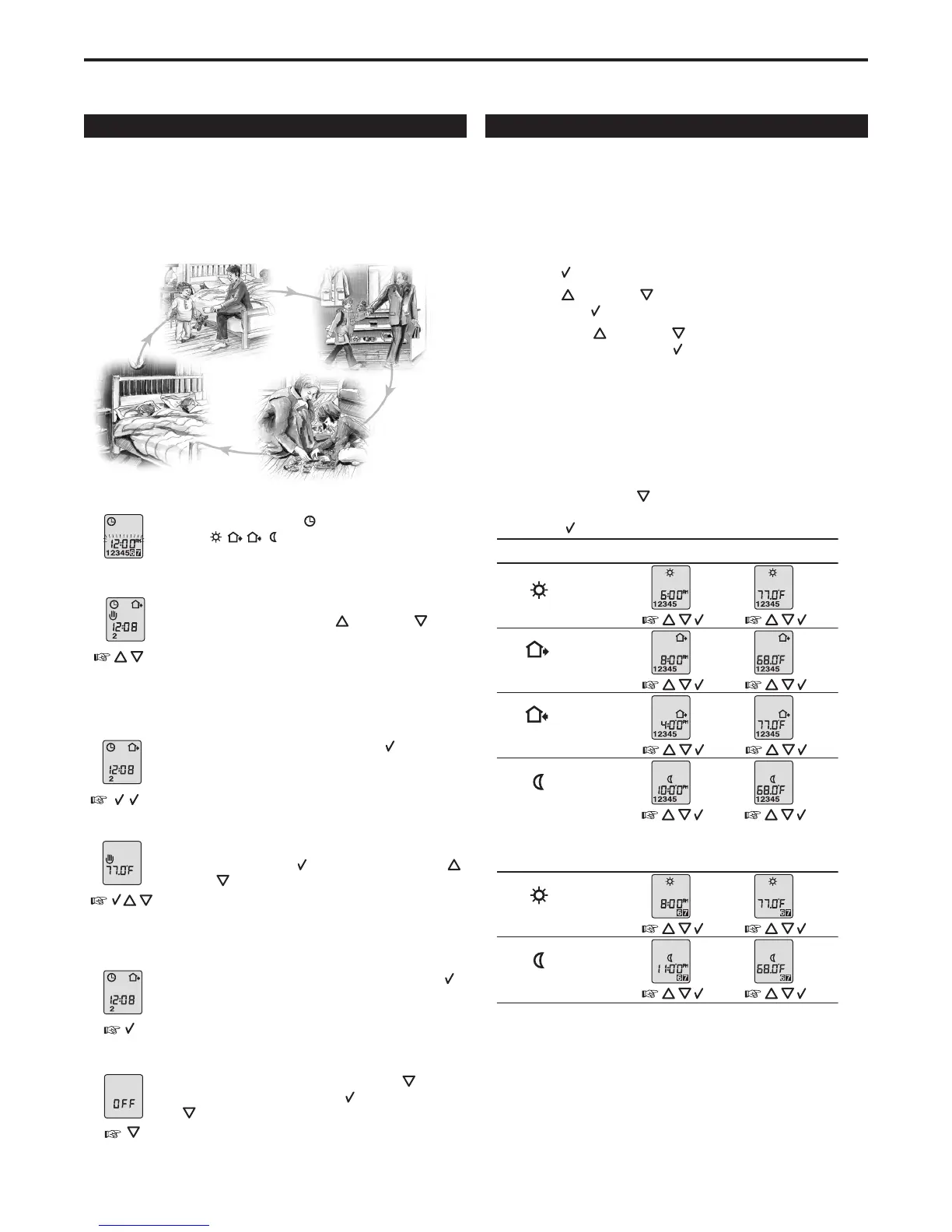
4-event clock mode
Each day has been split into 4 events describing a typical day. When the
thermostat is in 4-event mode it will automatically adjust according to
the required temperature and required time. The factory preset program
has 5 days with 4 events, and 2 days with 2 events. For more details,
see Programming.
4-event clock mode:
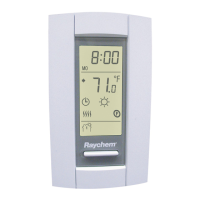
The clock function symbol ( ) and one of the 4-event
symbols (
) will be indicated.
For more details, see Programming.
Temporary override:
To temporarily override the temperature in the 4-event
schedule program, press the UP (
) or DOWN ( )
button once, to show the temperature, and press again
to increase or decrease the temperature. The display will
flash for 5 seconds, and will then revert to the time. The
override will operate until the next programmed event
when the unit will resume the automatic program.
Cancel comfort mode:
To cancel the override state, press the OK (
)
button twice.
Permanent override:
During holidays, the scheduled 4-event program can be
overridden. Press the OK (
) button, and then the UP ( )
or DOWN ( ) button until the override temperature is set.
The unit will operate at this temperature until you change
the temperature or cancel the permanent override state.
Cancel manual mode:
To cancel the permanent override state, press the OK (
)
button once, and the unit will resume automatic function.
Turning thermostat off:
To turn the thermostat OFF, press the DOWN (
) button
until you reach 41ºF, press the OK ( ) button, then press
the ( ) once more.
DO NOT USE THE TEST BUTTON ON THE GFCI TO
SWITCH OFF THE HEATING SYSTEM. TheGFCIautomati-
cally resets after a power outage.
Programming
4-event time and temperature
The table below shows the default time and temperature settings, how-
ever, you can easily change each setting as needed. For example, in the
morning you may want the floor to be warm at 7:00 a.m. and the tem-
perature to be 80ºF, and so on for other events.
Simply follow these steps:
Press the OK (
) button for 3 seconds and the start time displays.
Press the UP (
) or DOWN ( ) button until you reach your desired
time. Press the OK ( )buttontoconfirm.Yourselectedtimedisplays.
Then, press the UP (
) or DOWN ( ) button until you reach your
desired temperature. Press the OK ( )buttontoconfirm.Yourselected
temperature displays.
Repeat these two actions for the remaining events.
These settings will be valid with days 1-5 showing on the display. To
program the days 6 and 7, repeat the above. Days 6 and 7 are usually
Saturday and Sunday, and only have two events.
Thetemperaturecanbesetwithintherangeof41°Fto104°F.Itisalso
possible to select the heating OFF at that event by reducing the setting to
41ºF, and then pressing the (
) once more.
QuickStat Installation & Operation Manual
4
Wake
settings
Out
settings
Day 6 - 7
Day 1 - 5 Time Temperature
Time Temperature
Press OK ( ) button for 3 seconds to begin programming
Home
settings
Night
settings
Wake
settings
Night
settings


 To Next Page
 Loading...