EasyManua.ls Logo

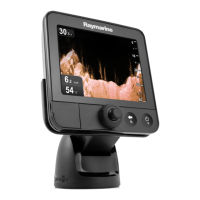
Raymarine Dragonfly 7 - User Manual

Raymarine Dragonfly 7
116 pages
Print Icon
To Next Page IconTo Next Page
Loading...
Dragonfly 6
Dragonfly 7
Installation and operation
instructions
English (EN)
Date: 02-2016
Document number: 81345-5
© 2016 Raymarine UK Limited
Release 12

Table of Contents

Other manuals for Raymarine Dragonfly 7

Questions and Answers

  • T
    Tammy CookAug 16, 2025
    What to do if my Raymarine Dragonfly 7 system doesn't start up?
    • T
      Thomas StarkAug 16, 2025
      If your Raymarine GPS system fails to start, the issue likely lies within the power supply. Here's what you should check: * Examine the relevant fuses and breakers. * Inspect the power supply cable for any damage, ensuring all connections are secure and free of corrosion. * Verify that the power source provides the correct voltage and sufficient current.
  • M
    Michael BakerAug 19, 2025
    How to restore scrolling image on Raymarine Sonar?
    • O
      Oscar AllenSep 12, 2025
      If the scrolling image is not being displayed on your Raymarine Sonar, ensure that Sonar is enabled from the Shortcuts page. Check the unit’s connector for broken or bent pins. Verify that the cable connector is fully inserted and locked. Inspect the power supply cable and connectors for damage or corrosion, replacing if necessary. Also, check the transducer for damage or fouling. Finally, confirm that you have the correct transducer fitted; the CPT-DV transducer is for DownVision™ only and not compatible with the Sonar application.
  • D
    David SerranoAug 21, 2025
    Why are my Raymarine Dragonfly 7 depth readings problematic?
    • C
      Christian CooperAug 22, 2025
      Problematic depth readings or on-screen images on your Raymarine system can arise from several factors: * Sensitivity settings: Check that the sensitivity settings are appropriate for the current conditions. * Power supply: Verify the voltage from the power supply; a low voltage can affect the unit's transmitting power. * Cable connections: Ensure the power/transducer cable is properly connected and undamaged. * Transducer location and condition: Confirm the transducer is installed according to location requirements, is clean, and hasn't been dislodged. * Vessel speed: Turbulence around the transducer at high speeds can interfere with readings. * Scroll speed: Adjust scroll speed.
  • D
    dcardenasAug 25, 2025
    How to fix a Raymarine Sonar that does not turn on?
    • J
      Jennifer WilliamsAug 25, 2025
      If your Raymarine Sonar product does not turn on or keeps turning off, check the condition of the relevant fuses and breakers and connections, replacing them if necessary. If the fuse keeps blowing, inspect for cable damage, broken connector pins, or incorrect wiring. Also, verify that the power cable connector is fully inserted and locked, and check for any damage or corrosion on the power supply cable and connectors, replacing if needed. Ensure the power supply is wired correctly and that the power source provides sufficient voltage by checking with a multi-meter under load.
  • A
    Alexis MorrisAug 27, 2025
    Why does my Raymarine Sonar display keep resetting?
    • J
      javier20Aug 28, 2025
      If your Raymarine Sonar display behaves erratically with frequent unexpected resets or system crashes, start by checking the relevant fuses and breakers. Ensure the power supply cable is in good condition, with tight, corrosion-free connections, and verify the power source provides the correct voltage and sufficient current. You may also visit the Raymarine website regularly for software updates. As a last resort, perform a Settings and Data Reset, but remember this will erase all your stored settings and data.
  • A
    Alexander DoughertyAug 30, 2025
    What to do if Raymarine Sonar will not boot up?
    • D
      Dr. Brent OrtegaAug 30, 2025
      If your Raymarine Sonar product will not boot up and is stuck in a re-boot loop, refer to the solutions for a product that does not turn on or keeps turning off. Additionally, in case of software corruption, try re-flashing the latest software from the Raymarine website. As a last resort on display products, perform a ‘Power on Reset’; however, this will delete all settings, presets, user data and revert the unit back to factory defaults.
  • M
    Melissa ReedSep 2, 2025
    Why is my Raymarine Sonar not reading depth?
    • J
      John DavisSep 2, 2025
      If your Raymarine Sonar shows no depth reading or loses bottom lock, verify the transducer installation meets the location requirements. Check the transducer angle, adjusting if it's too great. Inspect the transducer to ensure it hasn't kicked up due to hitting an object and check for damage or fouling. Also, check the power supply voltage under load with a multi-meter and inspect cables for damage or loose connections.
  • S
    spierceSep 5, 2025
    Why Raymarine Sonar GPS cannot acquire satellite fix?
    • J
      Jacob RogersSep 5, 2025
      If your Raymarine Sonar GPS cannot acquire a satellite fix, periodically check to see if a fix is obtained in better conditions or another geographic location. A GPS Status page is available that provides satellite signal strength and other relevant information. Ensure the unit is mounted above decks, away from structural bulkheads or other electrical equipment that may cause interference.
  • T
    Terri HendricksSep 7, 2025
    Why does my Raymarine GPS display behave erratically?
    • S
      Samantha SmithSep 7, 2025
      Erratic behavior in your Raymarine GPS display, such as frequent resets or system crashes, can stem from a few potential causes: * An intermittent power supply issue: Inspect the relevant fuses and breakers, the power supply cable (looking for damage, loose connections, or corrosion), and ensure the power source provides the correct voltage and sufficient current. * Corrupt data or other unknown issues: You can perform a Settings and Data Reset. Note: This will erase all settings and data (waypoints, etc.) stored on the product, so save any important data to a memory card first.
  • L
    Lindsey OlsonSep 10, 2025
    What to do if Raymarine Dragonfly 7 shows no GPS position?
    • B
      Barry WrightSep 10, 2025
      If your Raymarine GPS isn't showing a position, it could be due to: * Your current geographic location or prevailing conditions preventing a satellite fix. Check periodically to see if a fix is obtained in better conditions or another geographic location. * The unit's location. For optimal performance, ensure the unit is mounted above decks, away from structural bulkheads, other electrical equipment, or cables that may cause interference.

Summary

Document and Software Changes

New Features

Lists new features for Release 12, including improved sonar performance.

Software Updates

Advises checking the Raymarine website for the latest software releases.

Chapter 1: Important Information

General Safety Warnings

Covers critical safety alerts for installation, navigation, power, and grounding.

Service, Cable, and Card Cautions

Provides cautions regarding service, transducer cable handling, and memory card care.

Memory Cards and Chart Cards

Discusses using MicroSD cards for data backup and chart cartography.

EMC Installation Guidelines

Explains electromagnetic compatibility and proper installation for performance.

Warranty Policy

Details the product warranty period and how to claim it.

Chapter 2: Document and Product Information

2.1 Document Information

Contains important information for installation and product operation.

2.2 Product Overview

Describes the unit, its features, and CHIRP DownVision technology.

Chapter 3: Planning the Installation

3.1 Installation Checklist

Lists the sequential tasks required for a successful installation.

3.3 DownVision Transducer Compatibility

Outlines compatibility between transducers and display models.

3.7 Selecting a Location for the Transducer

Provides guidelines for optimal transducer placement on the transom.

3.9 Selecting a Location for the Display

Discusses factors for choosing a display location, including ventilation and GPS signals.

Chapter 4: Mounting

4.1 Mounting the Transducer

Step-by-step guide for mounting the transom transducer using the provided bracket.

4.2 Cradle Mounting

Instructions for securely mounting the display's cradle to a surface.

4.7 Surface Mounting

Guides on using the optional kit to surface mount the display.

4.8 Testing the Transducer

Outlines how to test the transducer's performance in the water before final mounting.

Chapter 5: Cables and Connections

5.1 General Cabling Guidance

Provides advice on cable types, lengths, routing, and strain relief.

5.3 Cable Connection

Details the process of connecting the power and transducer cable to the display.

Chapter 6: Getting Started

6.1 Controls

Explains the functions of the MicroSD card reader and UniControl.

6.3 Initial Set Up Procedures

Guides users through the startup wizard and recommended additional tasks.

6.4 Satellite-Based Navigation

Explains how to view GPS status, satellite information, and positioning.

Chapter 7: Fishfinder Applications

7.1 DownVision Application Overview

Introduces DownVision for detailed structure view using CHIRP processing.

7.2 Sonar Application Overview

Explains Sonar for fish targeting, bottom structure, and water column view.

7.10 Sensitivity Adjustments

Covers adjusting Gain, Contrast, and Noise Filter for optimal image clarity.

Chapter 8: Chart Application

8.1 Chart Application Overview

Introduces the 2D chart perspective, navigation features, and base maps.

8.4 Waypoints Overview

Covers creating, navigating, and managing waypoints.

8.8 Navigation

Guides on navigating to cursor location, waypoints, and handling arrival alarms.

Chapter 9: Tools & Settings

9.1 System Settings Menu

Lists options for Key Beep, Language, Units, GPS, Sonar, Time/Date, Simulator, and Maintenance.

9.2 Alarms

Details configurable alarms like Deep Water, Shallow Water, Fish, Temperature, and Waypoint Arrival.

Chapter 10: Maintenance

10.2 Product Cleaning

Provides best practices for cleaning the display case and screen.

10.3 Transducer Cleaning

Advises on cleaning the transducer to prevent performance reduction due to growth.

Chapter 11: Troubleshooting

11.2 Power Up Troubleshooting

Addresses issues when the product does not turn on or restarts.

11.4 Sonar; DownVision Troubleshooting

Details solutions for issues with scrolling images or bottom lock.

Chapter 12: Technical Support

12.1 Raymarine Product Support and Servicing

Provides contact information for product support, warranty, service, and repairs.

Chapter 13: Technical Specification

13.1 Technical Specification

Details physical, power, environmental, and display specifications.

Chapter 14: Spares and Accessories

14.1 Accessories

Lists available accessories for Dragonfly 6 and Dragonfly 7 models.

Raymarine Dragonfly 7 Specifications

General IconGeneral
Display Size7 inches
Display TypeLCD
Display Resolution800 x 480 pixels
GPSYes
Waterproof RatingIPX6 and IPX7
MappingNavionics, C-MAP
FrequencyCHIRP 170-230 kHz
Max DepthDownVision: 600ft (183m), Sonar: 900ft (275m)
Mounting Typebracket mount
SonarCHIRP DownVision

Related product manuals