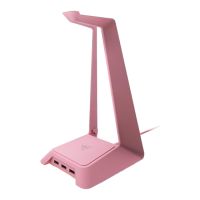
MONITOR STAND CHROMA
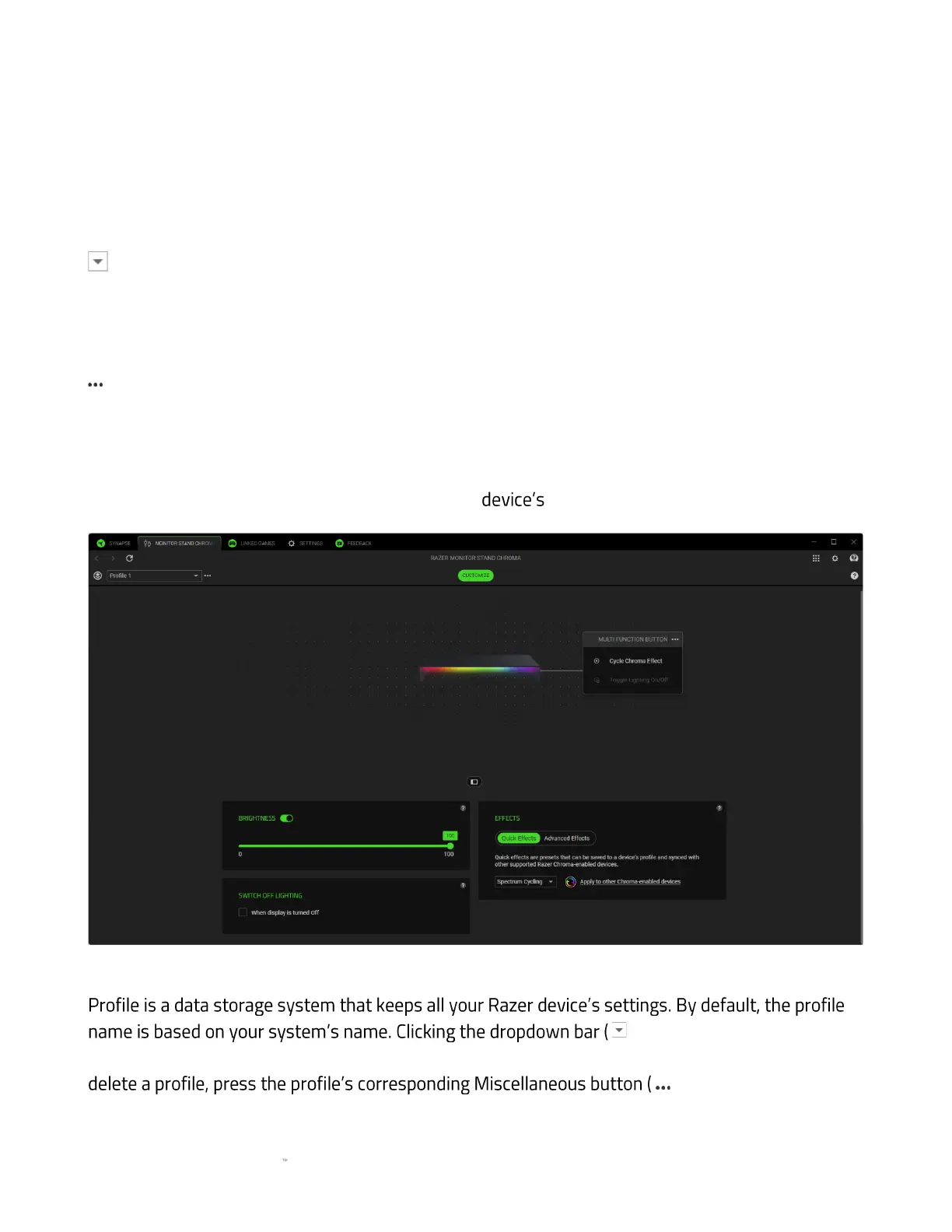
The MONITOR STAND CHROMA tab is the main tab for your Razer device. You can change your
device settings from here, such as lighting and button assignment. Any changes under this tab will
be saved automatically to your local system and cloud storage. Use the following buttons below to
access your profile options:
Profiles Dropdown Bar
Clicking this dropdown bar will display all the profiles for this device so you can quickly change
profiles.
Miscellaneous
Clicking this button will open a pop-up with options related to your current profile.
Customize
The Customize subtab is for modifying your Razer button mapping and light settings.
Profile
) will display all profiles for
this device so you can quickly switch between them. To add, import, rename, duplicate, export, or
).



 To Next Page