24
2424
24
Click
Click
1
1
4
5
Click2
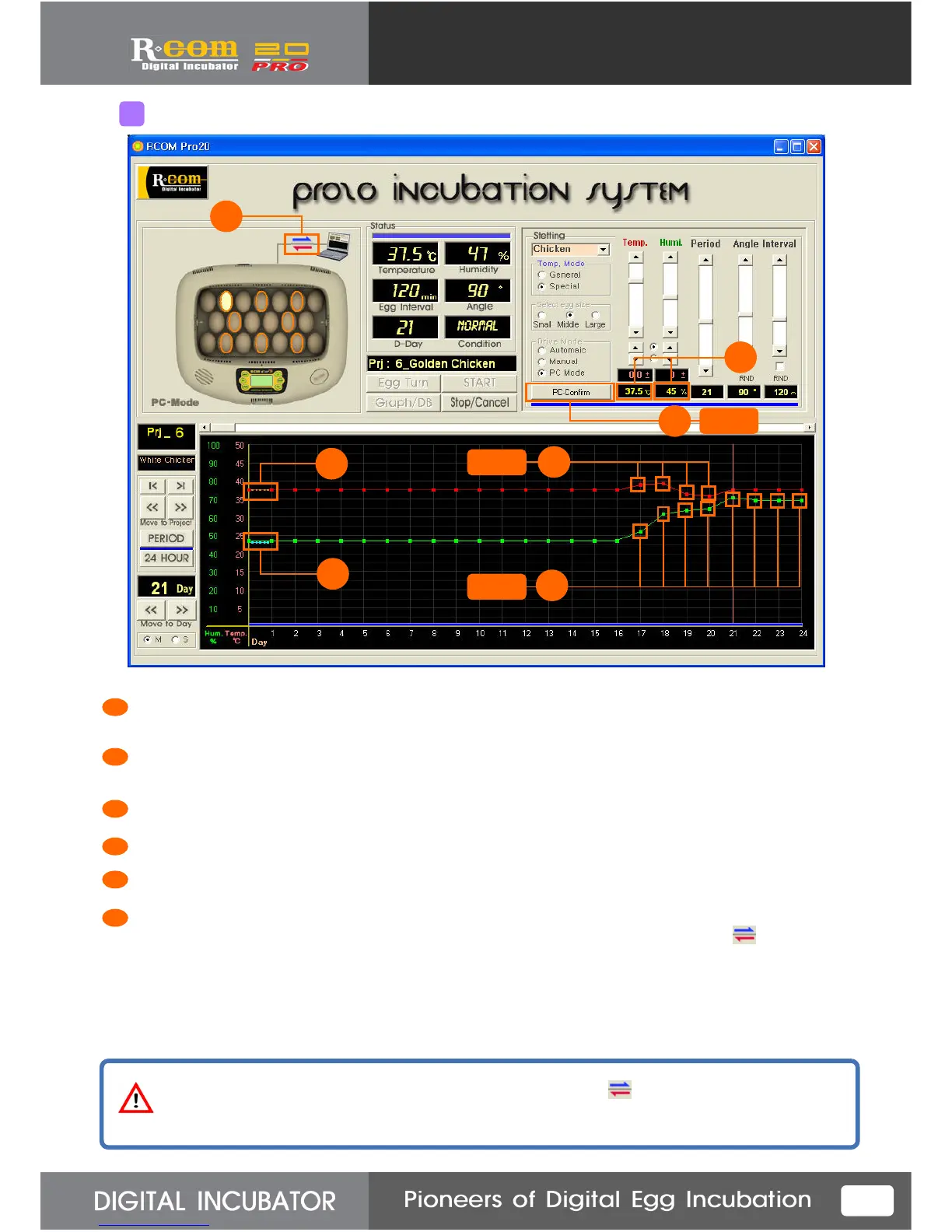
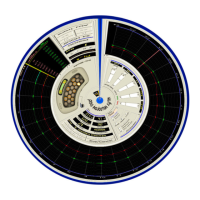
Click temp. or humidity Point which you want to modify, and move up or down. Then, graph will move together.
Now, click your mouse one more time on the modifying position. Temp.& humidity will be set on that position.
For modifying temperature or humidity graph value, click Point and move it. Then, it indicates current temp.&
humidity change value. (When you move the graph, you can see current temp.& humidity value.)
Save temp. &humidity setting value. You can control the temp. & humidity on incubation.
If it is on incubation, it indicates real-time temperature changing value with graph.
If it is on incubation, it indicates real-time humidity changing value with graph.
It means that setting temperature & humidity from computer special mode are transmitting to incubator.
When you want to terminate program or remove USB connecting cable, be sure to confirm mark is
disappeared.
1
3
2
3
4
5
2
Graph Temp. & Humidity Setting Value Change on Special Mode
6
When you want to stop connection on special mode, wait until
When you want to stop connection on special mode, wait until When you want to stop connection on special mode, wait until
When you want to stop connection on special mode, wait until icon removed. If not,
icon removed. If not, icon removed. If not,
icon removed. If not,
the operation can cause some problems because setting value does
the operation can cause some problems because setting value doesthe operation can cause some problems because setting value does
the operation can cause some problems because setting value does not transmit to the incubator.
not transmit to the incubator.not transmit to the incubator.
not transmit to the incubator.
6


 To Next Page