GUI- 003 Knowledge Base- Resetting your Redback Inverter
Audience: Home owner Installer .
Version 1.0 - 27/07/2018 - Page 9 of 16
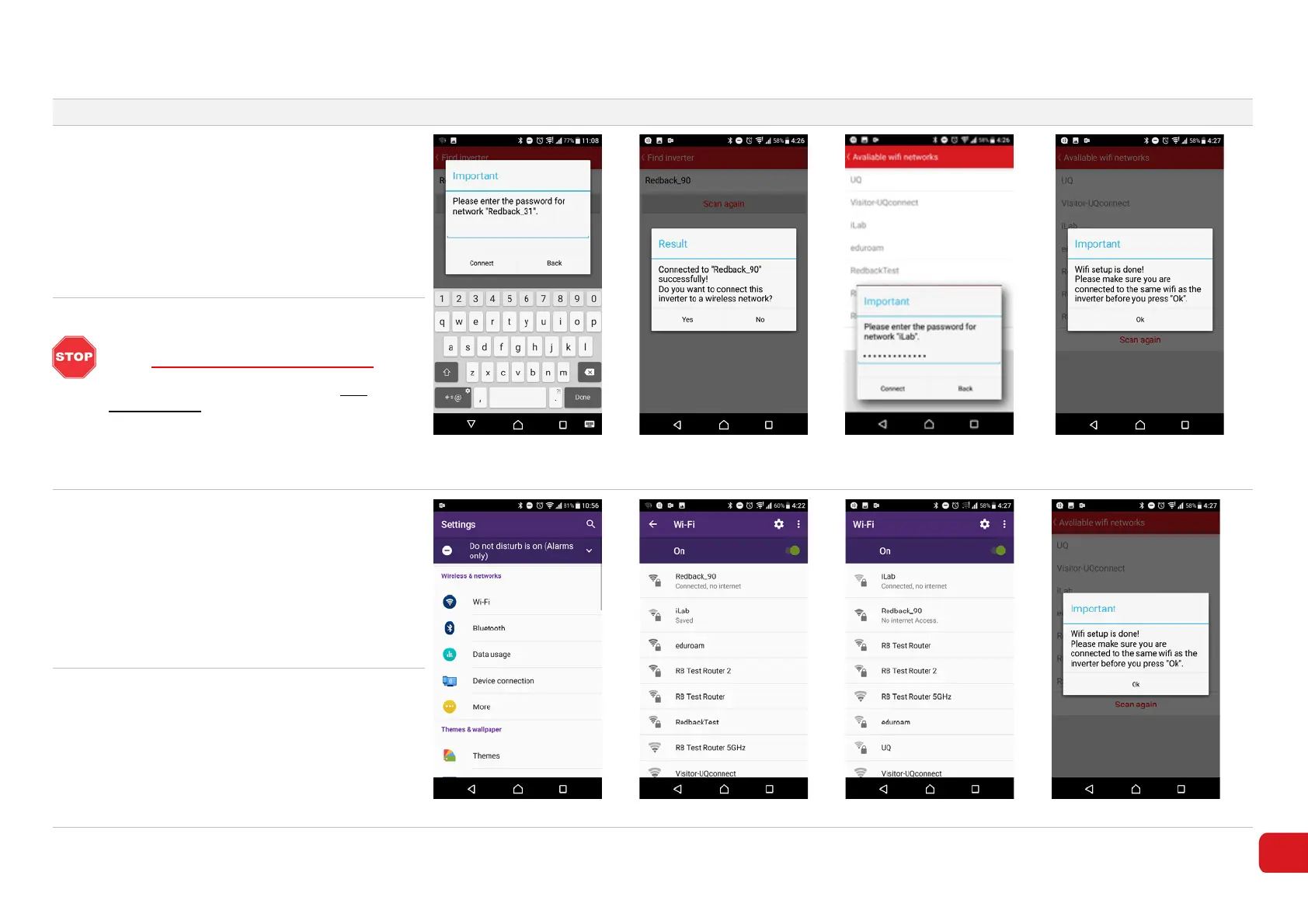
5. Enter the password 12345678 if requested.
Touch Connect. (7-4). A success message will
appear (7-5).
Touch Yes to continue. A list of available
networks will appear (7-6). Select your home
network.
Enter your Password (7-7).
Figure 7-4
Figure 7-5
Figure 7-6
Figure 7-7
6.
Message “Important. Wi-Fi setup is done! etc” will
appear.
STOP! DO NOT PRESS “OK” YET
Before finishing you must disconnect your
Android device from the inverter Wi-Fi and
connect it to the home network, as described
below.
7. Connect your device to your home network
• Swap back to Android Settings (7-8)
• Touch Wi-Fi (7-9)
• Select your home Wi-Fi network from the list
(7-10)
• Enter your password if requested
The inverter and your device are now connected
to the home network.
Figure 7-8
Figure 7-9
Figure 7-10
Figure 7-11
8.
Return to the Redback App. The message
“Important. Wi-Fi setup is done! etc...” should still
be visible. Touch OK to continue (7-11).


 To Next Page