Press the reset button for 3s with a needle, and when you hear
“successfully reset the system”, the main machine will restart
automatically, and relevant settings such as scheduled cleaning and
Wi-Fi will be recovered to the factory state.
Press the reset button for 10s with a needle, and when you hear
“successfully recover the system”, the main machine will restart
automatically, and the relevant settings such as scheduled cleaning
and Wi-Fi will be recovered to the factory state, and the system will be
recovered to the previous firmware version.
Note: After resetting/recovering the system, the main machine needs to
reconnect the App, and the relevant settings in the App are cleared.
Reset/recover system
12
Operation
When your router or Wi-Fi access password has been changed, you
have to reset your Wi-Fi connection by pressing and holding both “ ”
and “ ” for 7 seconds when this product is power-on, and Wi-Fi
connection is reset successfully when a voice prompt "Wi-Fi reset and
network configuration activated" is given.
Note: Only Wi-Fi network in 2.4GHz frequency is available to this
product.
Reset Wi-Fi Dust compartment
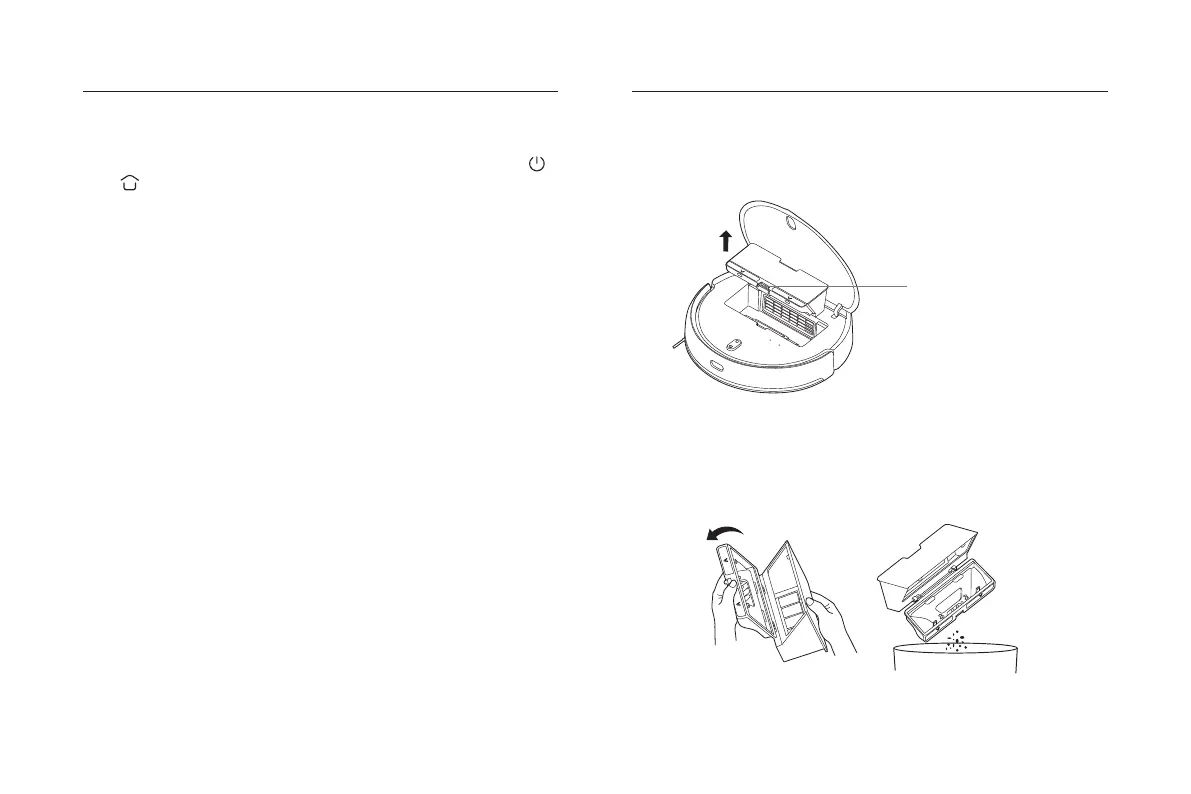
Dust compartment
release button
Product Maintenance
1. Open the vacuum-mop cover, press the dust compartment
release button, and take out the dust compartment.
2. Open the dust compartment cover as shown in the figure, and
dump the garbage.


 To Next Page