Tips & Troubleshooting
Updating the scanners firmware
Download the latest firmware file, save it to your Downloads directory, once
download is complete, Turn on the scanner wait for the solid blue light then open the CyberView PF135 software,
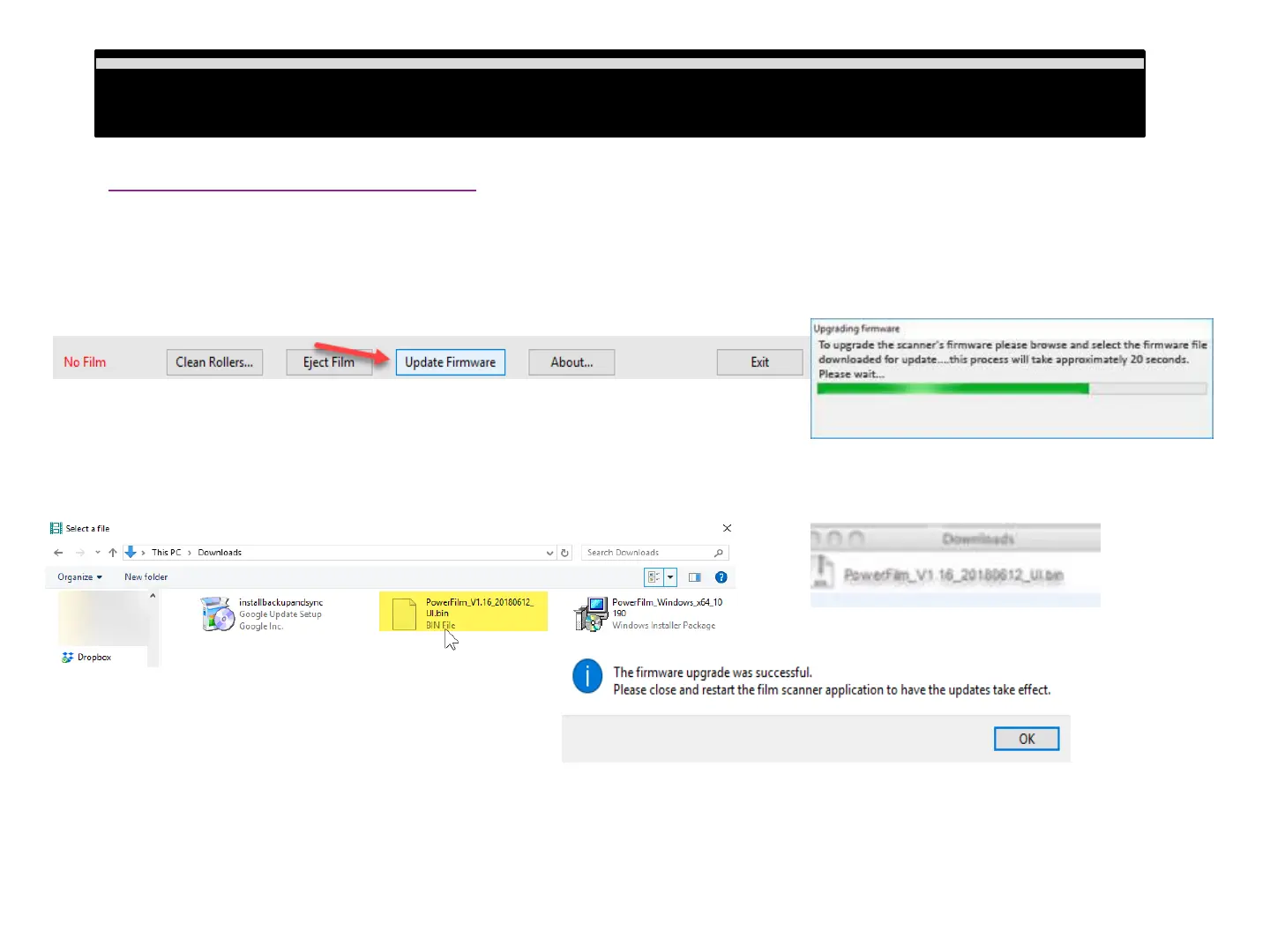
in the main user interface locate the Update firmware button
this will open a file explorer window, browse to the downloads directory on your PC or Mac and locate the firmware file by
Name: PowerFilm_V1.xxxx.UI.bin double click on this file to begin the firmware update process.
Once the firmware install is complete click OK, this will close the CyberView PF135 interface, the scanner will
still be processing this update, the blue light will continue to flash until it has completed, do not open the scanning
Software at this time, once the procedure is complete the light will be solid and may now resume using CyberView
PF135 for scanning.
Download software & firmware updates (download link)
Tips & Troubleshooting
15


 To Next Page