10
English
HOW TO SCAN SLIDES
STEP 1 – Acquire Driver
(For PC
u
ser)
open CyberView from start –
all
Programs –CyberView
(For
maC
u
ser)
open macintosh Hard drive –
applications
–CyberView
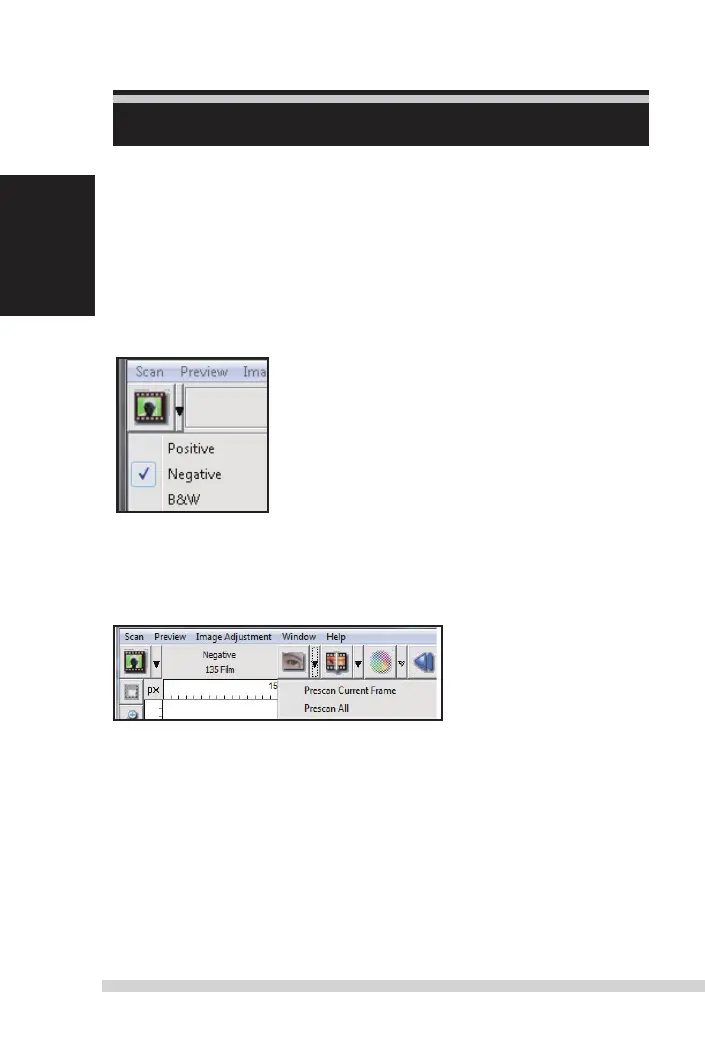
STEP 2 – select Film Type
select the lm type to be scanned - Positive, negative or B&W (Black and White).
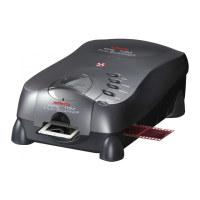
STEP 3 – Optional Prescan
select the “Prescan Current Frame“ to prescan the slide currently loaded into the
scanner or “Prescan
all..“
to prescan an entire negative strip
Pre-scanning should be used to manually adjust color/edit settings for each slide
before doing the nal scan. it’s possible to set dierent settings for each slide to
be scanned.
STEP 4 – set scan
s
ettings
a.
r
esolution
t
he default scanning resolution is 1000dpi, additional resolution options
are listed below.
Manual-RPS10M.indd 10 23.12.2016 10:00:31


 To Next Page