!
!
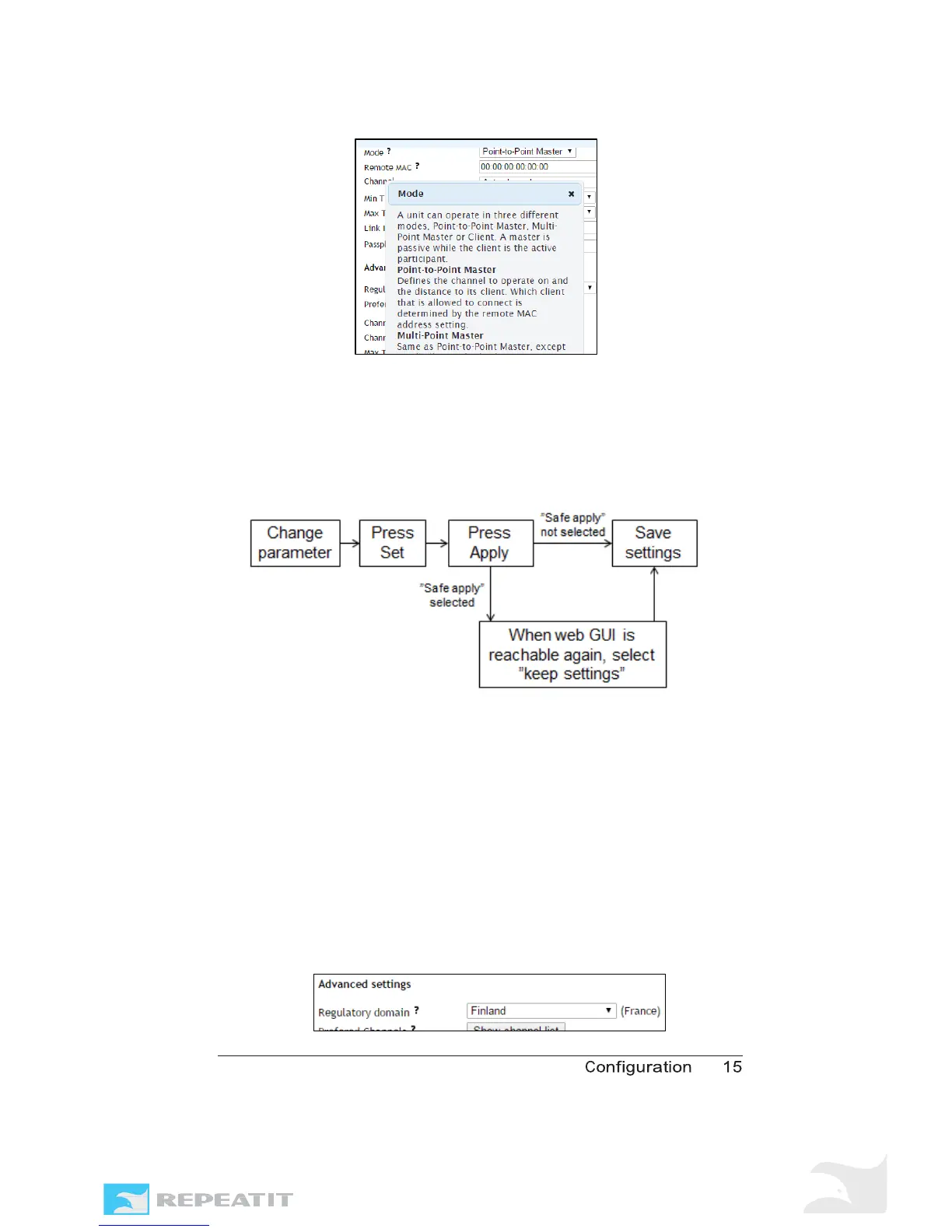
Figure 4 - Click the question mark next to a parameter to see a
description of the parameter and selectable parameter values. This
example shows the Mode of the unit.
How to make configuration changes
To make configuration changes successfully, follow the steps
that are summarized in the figure and the steps below.
Figure 5 - How to change parameter settings and make them permanent.
1. Select parameter to change. Note that if you attempt to set
an invalid value, such as a too large distance value or an
invalid IP address, the configuration modification will fail and
the field containing invalid data is highlighted in red.
2. Select the new value. For example, the regulatory domain is
changed from “France” to “Finland”.
3. Click the “Set” button at the bottom of the page. This should
result in “France” popping up to the right in brackets (still the
valid configuration). “Finland” is stored in the unit’s inactive
configuration area. See figure below.
Figure 6 - "Finland" is in the inactive configuration area after the Set



 To Next Page