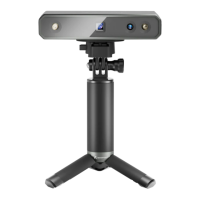
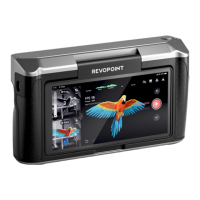
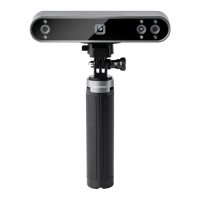
POP 3 Quick Start Guide
8 ©2023 REVOPOINT 3D ALL RIGHTS RESERVED
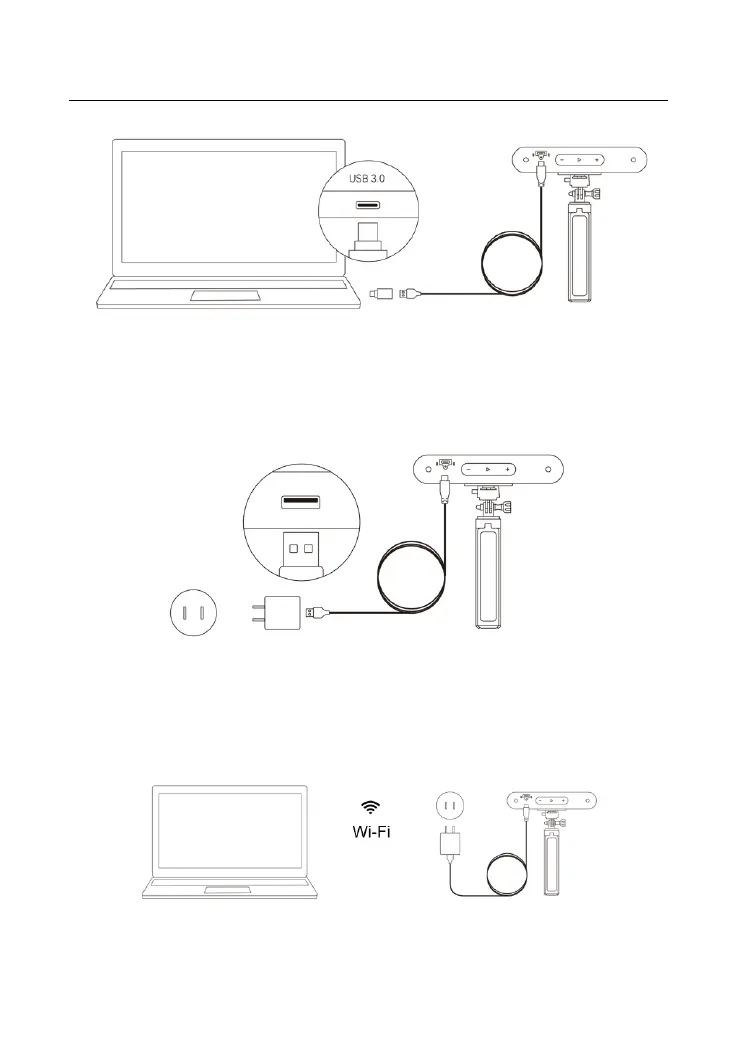
Connecting POP 3 to a PC via Wi-Fi
Step 1: Power the POP 3 with the Power Bank Handle or an AC adapter.
(Note: Do not plug it into your PC; it will be in USB mode by default.)
Step 2: Connect the PC to the POP 3.
1) Go to your Wi-Fi setting, search for the network called POP 3-XXXXXX
and connect (No password is required).
2) Wait a few seconds for the scanner to connected.


 To Next Page