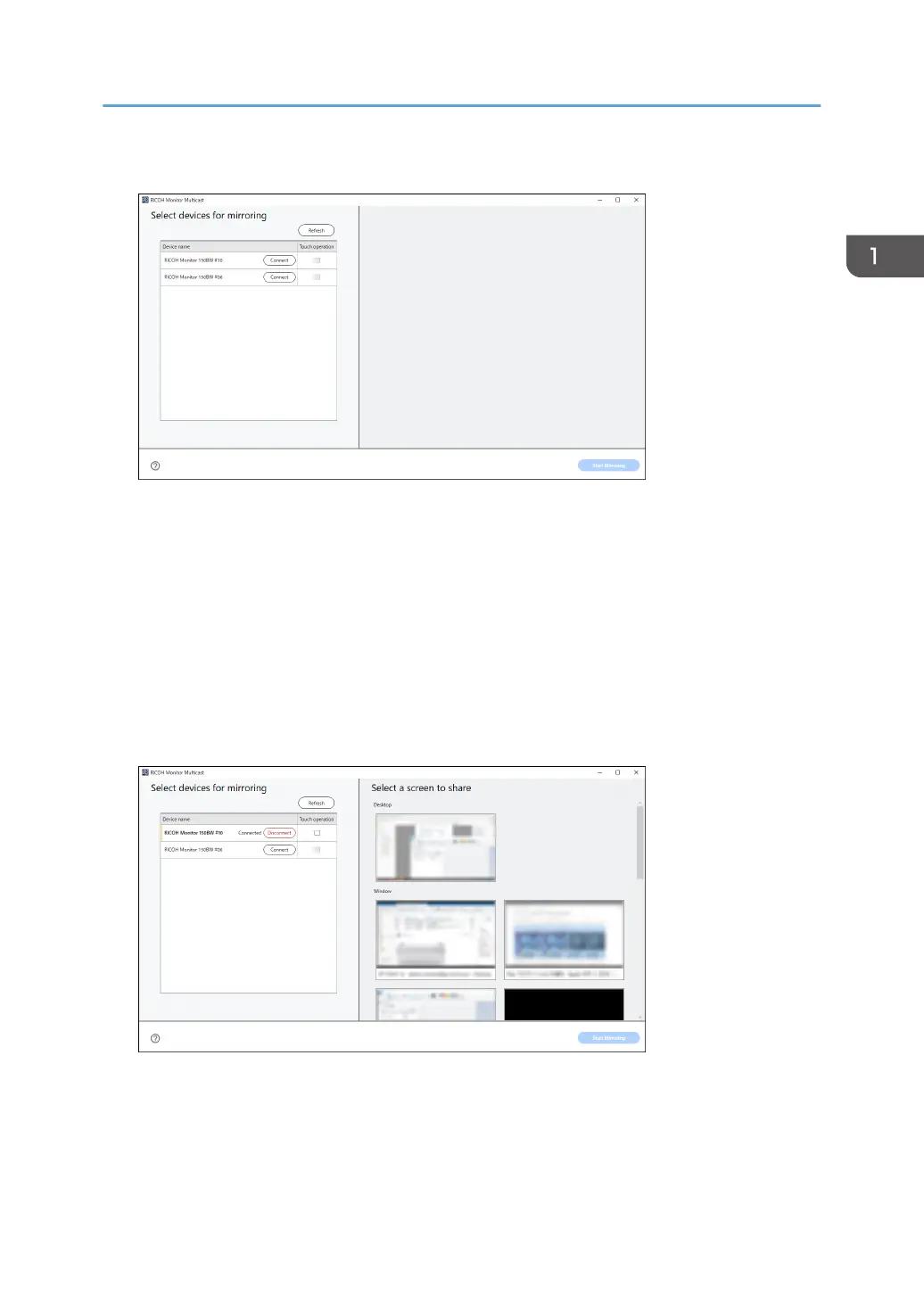
3. Click [Connect] of the RICOH Monitor that you want to connect.
A maximum of five RICOH Monitors can be selected.
4. To allow touch operation or stylus pen operation, check the "Touch operation" checkbox
of the allowed RICOH Monitor.
Only one RICOH Monitor can be allowed for touch operation.
The allowed RICOH Monitor can be changed at any time.
5. Click the Windows screen to be shared from "Select a screen to share".
The screen to be shared can be selected from the Windows desktop or a window (e.g. application)
to be used.
The screen to be shared can be changed at any time.
An orange frame appears on the selected screen.
Using the Application to Connect to Multiple RICOH Monitors at the Same Time (Windows)
39


 To Next Page