EasyManua.ls Logo

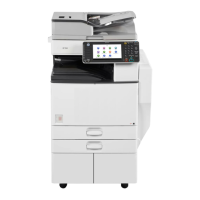
Ricoh Aficio MP 5002 - User Manual

Ricoh Aficio MP 5002
228 pages
Print Icon
To Next Page IconTo Next Page
Loading...
Read this manual carefully before you use this machine and keep
it handy for future reference. For safe and correct use, be sure to
read the Safety Information in "Read This First" before using the
machine.
For information not in this manual, refer to
the HTML/PDF les on the supplied
CD-ROM.
Appendix
Troubleshooting
Adding Paper and Toner
Web Image Monitor
Document Server
Scan
Print
Fax
Copy
Getting Started
What You Can Do with This Machine
User Guide

Table of Contents

Other manuals for Ricoh Aficio MP 5002

Questions and Answers

  • B
    Barry WilkersonSep 9, 2025
    What does it mean when 'Turn main Power Switch off' appears on Ricoh All in One Printer?
    • R
      Robert SanchezSep 9, 2025
      The message 'Turn main Power Switch off' on your Ricoh All in One Printer means that the machine did not shut down normally when the main power switch was turned off and then immediately turned on again. Turn off the machine, wait for ten seconds or more after shutting it down, and then turn it on again.
  • X
    xloganAug 23, 2025
    What to do if 'Following output tray is full. Remove paper.' appears on Ricoh All in One Printer?
    • C
      Carolyn HowardAug 23, 2025
      When the message 'Following output tray is full. Remove paper.' appears on your Ricoh All in One Printer, it means that the output tray is full. To resume printing, remove paper from the output tray. If paper is going to the finisher shift tray, press the [Stop] key to suspend printing to prevent paper from falling, then remove the paper. Finally, press [Continue] on the display panel to resume printing.
  • J
    Joseph BridgesAug 25, 2025
    What to do if my Ricoh All in One Printer is printing on the reverse side of the paper?
    • E
      Emily CollinsAug 25, 2025
      If your Ricoh All in One Printer is printing original images on the reverse side of the paper, it may be because the paper is loaded incorrectly. Load paper into the paper tray or tray 3 (LCT) with the print side up. Load paper into the Large capacity tray (LCT), or bypass tray with the print side down.
  • J
    joseph99Aug 26, 2025
    What to do if misfeeds occur frequently in Ricoh All in One Printer?
    • Z
      zavalacarlAug 26, 2025
      If misfeeds occur frequently in your Ricoh All in One Printer, it could be due to several reasons: * The tray's side or end fences may not be set properly. Check that the side or end fences are set properly and that the side fences are locked. * Paper of undetectable size has been loaded. If you load a paper size that is not selected automatically, you need to specify the paper size with the control panel. * There is a foreign object on the finisher tray. Do not place anything on the finisher tray.
  • M
    Mr. John HamiltonAug 27, 2025
    What to do if an error has occurred on Ricoh Aficio MP 5002 All in One Printer?
    • S
      Scott SmithAug 28, 2025
      If an error has occurred on your Ricoh All in One Printer, a function with the status 'Error Occurred' in the [Check Status] screen is defective. Press [Check] in the function where the error occurred, then check the displayed message and take appropriate action. You can use other functions normally.
  • J
    jessica60Aug 29, 2025
    What to do if I cannot print in duplex mode on my Ricoh Aficio MP 5002?
    • T
      Tonya LarsonAug 29, 2025
      If you cannot print in duplex mode on your Ricoh All in One Printer: * You may have selected a paper tray that is not set for duplex printing. Change the setting for 'Apply Duplex' in System Settings to enable duplex printing for the paper tray. * You may have selected a paper type that cannot be used for duplex printing. In [Tray Paper Settings], select a paper type that can be used for duplex printing.
  • J
    John MurphySep 17, 2025
    Why does the [Facsimile] or [Scanner] icon not appear on the [Home] screen of Ricoh All in One Printer?
    • J
      Jonathan VaughnSep 17, 2025
      If the [Facsimile] or [Scanner] icon does not appear on the [Home] screen of your Ricoh All in One Printer, even though the copier screen appears when the machine is turned on, it means that functions other than the copier function are not yet ready. Wait a little longer.
  • K
    Karen JacksonSep 18, 2025
    Why does an error occur when the Address Book is changed from the display panel or Web Image Monitor on Ricoh All in One Printer?
    • J
      Julie MartinezSep 22, 2025
      If an error occurs when the Address Book is changed from the display panel or Web Image Monitor on your Ricoh All in One Printer, it means that the Address Book cannot be changed while deleting the multiple stored documents. Wait a while, and then retry the operation.
  • D
    Debra WalkerSep 7, 2025
    Why does the lamp remain lit on Ricoh Aficio MP 5002?
    • M
      Martin MartinezSep 7, 2025
      The lamp on your Ricoh All in One Printer may remain lit, preventing the machine from entering Sleep mode, if: * The ADF is open. Close the ADF. * The machine is communicating with external equipment. Check if the machine is communicating with external equipment. * The hard disk is active. Wait a little longer.
  • M
    melaniemortonSep 4, 2025
    What to do if 'Memory is full. Do you want to store scanned file?' appears on Ricoh Aficio MP 5002?
    • C
      coxscottSep 4, 2025
      If the message 'Memory is full. Do you want to store scanned file?' appears on your Ricoh All in One Printer, it means the scanned originals exceed the number of sheets/pages that can be stored on the hard disk. You can press [Yes] to store the scanned pages and delete unnecessary files by pressing [Delete File], or press [No] if you are not storing the scanned pages and delete unnecessary files by pressing [Delete File].

Summary

What You Can Do with This Machine

You Can Prevent Information Leakage (Security Functions)

Protect documents from unauthorized access and prevent copying without permission.

Getting Started

Guide to Names and Functions of Components

Identifies and explains the functions of the machine's various parts.

Guide to the Names and Functions of the Machines Control Panel

Details the names and functions of the buttons and displays on the control panel.

Copy

Basic Procedure

Step-by-step guide on how to make copies using the machine.

Fax

Basic Procedure for Transmissions (Memory Transmission)

Outlines the fundamental steps for sending faxes using memory transmission.

Print

Standard Printing

Explains how to perform basic printing tasks using the machine.

Scan

Document Server

Adding Paper and Toner

Troubleshooting

Ricoh Aficio MP 5002 Specifications

General IconGeneral
Print Speed50 ppm
Print Resolution1200 x 1200 dpi
Copy Resolution600 x 600 dpi
Duplex PrintingYes
FunctionsPrint, Copy, Scan, Fax
Maximum Paper SizeA3
Warm-up Time20 seconds
Memory (Standard)1 GB
Hard Disk Drive160 GB
Power Source220 - 240 V, 50/60 Hz
Fax Resolution200 x 200 dpi
Scan Resolution600 dpi
ConnectivityUSB, Ethernet
Memory (Maximum)1.5 GB RAM
PDL (Page Description Language)PCL6, PostScript 3, PDF
Copy Speed50 cpm
Network ConnectivityEthernet 10/100Base-TX
Operating System CompatibilityWindows, Mac

Related product manuals