EasyManua.ls Logo

Ricoh MP 9003 - User Manual

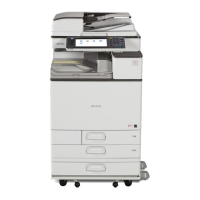
Ricoh MP 9003
228 pages
Print Icon
To Next Page IconTo Next Page
Loading...
For safe and correct use, be sure to read the Safety Information in
Read This FIrst before using the machine.
Information for This Machine
Troubleshooting
Adding Paper and Toner
Web Image Monitor
Document Server
Scan
Print
Fax
Copy
Getting Started
What You Can Do with This Machine
User Guide

Table of Contents

Questions and Answers

  • S
    Stephen BellSep 3, 2025
    Why cannot I print in duplex mode on my Ricoh All in One Printer?
    • B
      Bruce RodgersSep 3, 2025
      You cannot print in duplex mode because you have selected a paper tray that is not set for duplex printing. Change the setting for "Apply Duplex" in "Tray Paper Settings" to enable duplex printing for the paper tray of your Ricoh All in One Printer.
  • L
    Lauren MarshallSep 1, 2025
    Why are images printed on the reverse side of the paper by my Ricoh All in One Printer?
    • D
      Daniel WilsonSep 2, 2025
      This issue occurs because you may have loaded the paper incorrectly. To resolve this, load the paper correctly into your Ricoh All in One Printer.
  • R
    Robert WallaceAug 31, 2025
    Why is my Ricoh All in One Printer unable to connect to the network?
    • J
      Jessica DavisAug 31, 2025
      The machine might be unable to connect to the network due to a network error. Ensure that the Ricoh All in One Printer is correctly connected to the network and properly configured. If the issue persists, contact your network administrator for assistance. If the indicator lamp remains lit even after troubleshooting, contact your service representative.
  • D
    Daniel WarrenAug 29, 2025
    What to do if an error has occurred on Ricoh MP 9003 All in One Printer?
    • D
      Daniel BarronAug 29, 2025
      An error has occurred because a function which has the status "Error Occurred" in the [Check Status] screen is defective. Press [Check] in the function which the error has occurred. Then read the displayed message, and take the appropriate action. You can use other functions normally.
  • H
    Heather SmithAug 28, 2025
    Why does Ricoh MP 9003 have frequent misfeeds?
    • M
      Michael JonesAug 28, 2025
      Frequent misfeeds can occur if the staple cartridge is not set correctly. Set the staple cartridge properly in your Ricoh All in One Printer.
  • R
    Richard FryAug 27, 2025
    Why do misfeeds occur frequently with Ricoh All in One Printer?
    • A
      Anthony FritzAug 27, 2025
      Frequent misfeeds can occur if you are using curled paper, which can also cause soiled paper edges, or slipped positions while performing staple or stack printing. Try the following: * Take the stiffness out of the paper with your hands to straighten out the curl. * Load the paper upside down so that the curled edges face downward. * Lay cut paper on a flat surface to prevent paper from curling, and do not lean it against the wall.
  • B
    Blake HooverAug 25, 2025
    What to do if an error message is still displayed, even if the indicated cover is closed on Ricoh MP 9003?
    • J
      Jillian GonzalezAug 25, 2025
      The error message may be displayed because one or more of the covers that are not indicated are still open. Close all the covers of the Ricoh All in One Printer.
  • R
    ricardowardAug 23, 2025
    What to do if an error message is still displayed on Ricoh All in One Printer, even if misfed paper is removed?
    • P
      Patricia PruittAug 23, 2025
      The error message may persist because paper is still jammed in the tray. Remove the jammed paper by following the procedures displayed on the control panel of your Ricoh All in One Printer.

Summary

What You Can Do with This Machine

Preventing Information Leakage (Security Functions)

Protect documents from unauthorized access and control machine settings.

Preventing Unauthorized Copying

Embed patterns on printouts to prevent unauthorized duplication.

Getting Started

Guide to Names and Functions of Components

Identifies and explains the various parts of the machine.

Guide to the Names and Functions of the Machines Control Panel

Details the components and functions of the machine's control panel.

Copy

Basic Procedure

Step-by-step guide on how to make copies using the machine.

Duplex Copying

Copies two 1-sided pages or one 2-sided page onto a 2-sided page.

Storing Data in the Document Server

Saves documents on the machine's hard disk for later printing.

Fax

Basic Procedure for Transmissions (Memory Transmission)

Transmit documents using stored settings for fax, IP-Fax, etc.

Print

Scan

Document Server

Adding Paper and Toner

Adding Toner

Precautions and steps for adding toner to the machine.

Troubleshooting

When a Status Icon Is Displayed

Explains status icons indicating machine needs attention.

When You Have Problems Operating the Machine

Common operating issues and their solutions.

When Network Setting Problems Occur

Solutions for issues related to network connectivity and settings.

Messages Displayed When You Use the Printer Function

Error messages and solutions encountered during printing.

Ricoh MP 9003 Specifications

General IconGeneral
Print Resolution1200 x 1200 dpi
FunctionsPrint, Copy, Scan, Fax
Maximum Paper Size13" x 19.2"
Duplex PrintingYes
Automatic Document FeederYes
ADF Capacity220 sheets
Copy Resolution600 x 600 dpi
Print Speed90 ppm
ConnectivityUSB, Ethernet, Wi-Fi
Scan Resolution600 x 600 dpi
Fax Transmission Speed33.6 Kbps (optional)
Paper Capacity8, 300 sheets maximum

Related product manuals