EasyManua.ls Logo

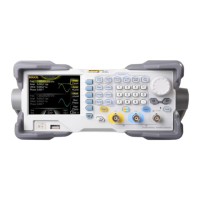
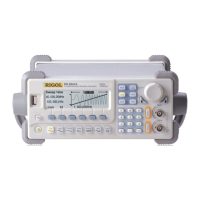
Rigol DG1022Z - User Manual

Rigol DG1022Z
180 pages
Print Icon
To Next Page IconTo Next Page
Loading...
RIGOL
Users Guide
DG1000Z Series Function/Arbitrary
Waveform Generator
Oct. 2016
RIGOL TECHNOLOGIES, INC.

Table of Contents

Other manuals for Rigol DG1022Z

Questions and Answers

  • S
    Scott ThomasAug 7, 2025
    What to do if my Rigol Inverter settings are correct but no waveform is generated?
    • K
      Kimberly PayneAug 7, 2025
      If your Rigol Inverter's settings are correct but no waveform is being generated, verify the following: * Ensure the BNC cable is securely connected to the appropriate channel output terminal ([CH1] or [CH2]). * Inspect the BNC cable for any internal damage. * Confirm the BNC cable is tightly connected to the test instrument. * Check if the backlight of Output1 or Output2 is illuminated; if not, press the corresponding key. After these checks, select “Last” in Utility ? System ? Power On and restart the instrument.
  • T
    Thomas YoungAug 11, 2025
    How to adjust screen brightness on Rigol Inverter?
    • J
      jackrobinsonAug 12, 2025
      If the screen of your Rigol Inverter is too dark, it might be due to low brightness and contrast settings. To adjust this, go to Utility ? System ? Display to access the display settings menu. From there, select Bright and contrast and use the numeric keyboard or direction keys and knob to increase the brightness and contrast to suitable levels.
  • B
    Brenda ColeAug 16, 2025
    Why my Rigol Inverter does not recognize USB storage device?
    • T
      Thomas PriceAug 16, 2025
      If your Rigol Inverter's USB storage device isn't being recognized, first check if the USB device works correctly with other instruments or a PC. Ensure the USB storage device is formatted as FAT32 and is a flash type, as the generator does not support hardware USB storage devices. If problems persist, restart the instrument and reinsert the USB storage device.
  • R
    Rachael EdwardsAug 21, 2025
    What to do if Rigol Inverter screen is dark after pressing the power key?
    • D
      Donna LambAug 21, 2025
      If the screen of your Rigol Inverter remains dark after pressing the power key, ensure the power is correctly connected and that the power key is fully pressed. After checking these, restart the instrument.
  • J
    Jeffery JacksonAug 27, 2025
    How to unlock Rigol Inverter?
    • K
      Kathleen ClarkAug 27, 2025
      If your Rigol Inverter is locked, it may be in remote mode, indicated by an icon in the status bar. To exit remote control mode and unlock the front panel, press Help. Alternatively, restarting the generator can also unlock it.
  • A
    Alex MerrittDec 1, 2025
    Why Rigol Inverter performance verification test is not passed?
    • I
      Isabel MillerDec 1, 2025
      If the performance verification test for your Rigol Inverter fails, check the following: * Ensure the generator is within its calibration period (1 year). * Confirm the generator has warmed up for at least 30 minutes before the test. * Verify the generator is operating under the specified temperature and not in a strong-magnetism environment. * Check for strong interference in the power supplies of the generator and test system. * Ensure the test device's performance meets requirements and is within its calibration period. * Confirm all connections are tight and cables are free from internal damage. * Verify operations conform to the performance verification manual's settings and processes. * Check for faults in error calculation and understand the definition of “typical v...

Summary

Safety Requirement

General Safety Summary and Precautions

Provides essential safety precautions for operating the instrument to prevent hazards.

Safety Notices and Symbols

Manual Safety Notices

Defines WARNING and CAUTION notices within the manual.

Product Safety Terms

Explains DANGER, WARNING, and CAUTION terms used on the product.

DG1000 Z Series Overview

Front Panel Overview

Front Panel Controls and Indicators

Details the function of each key, connector, and display element on the front panel.

Rear Panel Overview

Power On and Inspection

User Interface

To Output Basic Waveform

To Select Basic Waveform

To Set Frequency;Period

To Set Amplitude;High Level

To Set Offset;Low Level

To Set Pulse Width;Duty Cycle (Pulse)

To Set Leading;Trailing Edge Time (Pulse)

To Enable Output

To Output Arbitrary Waveform

Output Mode and Sample Rate

To Select Arbitrary Waveform

Built-In Waveform

To Edit Arbitrary Waveform

To Output Harmonic

Harmonic Output Configuration

Covers overview, fundamental parameters, order, type, amplitude, and phase settings.

Modulation

Modulation Types and Parameters

Details AM, FM, PM, ASK, FSK, PSK, PWM modulation and their settings.

Sweep

Sweep Function Setup

Covers enabling sweep, frequency settings, types, time, and trigger source.

Burst

Burst Function Setup

Covers enabling burst, types, period, polarity, delay, trigger, and idle level.

Counter

Counter Function and Setup

Enabling the counter and configuring measurement parameters.

Store and Recall

Storage System and File Management

Details storage system, file types, browser, and file operations.

Utility and System Settings

Channel Configuration and Parameters

Covers channel settings, sync, output, summing, coupling, track, copy.

Chapter 3 Remote Control

Remote Control via USB

Steps for connecting and installing drivers for USB remote control.

Remote Control via LAN

Instructions for connecting and configuring network parameters for LAN control.

Chapter 4 Troubleshooting

Common Troubleshooting Scenarios

Lists common issues like dark screen, generator lock, no waveform, USB errors.

Chapter 5 Specifications

Output and Modulation Specs

Details output characteristics and modulation types (AM, FM, PM, etc.).

Burst, Sweep, Counter Specs

Provides specifications for burst, sweep, and counter functions.

Rigol DG1022Z Specifications

General IconGeneral
ModelDG1022Z
TypeFunction/Arbitrary Waveform Generator
Output Channels2
Frequency Range1 μHz to 25 MHz
Sampling Rate200 MSa/s
Output Impedance50 Ω
Resolution14 bits
Power Supply100-240 VAC, 50/60 Hz
Waveform TypesSine, Square, Ramp, Pulse, Noise, Arbitrary
DisplayTFT LCD
ConnectivityUSB Device, USB Host, LAN

Related product manuals