EasyManua.ls Logo

Ringway RS400 - User Manual

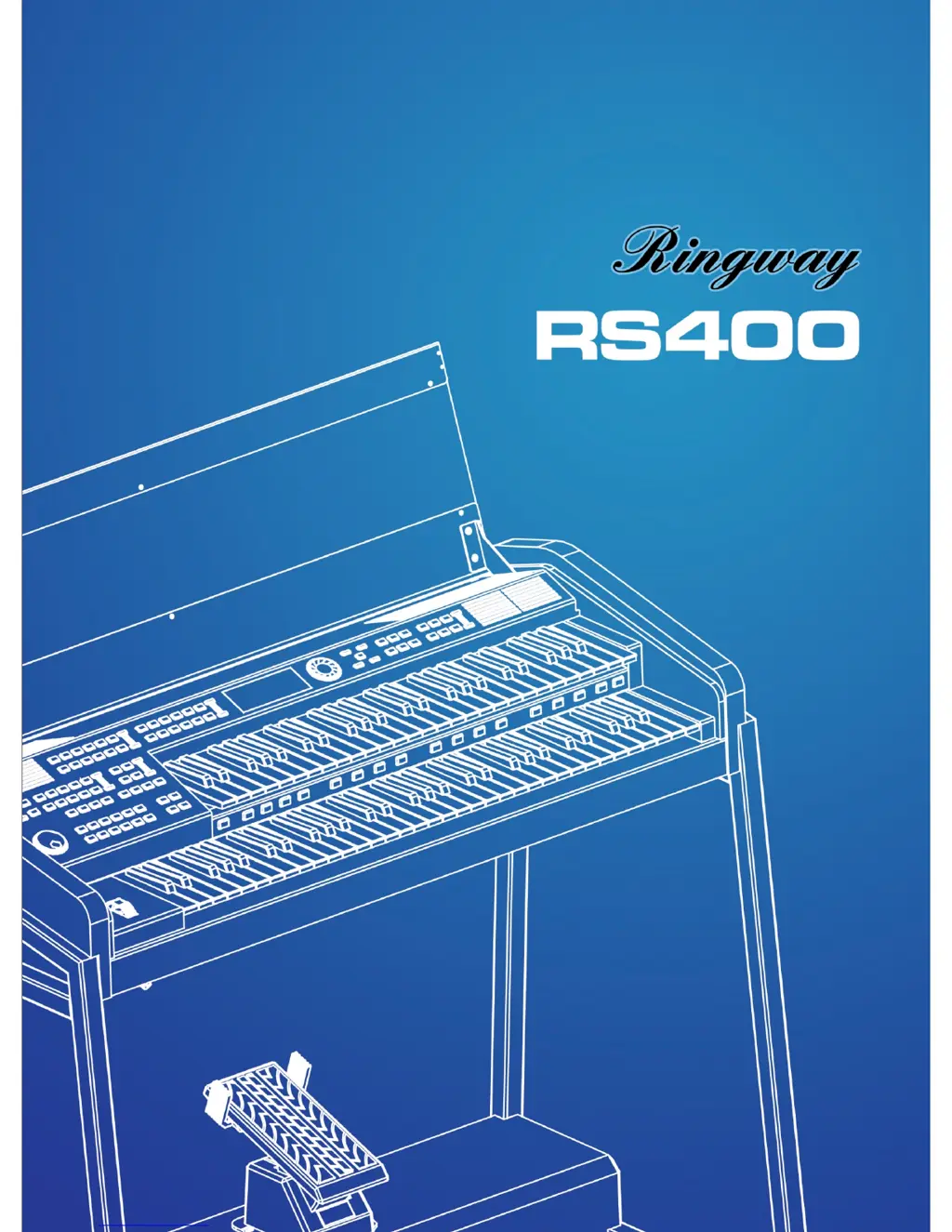
Ringway RS400
64 pages
Print Icon
To Next Page IconTo Next Page
Loading...

Table of Contents

Other manuals for Ringway RS400

Questions and Answers

  • R
    Raymond GonzalezSep 8, 2025
    How to troubleshoot no sound on Ringway RS400 after turning it on?
    • G
      Grant MorganSep 8, 2025
      If your Ringway Musical Instrument has no sound when powered on, verify these things: ensure the AC plug is properly connected, the Master Volume slider is turned up, no headphones are plugged in, cables are correctly connected, and the expression pedal is turned up.
  • A
    Alejandra RodriguezSep 7, 2025
    Why can't I see the file names on the USB disk of my Ringway RS400 Musical Instrument?
    • J
      Joseph KnightSep 7, 2025
      Your Ringway musical instrument only supports files in the root directory of the USB disk, and it may not work correctly if there are too many files in that directory.
  • J
    James AtkinsonAug 22, 2025
    How to troubleshoot no sound at power on for Ringway Musical Instrument?
    • R
      robinsongraceAug 22, 2025
      If you're not getting any sound from your Ringway musical instrument when you power it on, make sure the AC plug is securely connected. Check that the Master Volume slider is turned up and that headphones aren't plugged in. Also, verify that all cables are properly connected and the expression pedal is adjusted correctly.
  • E
    Emily WilsonSep 4, 2025
    Why do some notes seem cut out on my Ringway Musical Instrument?
    • L
      lconleySep 4, 2025
      If some notes seem to be cutting out on your Ringway musical instrument, remember that the maximum polyphony is 64. Effects like reverb and chorus use some of this polyphony, so avoid playing too many notes simultaneously.
  • J
    Jessica KrauseSep 3, 2025
    Why do I hear a sound when I release a key on my Ringway RS400 Musical Instrument?
    • J
      Jordan RussellSep 3, 2025
      If you hear a sound when you release a key on your Ringway musical instrument, the lead voice and pedal voice are working in mono mode. Turn the volume down for these voices if you are not using them.
  • C
    Cathy VincentSep 1, 2025
    What to do if the USB disk is not working on my Ringway Musical Instrument?
    • A
      Ashlee BrooksSep 2, 2025
      If your USB disk isn't working well or at all with your Ringway musical instrument, try formatting it on a computer or using a different USB disk.
  • J
    Joseph SmithAug 31, 2025
    Why is there no sound from keyboard percussion on my Ringway RS400?
    • D
      Dennis FloresAug 31, 2025
      If you're not hearing any sound from the keyboard percussion on your Ringway musical instrument, ensure that the keyboard percussion is turned on. Also, check that the rhythm volume (including percussion volume, rhythm part 1, and rhythm part 2 volumes) is turned up.
  • J
    Jeffrey BrownAug 30, 2025
    How to adjust key sensitivity on Ringway Musical Instrument?
    • D
      Dr. Lindsey BentonAug 30, 2025
      If the keys on your Ringway musical instrument don't feel sensitive enough, adjust the sensitivity using the Touch function.
  • D
    David ValdezAug 29, 2025
    What to do if there is no sound when playing rhythm on Ringway RS400?
    • E
      eric81Aug 29, 2025
      If you're not getting any sound when playing a rhythm on your Ringway musical instrument, ensure the rhythm volume is turned up. Also, verify that the local control is not set to OFF.
  • G
    garciajosephAug 27, 2025
    What causes noise when playing my Ringway Musical Instrument?
    • W
      wwashingtonAug 27, 2025
      If you hear noise when playing your Ringway musical instrument, check for nearby electronic devices like TVs, mobile phones, or radios that might be causing interference.

Summary

Precautionary Measures

Safety Precautions Overview

General safety guidelines and warnings for operating the instrument.

Important Safety Instructions

Detailed list of essential safety instructions to follow for safe usage.

Panel Controls

Control Panel Layout

Diagram and labels for all controls on the instrument's panel.

Main Controller Layout

Instrument Overview Diagram

Visual representation of the instrument's main components and layout.

LCD Display Information

Display Elements and Symbols

Explanation of the LCD screen's display elements and status indicators.

Connectors and Ports

Power, Audio, and MIDI Ports

Guide to connecting power, headphones, audio outputs/inputs, and MIDI.

Basic Operation Guide

Power, Volume, Expression Pedal, and Demo

Instructions for powering, adjusting volume, using the expression pedal, and playing the demo.

Factory Reset Procedure

Steps to restore the instrument's settings to their default factory configuration.

Voice Selection

Upper Keyboard and Lead Voices

How to select and adjust voices for the upper keyboard and lead sections.

Lower and Pedalboard Voices

Guide to selecting and adjusting voices for the lower and pedalboard sections.

Voice Parameter Control

Volume, Pan, and Tune

Adjusting voice parameters like volume, panning, and tuning.

Transpose, Octave, and Attack

Modifying transpose, octave, and attack time for selected voices.

Decay, Release, and Vibrato Rate

Adjusting decay, release, and vibrato rate parameters for voice characteristics.

Vibrato Depth, Delay, and Resonance

Fine-tuning vibrato depth, delay, and resonance for voice expression.

Cutoff Frequency Adjustment

Setting the cutoff frequency for filter effects on voice waveforms.

Effect Settings

Reverb Configuration

Configuring reverb type, low pass filter, and master reverb level.

Reverb Time and Send Levels

Adjusting reverb time, delay feedback, and send levels for voice and rhythm.

Chorus Type and Parameters

Selecting chorus type and setting chorus preLPF, master level, and delay.

Chorus Rate, Depth, and Send Levels

Configuring chorus rate, depth, and send levels for voice and rhythm.

Chorus Rhythm Send Level

Setting the chorus send level for rhythm parts.

Automatic Accompaniment

Rhythm Selection and Playback Control

Selecting rhythms, adjusting volume, and using Start/Synchro Start modes.

Accompaniment Control Features

Using intro/end, fill-ins, and adjusting accompaniment and chord volumes.

Accompaniment Volume Settings

Adjusting volume levels for percussion, bass, and harmony parts.

Accompaniment Modes (Fingered, Custom, Memory)

Exploring different bass accompaniment modes like Fingered, Custom, and Memory.

Tempo and Rhythm Sequence

Tempo Adjustment and Scaling

Adjusting the tempo and scaling USB MIDI tempo for performances.

Rhythm Sequence Management

Creating and managing rhythm sequences, inserting/deleting numbers.

Percussion Voice and Shift

Selecting percussion voices and adjusting percussion shift on the keyboard.

Function Settings

Mode Selection (Normal, Mixer, Reg Shift)

Choosing operating modes: Normal, Mixer for volume, and Registration Shift.

Volume Adjustment in Mixer Mode

Adjusting individual voice and rhythm part volumes within the Mixer mode.

Transpose Functions

Master and USB Transpose

Transposing performance and USB MIDI file pitches.

Other Function Settings

Pitch Bend Settings (F.Pitch)

Configuring pitch bend sensitivity and switch status for various voices.

Foot Switch and Lock Functions

Assigning functions to the foot switch and locking various instrument settings.

MIDI Output Channel Configuration

Setting MIDI out channels for individual instrument parts.

Voice Split and MIDI Settings

Lead and Pedal Voice Split Modes

Configuring split modes for lead and pedal voices on the keyboard.

Rhythm and USB MIDI Control

Enabling or disabling MIDI output for rhythm and USB MIDI playback.

Local Setting and Touch Sensitivity

Local Control and Touch Sensitivity

Managing local control and adjusting keyboard touch sensitivity.

Registration Memory Management

Storing and Selecting Registrations

Saving and recalling instrument settings and performance configurations.

Saving Registration Data to USB

Procedure for backing up registration settings to a USB disk.

Registration Shift Control

Controlling Registration Order

Using the foot switch to navigate through registration presets.

Top, Stop, and Registration Management

Managing registration order with Top/Stop functions and MIDI SysEx commands.

Recorder Functions

Recording and Reworking MIDI Files

Instructions for recording performances and editing recorded MIDI files.

Channel Configuration for Recording;Playback

Configuring channels for recording and playback of MIDI files.

MIDI File Playback Settings

Adjusting playback settings like beat type and repeat mode for MIDI files.

USB Control

Managing USB Files (Select, Delete, Play)

Operations for selecting, deleting, and playing MIDI and registration files from USB.

USB Volume and Instrument Update

Adjusting USB playback volume and performing instrument firmware updates.

Foot Switch Operation

Left and Right Foot Switch Functions

Details on the functionality of the left and right foot switches on the expression pedal.

Appendix

Chord List and Examples

A comprehensive list of supported chords with their notations.

Voice Lists

Upper, Lower, Lead, and Pedal Voices

Categorized lists of available instrument voices for different sections.

Style List

Categorized Accompaniment Styles

A list of available accompaniment styles categorized by genre.

MIDI Implementation Chart

MIDI Protocol Details

Technical chart detailing MIDI messages transmitted and recognized by the instrument.

Specifications

Instrument Technical Specifications

Overview of the instrument's technical features, dimensions, and capabilities.

Troubleshooting Guide

Common Problems and Solutions

A guide to diagnosing and resolving common operational issues with the instrument.

Ringway RS400 Specifications

General IconGeneral
BrandRingway
ModelRS400
CategoryMusical Instrument
LanguageEnglish

Related product manuals