Installation and Programming Manual 3-49
CODE MAINTENANCE: SUB-INSTALLER
Quick Key Item Default Explanation
4 5 SUB-INSTALLER 0299 the Sub-Installer Code allows for limited access
within the Installer Programming mode
an individual given the Sub-Installer code can be
thought of as an assistant to the “lead” Installer–but
being restricted to changing only selected
programming parameters
it’s the job of the individual with the Installer Code to
determine the Sub-Installer’s restrictions; doing so
will be discussed in the section below
first, it’s wise to change the factory default of “0299”
to a designation unique to the panel and/or to those
who may serve as “sub-installers” in your alarm
company; to do so:
1. use the keypad’s (0-9) keys and, if necessary, the
UP- and DOWN-arrow keys, to overwrite the default
code; press [ENTER]
2. when done, press the [.] key to return to the previous
level
Setting the Sub-Installer’s Programming Restrictions
1. if necessary, exit the Installer Programming mode; to
do so, press the [.] key until the display no longer
changes; then press [0]
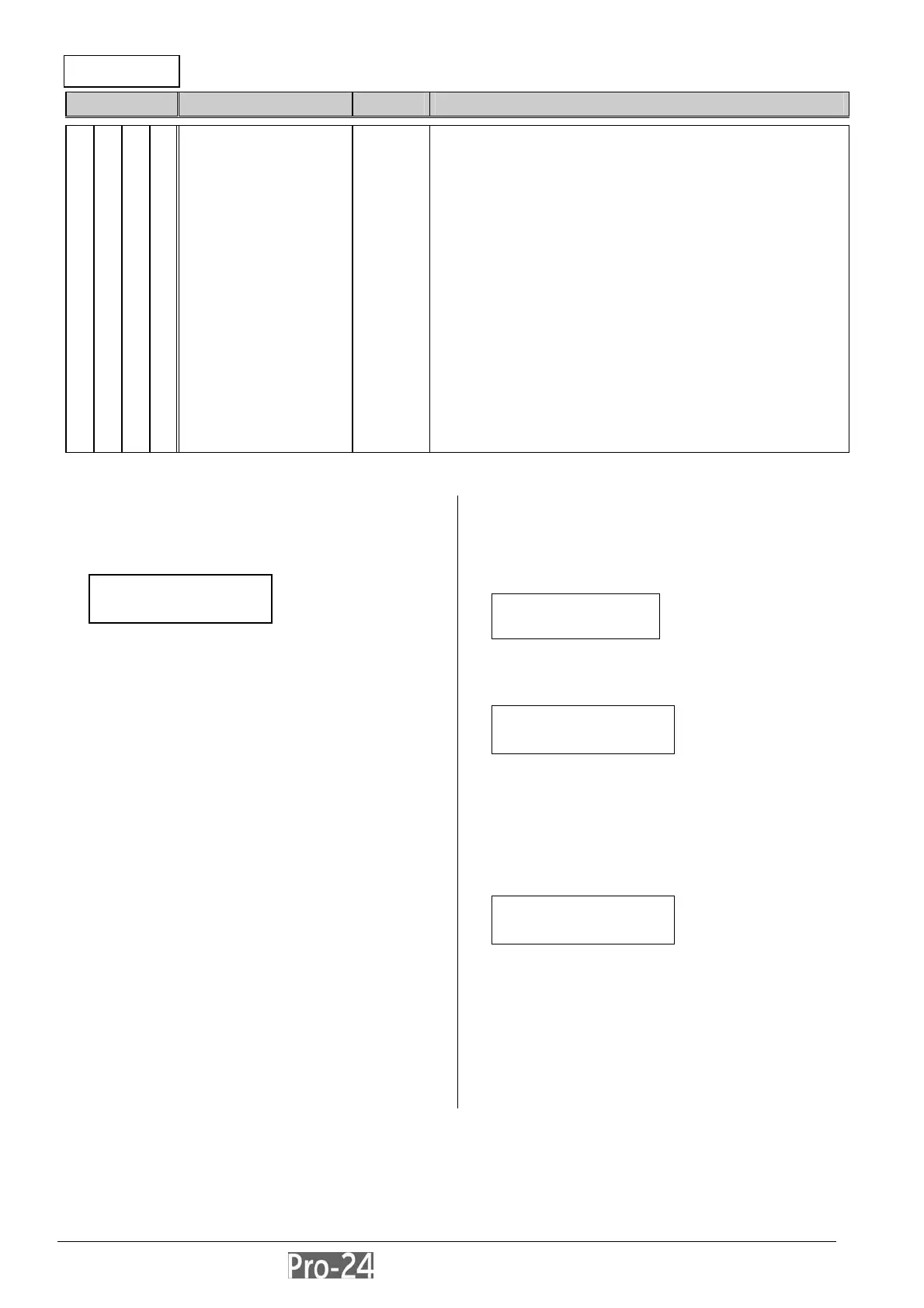
2. at this display,
determine whether you need to save any
programmed data, use the [STAY] key to toggle
between “Y” and “N”; press [ENTER]
3. from the “normal” (user’s) display, enter the
“CUSTOMIZE” mode by pressing [.], [7], [3]
4. enter the Installer Code (NOT the Sub-Installer
Code) and press [ENTER]
5. refer to the Installer Programming Map on
page 3-12; select (with either the UP- or DOWN-
arrow
keys or “Quick Keys”) one of the seven main
programming classifications listed in the “HOME”
column–within which you want to restrict a
Sub-Installer’s access
6. using pages 3-12 and 3-13 as an aid, use the arrow
keys, “Quick Keys” and the [ENTER] key to navigate
through and select the sub-category beneath the
chosen programming classification until you reach a
level for which you desire to set Sub-Installer
restrictions
7. press the [STAY] key and observe the lower left of
the display; if the number listed changes to an “X”,
that sub-category will NOT be available to a
Sub-Installer; to reverse the process, press [STAY]
again; if, at any time, pressing [STAY] produces
three short “beeps”, you are at too
“high” a level to perform Sub-Installer restrictions;
press [ENTER] to seek a “lower”
sub-category.
8. when done, press the [.] key, as required, to exit
the “Customize” mode; at the display:
press the [STAY] key to change the “N” to a “Y”
and press [ENTER]
9. at the display:
press [ENTER] to save your changes; at this
point, a Sub-Installer’s access to the “X-ed”
categories will not be permitted
10. press the [.] key twice to return to the normal
(user’s) display
11. to use a Sub-Installer Code, from the “normal”
(user’s) display, press [.], [7], [2];. at this display:
enter the Sub-Installer’s access code, and press
[ENTER]
12. Installer Programming will be available to the
Sub-Installer, but on a restricted basis,
conforming to the choices made in step 7
INSTALLER PROG:
4)CODE MAINT.
↓
DO YOU WANT TO
SAVE THE DATA? Y
DO YOU WANT
TO EXIT?
SUB-INST. CODE:
DO YOU WANT
TO SAVE MENU? Y



 To Next Page