17 18
(36)
(37)
(38)
(39)
(40)
(41)
Functional operation of file manager
Function of file management is to organize, distribute and recycle the space of the file storage, and is
the function to store and protect the files. File management contains hard disk, SD card and USB, which
can convert storage with each other according to the needs of users.
Enter / Exit
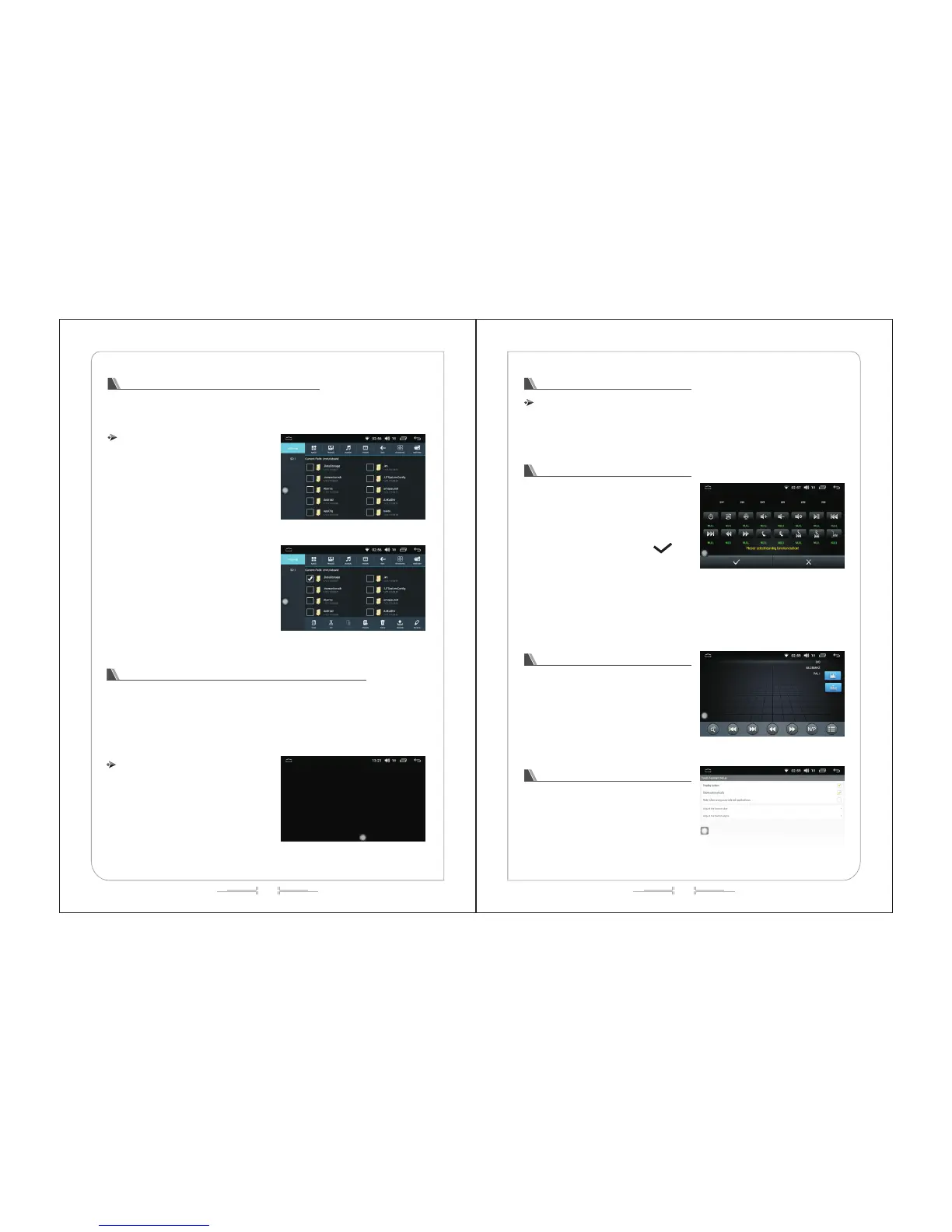
In the main menu interface, click the "File
Manager" icon to enter the file management path
selection interface, the user according to demand,
select the appropriate path for file management (Fig. -
35):
After selecting the file, click the button below to
copy, cut and delete the selected files (as shown in
figure -37).
Functional operation of event data recording
This function requires a link to the driving record device.
Driving records provide users with self-test function, recording and storage functions of vehicle travel
time, speeds and mileage, recording function, record and analysis function of accident suspect, display
and print function, records for speeding and vehicle information, storage of video images (select cameras,
SD card) and other functions.
Enter / Exit
In the menu, click the “automobile data recorder "
icon to enter the automobile data recorder interface
(see figure -38) :
Efficacy settings
Enter / Exit
Click on the "efficacy settings" icon in the menu interface to enter the application management
interface, and the detailed operation method refer to the operation of the sound setting on page 8.
Steering wheel control settings.
In the menu interface, click the "steering wheel
control" icon to enter the steering wheel control
interface (as shown in figure -39) :
Click on any icon on the interface, and click on
"start" icon, then press on the function button relating
to the steering wheel. This time, it will display the
parameter on the interface. Press on the “ ” icon
to finish the settings. Once finished, the prompts
showing finishing will appear on the interface.
Television
In the menu interface, click "TV" icon to enter the
TV operation interface (see figure -40):
Screen assistant
In the menu interface, click "screen assistant"
icon to enter the TV operation interface (see figure -
41):



 To Next Page