9
10
(20)
(21)
Mirror Link
Choose one device suit for you.
(22)
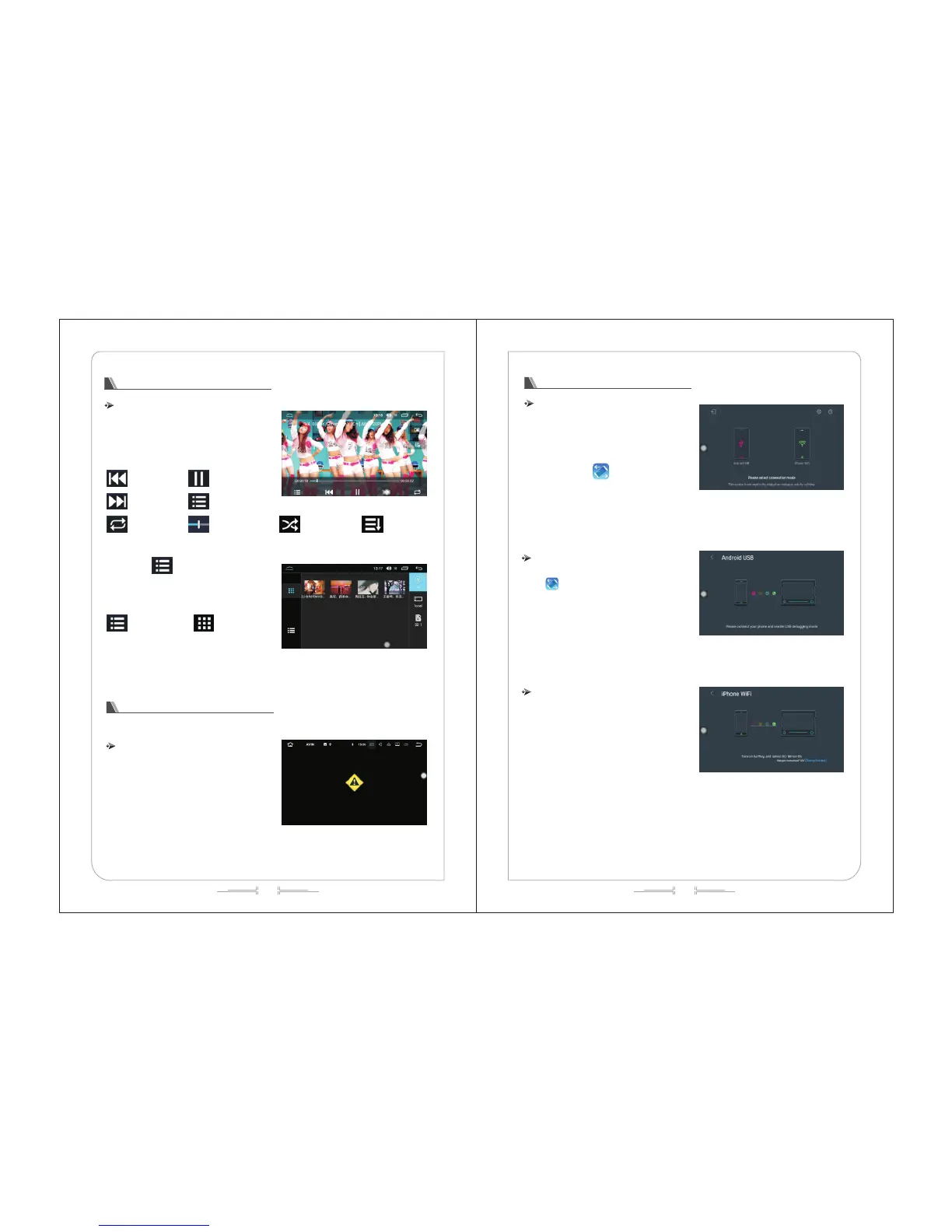
Video player function
Enter / Exit
1)Connect the device that contains the video files
to the host; click the "video" icon on the main menu
interface to enter the video player interface, as shown
in (Fig. -20):
Prev
Next
Repeat
Pause/Play
Video list
Fast-forward /
fast-backward
Shuffle Play Order play
2) Click " " to enter the video list interface.
(as shown in figure 21)
List mode Thumbnail mode
AUX1
This function is valid when an external audio and video signal is connected.
Enter / Exit
In the main menu interface, click the "AUX1" icon
to enter the AUX1 interface, as shown in (Fig. -22):
Mirror Link
Directly connect to the USB through the mobile
phone charging line, (keep the screen in the bright
state). Choose the USB debugging option in the
settings of the mobile phone (settings->{}developer
options->USB debugging).
Click on the " " icon to enter into the
interface of the connection type, then choose one type
you need (as shown in the following)
Android USB connection
Android device connection need the installation of
the " " APP. After successfully linked, you can
synchronously operate the mobile phone and the car
machine.
The interface of connecting)
Iphone WIFI connection
The mobile phone should connect the same WIFI
hotspot with the car machine; and turn on the Airplay
mirror image on your IPHONE at the same time.
After linked, the image can show on your car
machine.
Connecting



 To Next Page