13
14
(26)
(27)
(28)
(29)
(30)
(31)
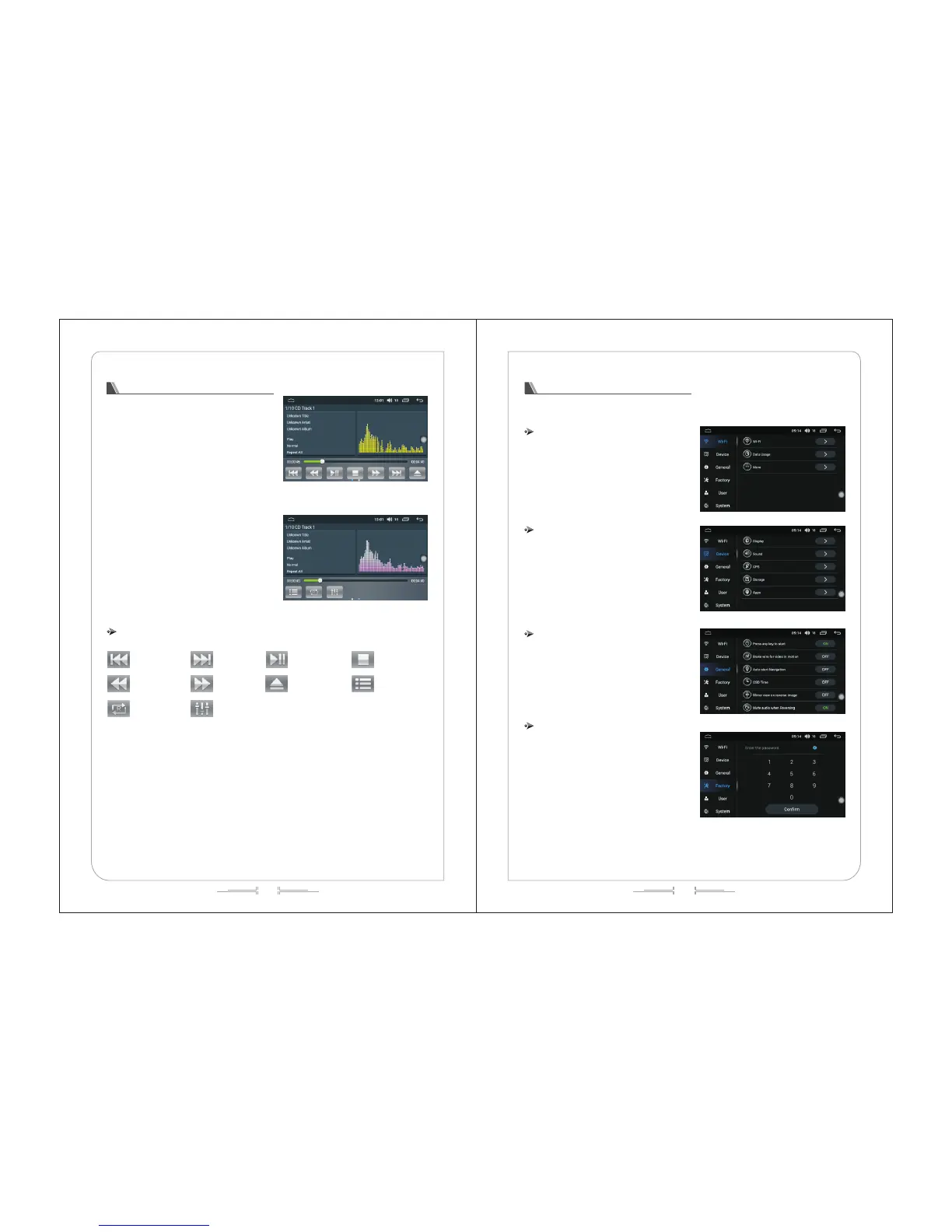
CD disc playback
1) When there are CD discs in the host, click the
"DVD "icon to enter the player interface (see figure
26):
2) Slide to the left in the function bar area at the
bottom of the screen to display other function keys
(see figure 27).
CD interface function definition
Prev
Fast backward
Circulation mode
Next
Fast forward
ListExit disc
Play/pause
Stop
Sound setting
Settings
Click to set the icon, enter the setting operation interface to set the wireless settings, device settings,
general settings, factory settings, and personal settings; the system sets the input operation.
Wireless settings
Click the wireless settings to enter the operation
interface (see figure - 28). Users can operate on
WLAN, flow usage and hot spots.
Device settings
In the device directory, it can operate on display,
sound, GPS, storage, application, etc. (as shown in
figure -29)
General settings
In the general settings, you can turn on any key,
set the brake, automatically enter the navigation,
image time superposition, reverse mirror, and reverse
with silent operation. (as shown in figure 30)
Factory settings
This setting requires a password.
Enter a password (as shown in figure -31) to
operate the dormancy setting, front view switch, radar
switch, reversing track switch, reversing track switch,
USB abnormal detection switch, external 4G switch,
antenna normally open, MCU panel button, unknown
source, car door lock interference, display application
to read and write FLASH, automatic start-stop, air
conditioner switch, door switch, DVD upgrade, DVR
type, system special information, car logo, the volume
balance settings, model selection, TV type, video output settings, one-click installation settings, CAN
upgrade box, display correction, MCU upgrade, study touch screen, backlight adjustment, the main screen
application choice, bluetooth MIC sensitivity, etc.



 To Next Page